
As your business grows, you may need to grant access to developers, billing administrators, or project managers. To keep your account completely secure, HostWP.io allows you to invite team members as separate users with their own unique login credentials and tailored permissions.
How to Invite a New Team Member
You can easily manage user permissions directly from your billing portal account profile.
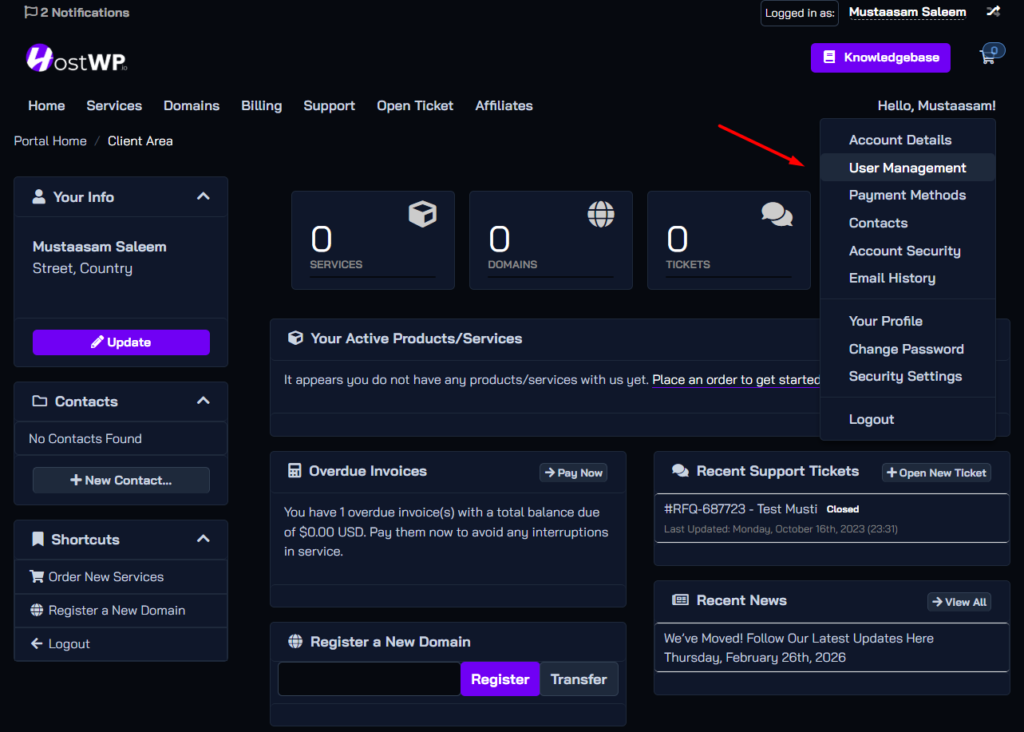
Step 1: Navigate to User Management
- Log in to the HostWP platform.
- Click on your account name/profile icon in the top right corner.
- Select User Management from the dropdown menu.
Step 2: Send an Invitation
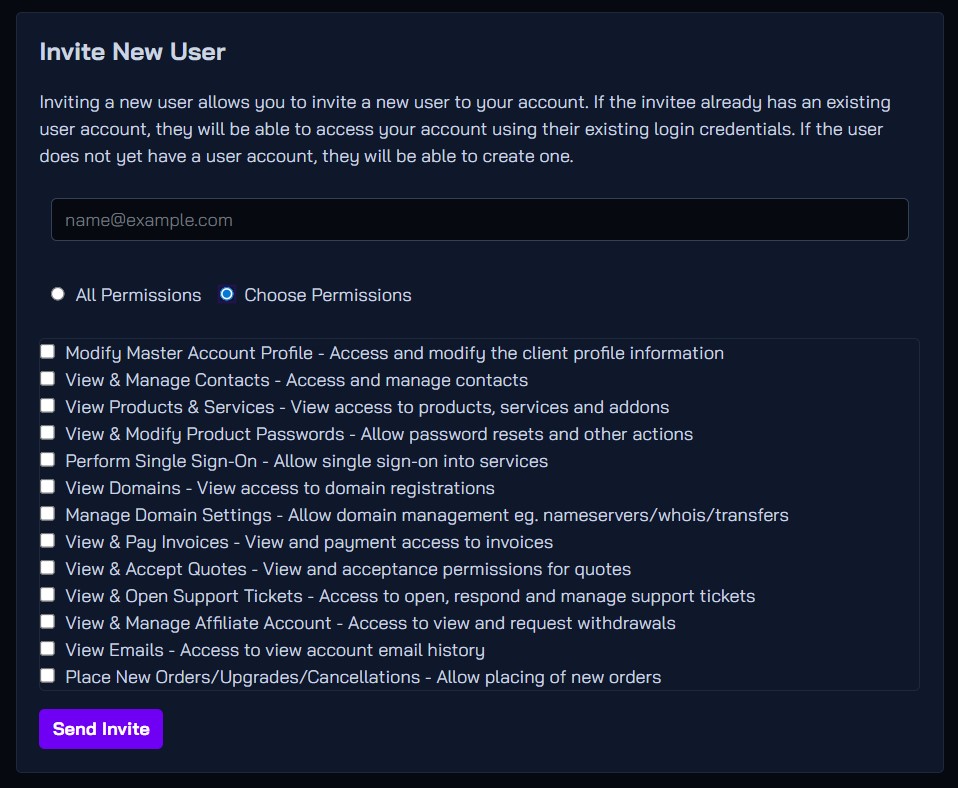
- Scroll down to the Invite New User section.
- Enter your team member’s email address.
- Choose their access level:
- All Permissions (Full Access): Grants complete administrative control over billing, server actions, and support tickets.
- Choose Permissions (Restricted Access): Allows you to hand-pick exactly what they can see (e.g., only billing, or only technical support tickets).
- Click Send Invite.
⏱️ What Happens Next? Your team member will receive an email invitation with a secure activation link valid for 7 days. They will be prompted to accept the invite. Until they do, their status will show as Pending in your dashboard.
New vs. Existing Users
The experience depends entirely on whether your invited team member already uses HostWP.io:
- If they are completely NEW to HostWP: Clicking the invitation link will prompt them to create a brand-new user profile and password.
- If they ALREADY have a HostWP account: They do not need to create a new profile. When they click the link, they can simply log in with their existing credentials to accept the invite. Their single login email will now securely link both their account and yours.
How “Switch Account” Works (Multi-Account Management)
Once a team member or developer has access to more than one HostWP.io account, managing them is quick and doesn’t require logging out.
1. Logging In
When they log in to the HostWP platform with their email, the system will display a “Choose Account” page. They can click your company/account name to immediately manage your infrastructure.
2. Switching Between Accounts Instantly
If they are already working inside the portal and need to swap back to their own layout or a different client:
- Look at the top-right header navigation and click the “Switch Account” icon.
- A list of all accounts they have been granted permissions to manage will be displayed. Selecting one instantly switches the context, changing the billing records and support tickets displayed.
Managing Permissions (What Access Should You Give?)
To protect your server infrastructure, it is best practice to apply the Principle of Least Privilege—give team members only the access they strictly need to do their jobs.
Here is a breakdown of the specific permission settings available:
- Modify Master Account Profile: Allows the user to modify primary account details. (Keep this restricted to owners).
- View & Modify Product Passwords / View Products & Services: Essential for Developers. This allows them to see active hosting plans, view server details, and access management features.
- View & Pay Invoices: Perfect for your Accounting Team. They can handle payments, view statements, and manage subscription settings without needing to see technical server details.
- View & Open Support Tickets: Ideal for Project Managers or external developers who need to correspond directly with HostWP support engineers to troubleshoot issues.
- View Domains: Grants access to look over registered domain names and their basic details.
How to Modify or Revoke Access
If a developer finishes a project or a team member leaves your company, you can immediately remove their access with one click.
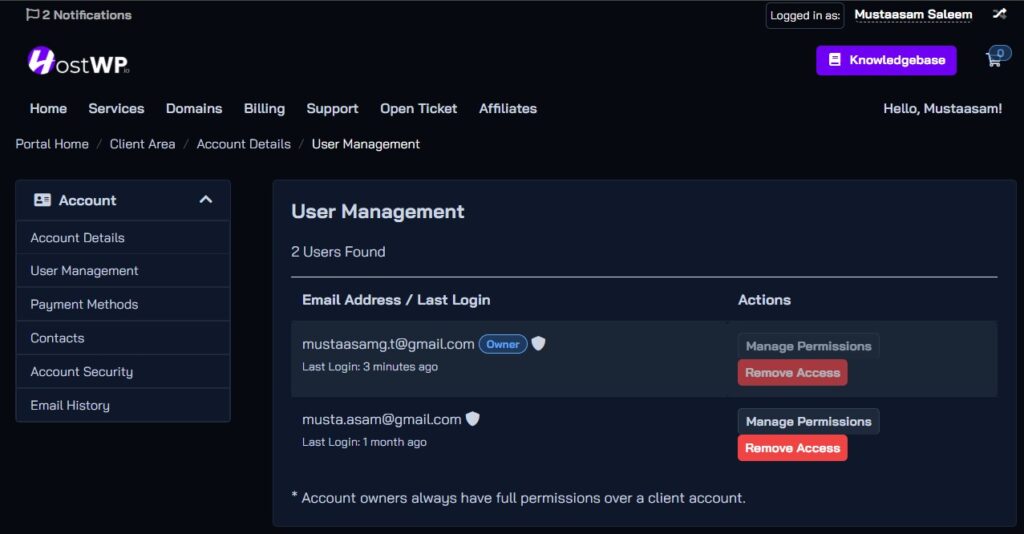
- Go back to the User Management page.
- Locate the user under the Active Users list.
- Click Manage next to their name.
- From here, you can check/uncheck permission boxes to modify their access, or click Remove User to instantly revoke all access to your HostWP infrastructure.
Frequently Asked Questions
Does adding a team member cost extra?
No. You can add team members, developers, and financial managers to your HostWP account at no extra cost.
Can a team member access my cPanel?
Yes. If you grant them Product Details permissions, they can log in to your HostWP platform and use the single-sign-on shortcuts to securely jump directly into cPanel or the WordPress Manager without ever needing to know the master cPanel password.