
At HostWP.io, our servers run LiteSpeed Enterprise — which means your WordPress site is ready to take full advantage of QUIC.cloud CDN out of the box, with no extra server configuration needed.
QUIC.cloud’s Standard plan gives you access to 83+ global CDN locations, HTTP/3 support, and built-in DNS management, all at no additional cost.
Why does the CDN require DNS changes?
QUIC.cloud CDN works by routing your website traffic through its global network of servers, so it can cache, optimize, and deliver your content faster to visitors worldwide. To do this, your domain needs to point to QUIC.cloud’s network rather than directly to your hosting server.
CDNs do this via a DNS record called a CNAME — essentially an alias that says “send traffic for this domain to QUIC.cloud first.” However, the DNS standard does not allow a CNAME record at a root domain (like yourdomain.com) — only at subdomains like www.yourdomain.com.
Some DNS providers, such as Cloudflare, work around this with a feature called CNAME flattening or ALIAS records, but most standard DNS providers (including many registrars and hosting control panels) do not support it.
For this reason, the simplest and most compatible solution is to use QUIC.cloud’s own DNS service. Your domain registration stays where it is, but QUIC.cloud handles DNS — giving it the ability to route your root domain through the CDN correctly, while keeping all your other records (email, subdomains, etc.) working as normal.
Which DNS Method Should I Use?
Before starting, you need to decide how to connect your domain to QUIC.cloud. There are two methods:
| Method | Works with root domain (yourdomain.com)? | Keep your current DNS provider? |
|---|---|---|
| QUIC.cloud DNS | ✅ Yes | ❌ No (QUIC.cloud manages DNS) |
| CNAME | Only if your DNS provider supports CNAME flattening / ALIAS / ANAME records | ✅ Yes |
Not sure which to use? Here’s the simple rule:
- If you want the easiest setup, or your DNS provider doesn’t support CNAME flattening — use QUIC.cloud DNS.
- If you want to keep your current DNS provider and it supports CNAME flattening / ALIAS / ANAME records (e.g. Cloudflare, Route 53, DNSimple) — use the CNAME method.
Not sure if your DNS provider supports CNAME flattening? Log in to your DNS panel and look for a record type called “ALIAS”, “ANAME”, “Apex Alias”, or “CNAME flattening.” If you don’t see any of those options, assume it’s not supported and use QUIC.cloud DNS instead.
Method A: QUIC.cloud DNS (Recommended)
To integrate QUIC.cloud CDN with your WordPress website, follow these simple steps:
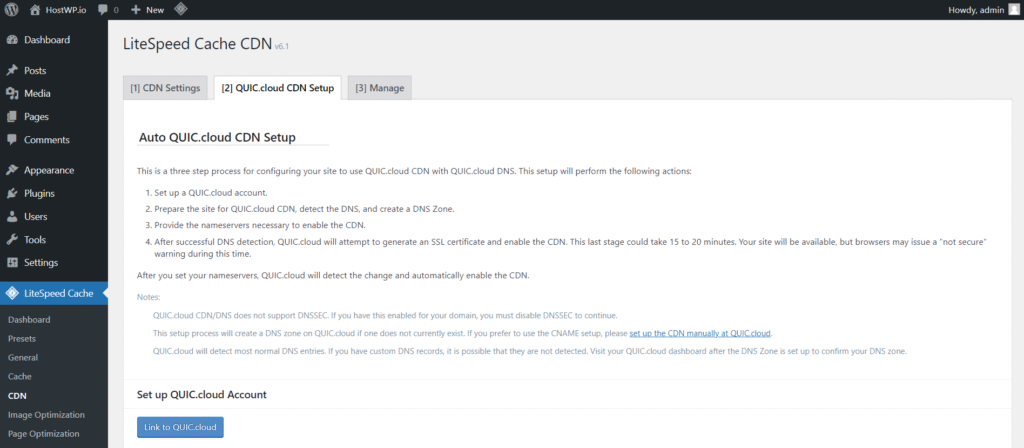
Step # 1: Connect WordPress to QUIC.cloud
Log in to your WordPress admin dashboard and navigate to LiteSpeed Cache -> CDN -> QUIC.cloud CDN Setup.
Step # 2: Enable the CDN
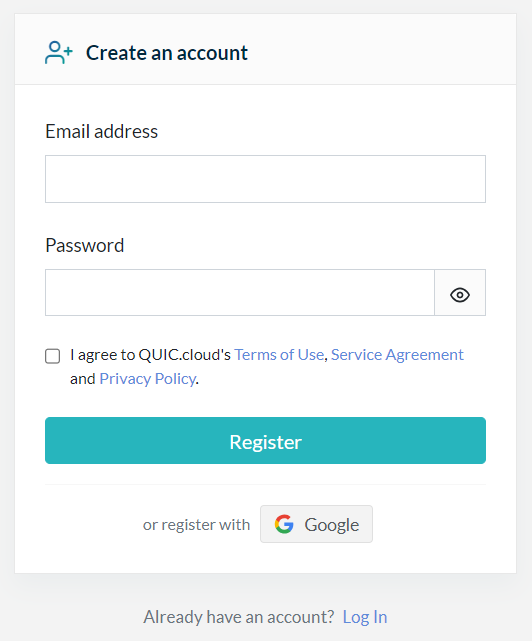
Click the “Link to QUIC.cloud” button, which will redirect you to QUIC.cloud registration page. Create a new account by providing your email address and password, or opt for quick registration via Google. Alternatively, log in if you already have an existing account.
Step # 3: Review Your Imported DNS Records
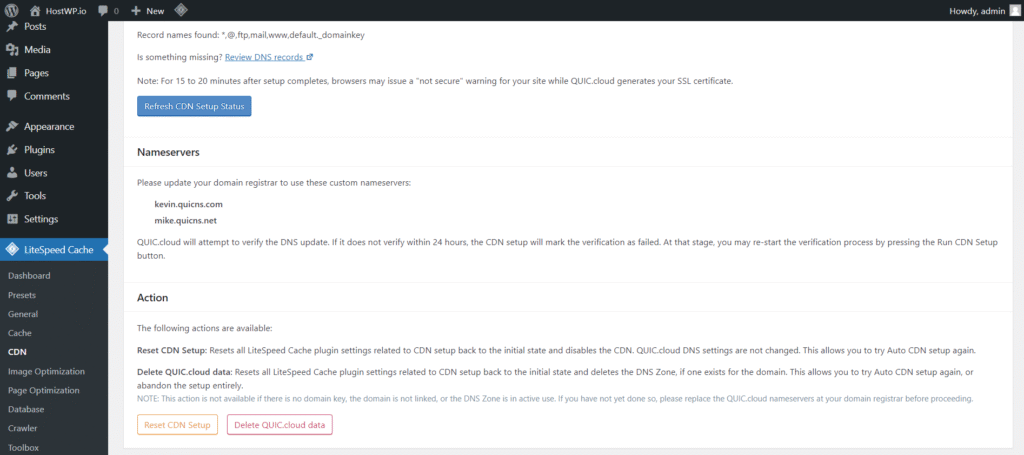
Upon linking your site to QUIC.cloud, your existing DNS records will be fetched, and two Nameservers will be provided for configuration.
Updating Nameservers and Completing Setup
Login to your domain registrar’s portal where you purchased your domain. Replace the existing nameservers with the above-provided ones.
Once updated, QUIC.cloud will optimize content delivery to your visitors from its global 83+ CDN nodes.
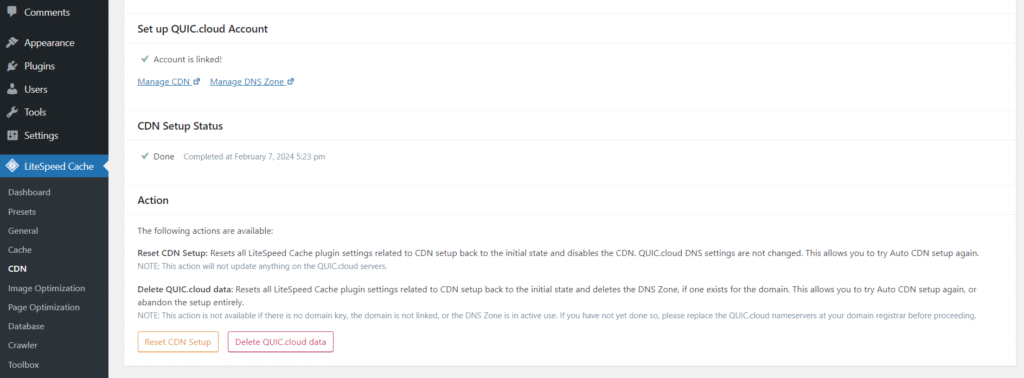
After DNS propagation (typically a few minutes), refresh the CDN setup page to verify successful integration.
Method B: CNAME (Keep Your Current DNS Provider)
Use this only if your DNS provider supports CNAME flattening, ALIAS, or ANAME records at the root domain.
Steps 1 and 2 (connecting WordPress to QUIC.cloud and enabling the CDN) are identical to Method A. When prompted to choose a DNS method, select “I want to use CNAME” instead.
Then, in your DNS provider:
- Locate the CNAME value assigned to you by QUIC.cloud in your dashboard — it will look like
c12345.tier1.quicns.com. - In your DNS provider, find the record for your root domain (usually listed as
@). - Create or edit an ALIAS / ANAME / flattened CNAME record at the root (
@) and set its value to the QUIC.cloud CNAME address. - If your site also uses
www, add a standard CNAME record forwwwpointing to the same QUIC.cloud address. - Save your changes and wait for DNS propagation (a few hours, up to 24–48 hours).
Note: With the CNAME method, all DNS management stays with your current provider. The QUIC.cloud DNS Zones section does not apply to you.
Configuring CDN Settings
Ensure QUIC.cloud CDN is enabled by navigating to the “CDN Settings” tab in LiteSpeed Cache and hitting the “Save Changes” button again.

Verification and Additional Setup
To confirm successful CDN integration, visit the “LSCache Check tool” provided by QUIC.cloud.
Enter your URL and verify the presence of the “x-qc-pop” header in the response headers.
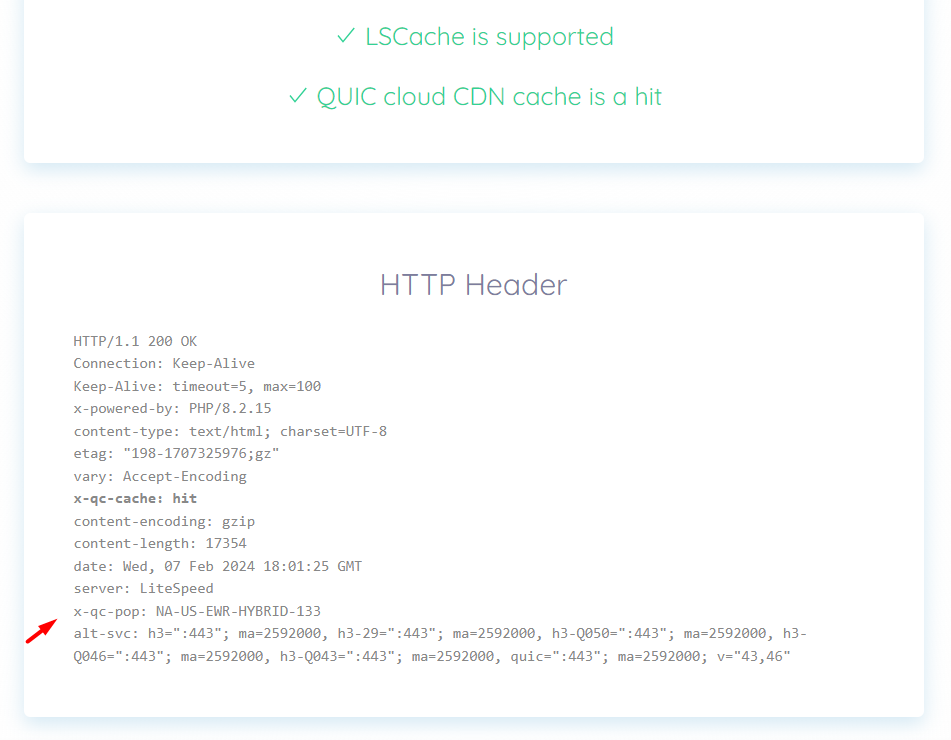
Congratulations! Your site is now utilizing QUIC.cloud CDN, delivering optimized performance to your global visitors.
QUIC.cloud IPs Already Whitelisted
No action is required from your end. We’ve already whitelisted QUIC.cloud IPs on our servers, eliminating the need for manual intervention on your end.
DNS Management and Advanced Features
With CDN and DNS management centralized on https://my.quic.cloud/, you can easily configure firewall settings, caching rules, and more from your QUIC.cloud account.
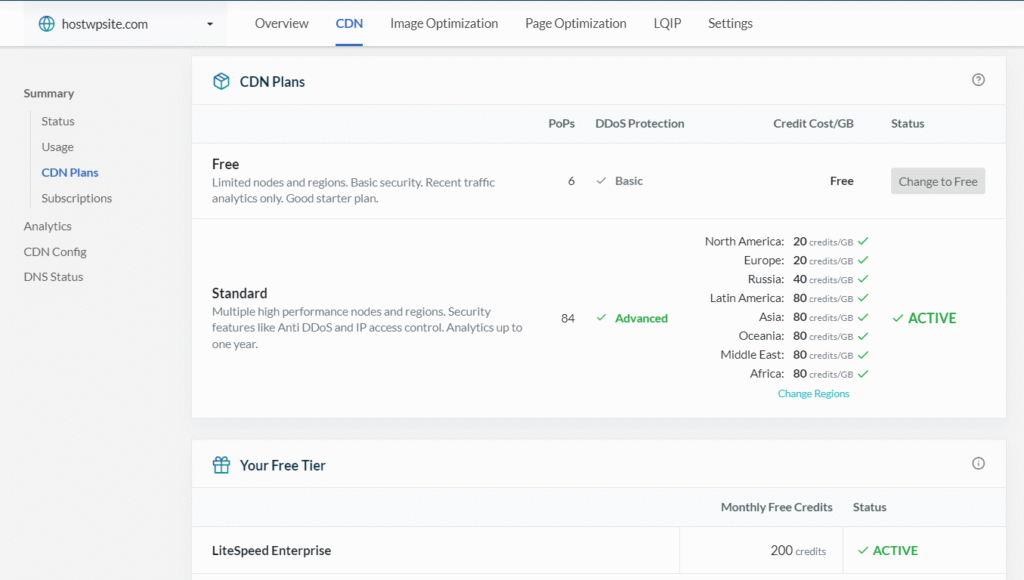
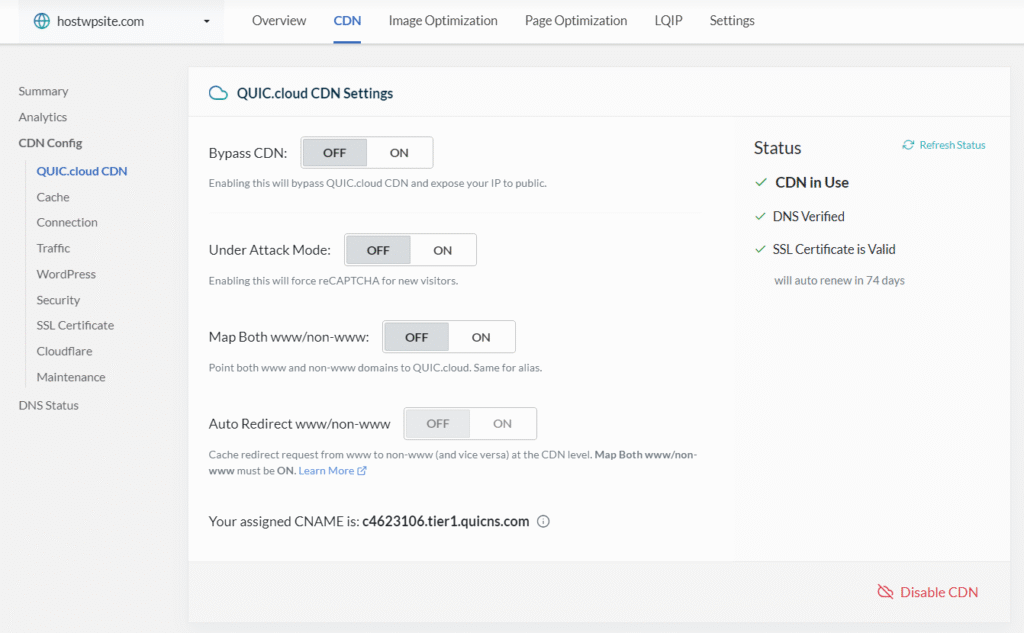
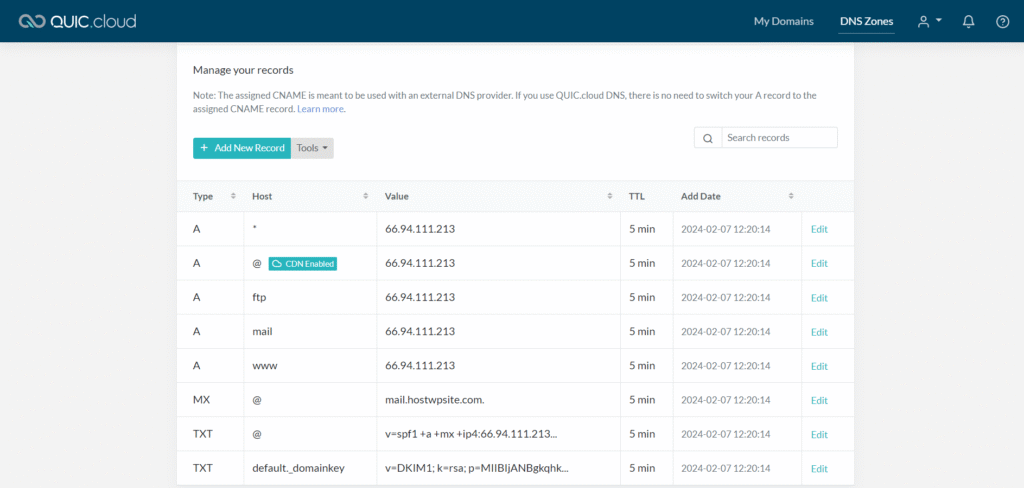
Furthermore, DNS record management, including TXT, MX, CNAME, etc., has been migrated from cPanel’s “Zone Editor” to your QUIC.cloud account, providing a unified platform for comprehensive website optimization, security, and DNS management.
Enjoy the benefits of enhanced speed, security, and scalability with LiteSpeed Enterprise and QUIC.cloud CDN—exclusively available at HostWP.io.
Can I switch back to my old DNS provider? Yes. You are not locked in. If you ever stop using QUIC.cloud CDN or want to move DNS back, simply update your nameservers at your registrar to point back to your previous DNS provider.
If you have questions, please contact our support team via Live Chat or open a support ticket.
~ Thank you for choosing HostWP.io