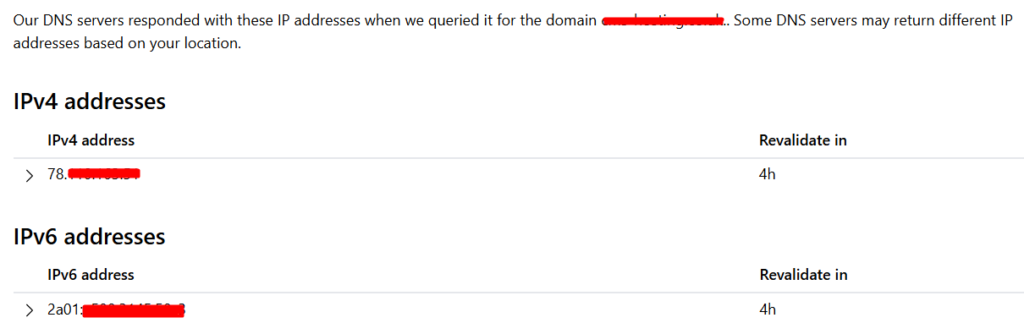
At HostWP, all our Dedicated Managed WordPress Hosting plans include IPv6 support at no extra cost.
If you want to enable IPv6 for your server, simply open a support ticket, and our technical team will provision your dedicated IPv6 block for you.
True Dual-Stack: IPv6 and IPv4 Working Together
You do not have to choose between old and new protocols. Your assigned IPv6 address works simultaneously alongside your traditional IPv4 address.
When a visitor loads your website, their browser or internet provider will automatically route them through the best available path. Modern networks (like 5G mobile data) will use the ultra-fast native IPv6 connection, while older networks will fall back to IPv4. Neither you nor your visitors have to manually toggle anything.
Why Request IPv6 for Your Site?
- Faster Mobile Performance: Most modern cellular networks run natively on IPv6. Serving your site over native IPv6 allows mobile users to bypass carrier translation layers (CGNAT), resulting in a lower Time-to-First-Byte (TTFB) and snappier page loads.
- Laser-Accurate Bot Blocking: Under IPv4, thousands of mobile users often share a single public IP address, making it easy to accidentally block legitimate traffic. Because each device has a unique global IPv6 address, security tools can block malicious bots with surgical precision without causing collateral damage.
How to Complete the Setup
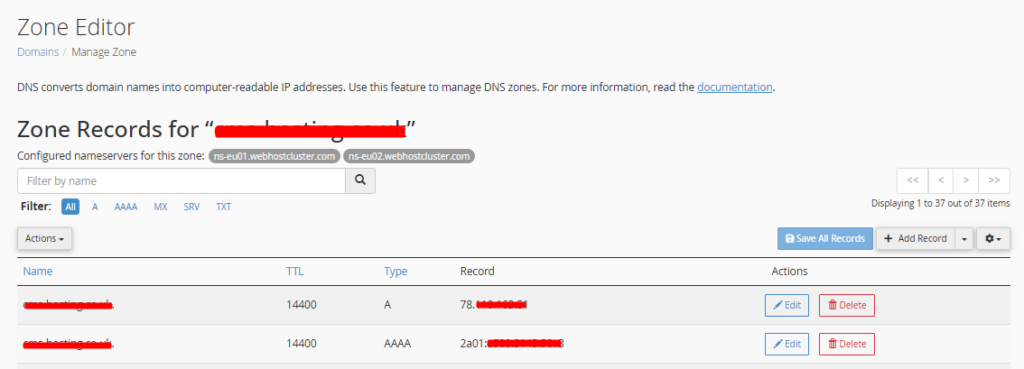
Once you get the IPv6 address, you just need to map it in your DNS alongside your existing IPv4 record:
| Type | Name | Value / Destination | Purpose |
| A | @ | Your IPv4 Address | Handles legacy IPv4 traffic |
| AAAA | @ | Your New IPv6 Address | Handles modern IPv6 traffic |
Note: If you use HostWP.io nameservers, our support team will update these DNS zones for you automatically!
Important Note for Cloudflare Users
If your website is routed through Cloudflare (the orange cloud proxy icon is active), Cloudflare automatically handles IPv6 translation for your visitors on its edge network.
However, adding your HostWP IPv6 address via a AAAA record inside Cloudflare is still highly recommended. This enables Full End-to-End IPv6 Routing, allowing traffic to flow smoothly from the visitor, through Cloudflare, and directly to your HostWP server over an all-IPv6 pathway for maximum efficiency.
Best Practices for Dual-Stack Environments
To ensure a flawless experience when running IPv4 and IPv6 together, keep these industry best practices in mind:
1. Keep DNS Records Mirror-Matched
Ensure that everywhere you have an A record (such as for your root domain @, www, or subdomains like api), you also have a corresponding AAAA record pointing to the IPv6 address. Mismatched records can cause intermittent connection drops for IPv6-native users.
2. Database Schema Adjustments for Developers
If you write custom code or use plugins that log user IP addresses to the WordPress database (e.g., login logs, security history, or download tracking), ensure your database columns are formatted correctly.
- The Rule: Ensure your IP columns are set to
VARCHAR(45). Traditional IPv4 columns are often limited to 15 characters, which will truncate a longer IPv6 address and trigger severe SQL database errors.
3. Dual-Stack Email Compliance (SPF Records)
If you route outgoing emails directly through your server rather than a third-party SMTP, mailbox providers (like Gmail and Yahoo) enforce incredibly strict security checks on IPv6 traffic. To prevent your emails from being marked as spam, your SPF record must authorize both your IPv4 and IPv6 ranges.
- Example of a correct Dual-Stack SPF record:
v=spf1 ip4:192.0.2.1 ip6:2001:db8::1 +a +mx ~all
Verifying Your Dual-Stack Setup
Once your DNS propagates, you can verify that both channels are open:
- Open your local terminal to test response pathways directly:
- To test IPv4 connection:
ping yourdomain.com - To test IPv6 connection (Windows):
ping -6 yourdomain.com - To test IPv6 connection (Mac/Linux):
ping6 yourdomain.com
- To test IPv4 connection:
- Alternatively, run a quick test using specialized web tools such as NSLookUp. They will show both IPv4 and IPv6 connectivity.