While HostWP.io is highly optimized for premium WordPress hosting, we recognize the growing demand for modern AI-generated platforms and dynamic applications.
Whether you are exporting static files from AI website builders (like Lovable, Bolt.diy, v0, or Claude) or deploying dynamic backend applications, you can host them right inside your HostWP.io account.
This guide explains how to deploy static frontend frameworks (HTML, CSS, JS, vanilla React/Vue) and configure full-stack Node.js environments.
Part 1: Deploying Static AI-Generated & Frontend Websites
If your AI builder provides a downloadable code bundle or you compile a standard React/Vue project using a production build command (e.g., npm run build), you do not need to configure a live server backend.
These platforms output simple HTML, CSS, and browser-executable JavaScript.
Step 1: Export Your Site Files
- Build your website using your preferred AI generator or framework.
- Export, download, or compile the project.
- Make sure your production folder contains an index.html file at its root.
- Compress the folder contents into a standard .zip file.
Step 2: Upload Files via cPanel File Manager
- Log in to your HostWP.io Client Area and navigate to your cPanel dashboard.
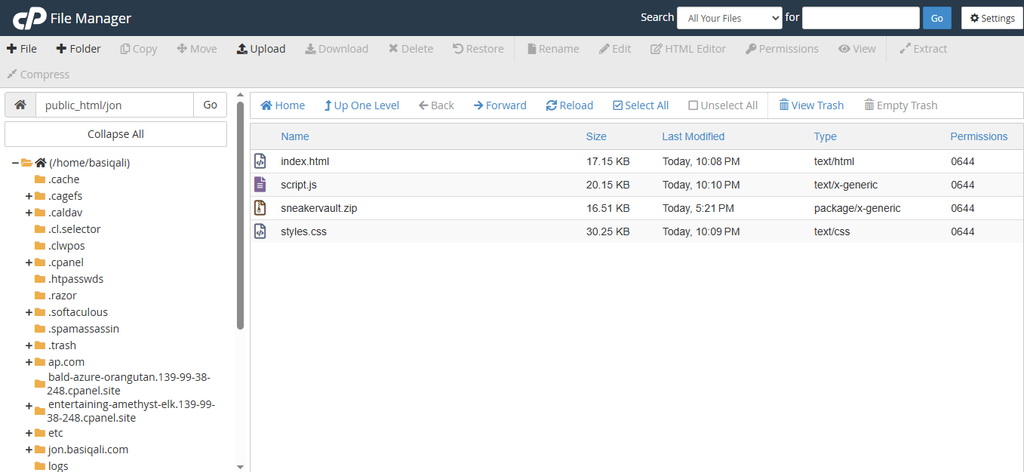
- Locate and open the File Manager utility under the Files section.
- Open the target directory for your site:
- For your primary domain, open the public_html folder.
- For an add-on domain, navigate to that domain’s specific document root folder.
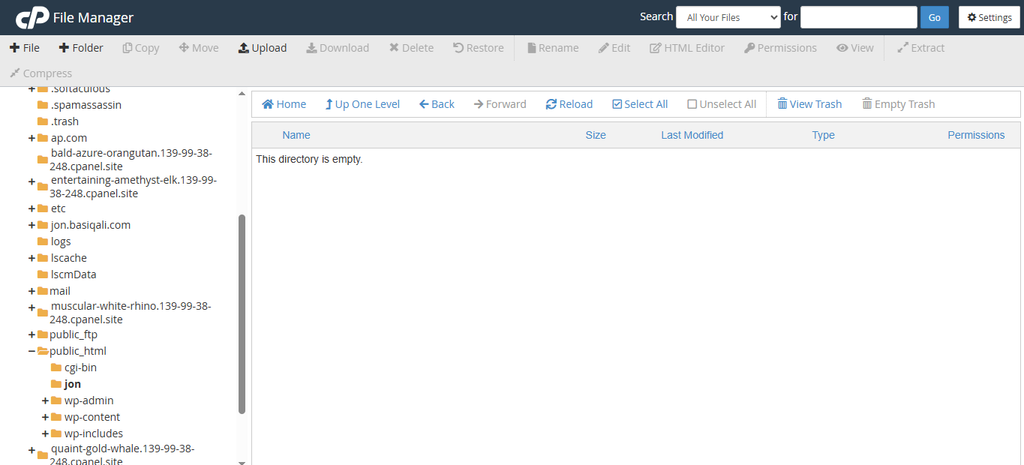
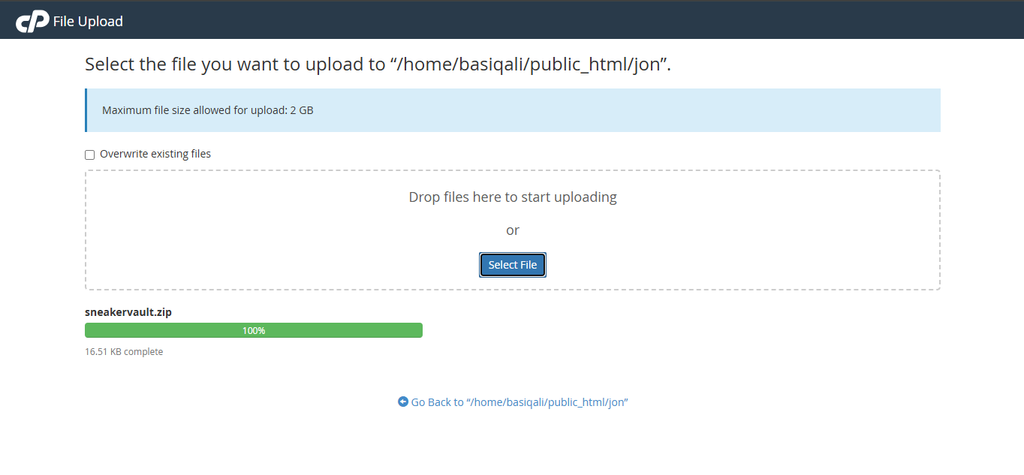
- Click Upload in the top menu and select your compressed .zip file.
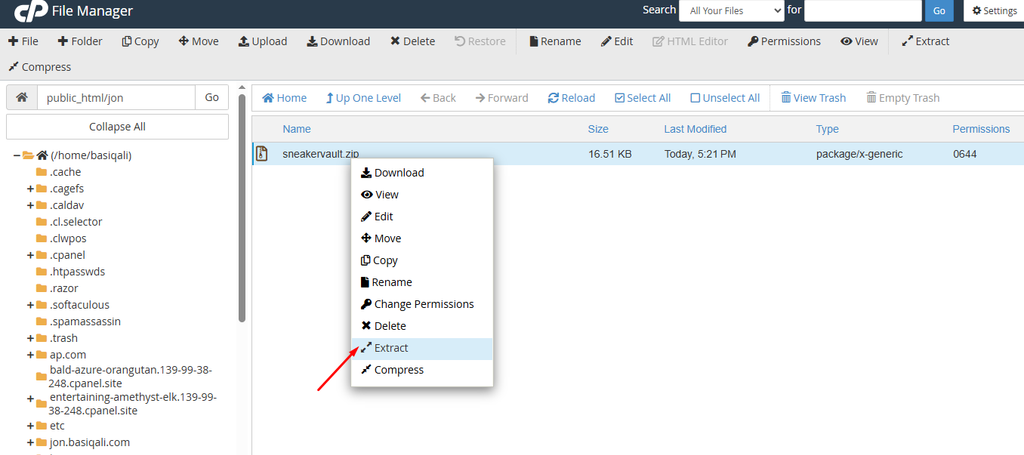
- After uploading, right-click the file in the File Manager and select Extract.
Note: Ensure all files sit directly in the root directory (e.g., public_html/index.html) rather than nested inside an extra subfolder. Your static AI-generated website will now load instantly worldwide.
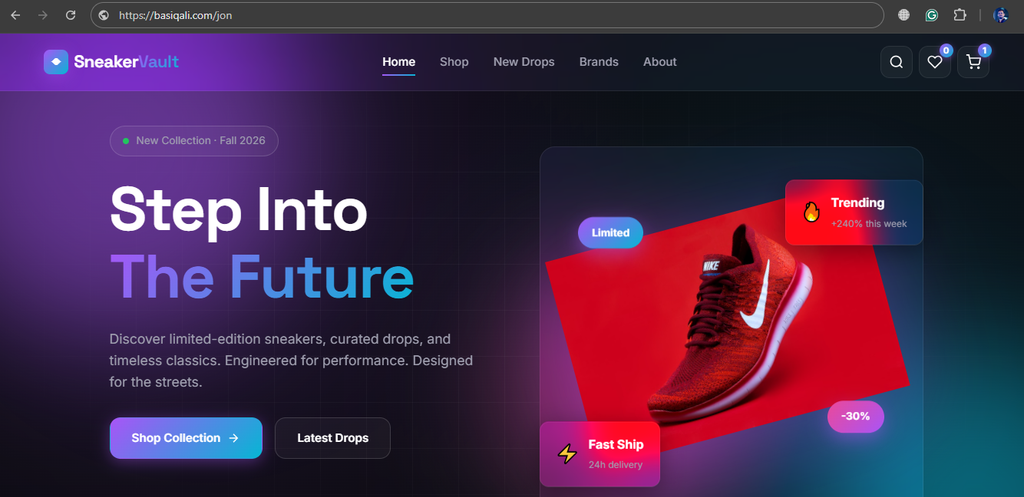
Here is the final result showing your AI-generated website on your domain hosted at HostWP.io.
Part 2: Deploying Dynamic Node.js & Full-Stack Apps
If your application requires a live, continuously running server background (such as an Express.js backend, an API processing platform, or full-stack frameworks like Next.js or Remix), you will need to utilise our native environment manager.
Step 1: Access the Node.js Setup Screen
- Log in to your cPanel dashboard.
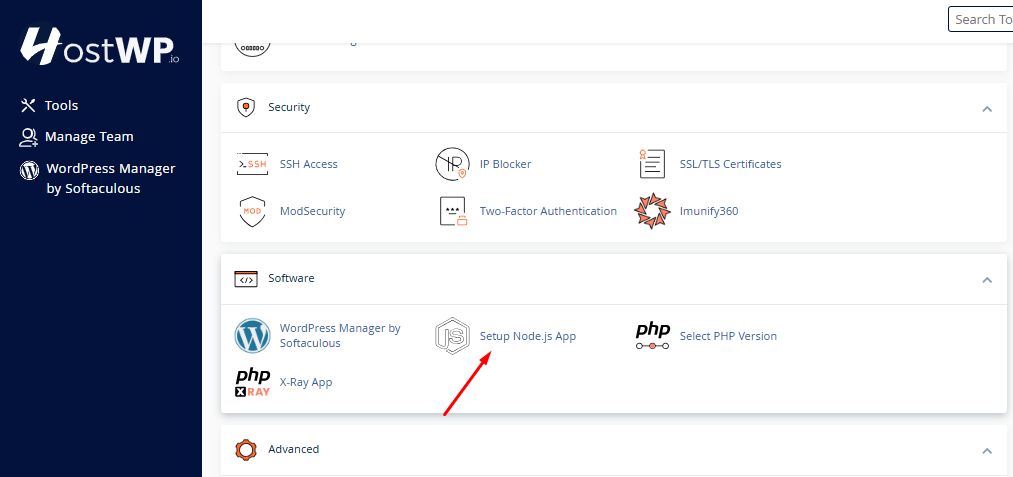
- Use the search bar or scroll to find the Software category.
- Click on the Setup Node.js App icon.
Step 2: Initialize Your Environment
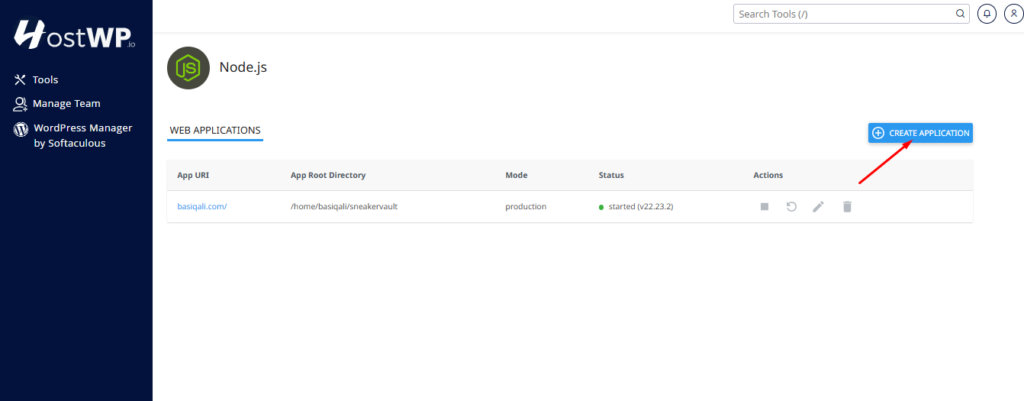
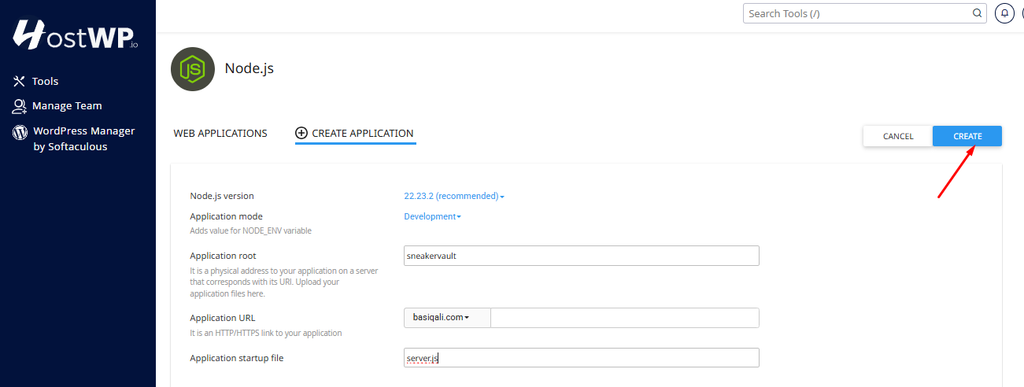
- Click the blue Create Application button on the right side of the screen.
- Configure the following fields in the application configuration wizard:
- Node.js Version: Select your required version from the dropdown menu (e.g., v20.x or v22.x).
- Application Mode: Select Production for live deployments.
- Application Root Directory: Type the directory path where your application files will live (e.g., apps/nodeapp).
- Application URL: Choose the domain or subdomain and input the routing path if applicable.
- Application Startup File: Point this to your main initialization script (typically app.js, server.js, or index.js).
- Click the Create button in the top-right corner to boot the environment.
Step 3: Install Package Dependencies
- Upload your application’s source files into the root directory you specified above using the File Manager (exclude your local node_modules folder to keep upload times fast).
- Go back to the Setup Node.js App dashboard and click the edit pencil icon next to your newly created application.
- If the system detects your package.json file, it will proceed. Click the Run NPM Install button to automatically download all necessary project dependencies.
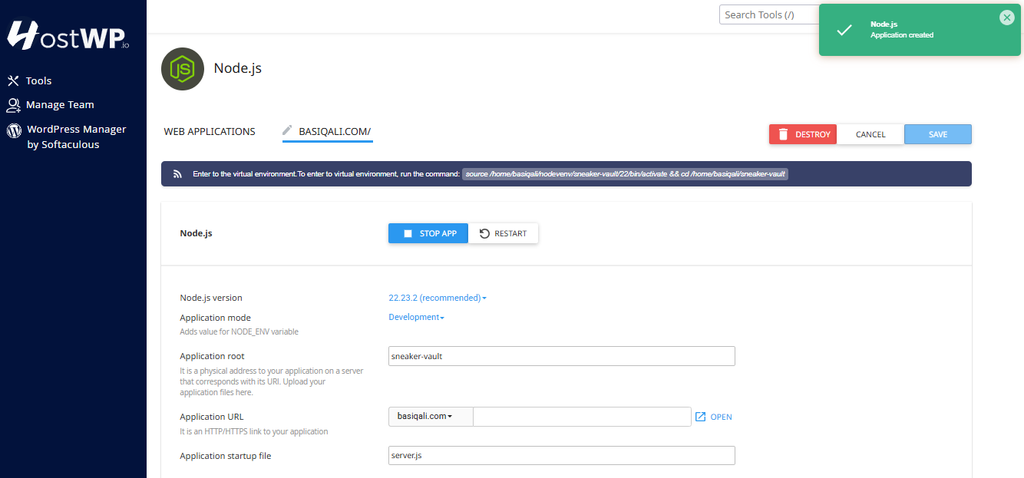
- Click Restart Application to apply updates and launch your live app.
Frequently Asked Questions & Best Practices
Do these apps run securely on HostWP.io?
Yes. Your applications run within isolated, secure virtual environments powered by CloudLinux LVE technology. This ensures that even heavy processing on an AI site or Node app stays contained within your specific resource pool and never degrades performance.
Can I run a Node app and WordPress on the same domain?
We recommend using clean segmentation for stability. If your main domain runs WordPress, deploy your Node.js apps or custom dashboards on an isolated subdomain (e.g., https://node.yourdomain.com or https://yourdomain.com/nodejs).
Where can I view errors or console logs?
For static websites, errors appear directly in your browser’s inspect console. For backend Node.js applications, a dedicated log file path is automatically created and displayed inside your application management screen under the configuration profile settings.
~ Thank you for choosing HostWP.io