
When connecting external AI tools, Model Context Protocol (MCP) servers (such as Claude Code, Cursor, or builder integrations), or REST API clients to WordPress, you may encounter a 401 Unauthorized error stating:
“Sorry, you are not allowed to do that” or “You are not currently logged in.”
While this error often looks like a server firewall issue or a stripped Authorization header, on modern high-performance PHP stacks it is frequently caused by how PHP handles password hashing when the native sodium extension is disabled.
Why This Happens (Technical Root Cause)
To maximize execution speed, HostWP.io environments run PHP with OPcache and JIT (Just-In-Time) compilation enabled by default.
When WordPress verifies an Application Password over the REST API, it relies on cryptographic hashing functions:
- If the native PHP sodium extension is enabled, WordPress uses native, hardware-accelerated cryptography.
- If the sodium extension is unchecked/disabled in your PHP selector, WordPress falls back to a built-in pure-PHP hashing implementation.
- A known interaction between PHP’s JIT compiler and WordPress’s fallback hashing routine causes the hash calculation to mismatch. As a result, WordPress rejects valid Application Passwords and returns a generic “You are not currently logged in” response—even though LiteSpeed is passing the Authorization header properly.
Note: Adding extra Authorization rules to your .htaccess file will not resolve this specific issue, as the standard WordPress rewrite block already passes authentication headers correctly.
How to Fix Application Password Authentication
Follow these steps in cPanel and WordPress to enable native cryptographic hashing and restore API access:
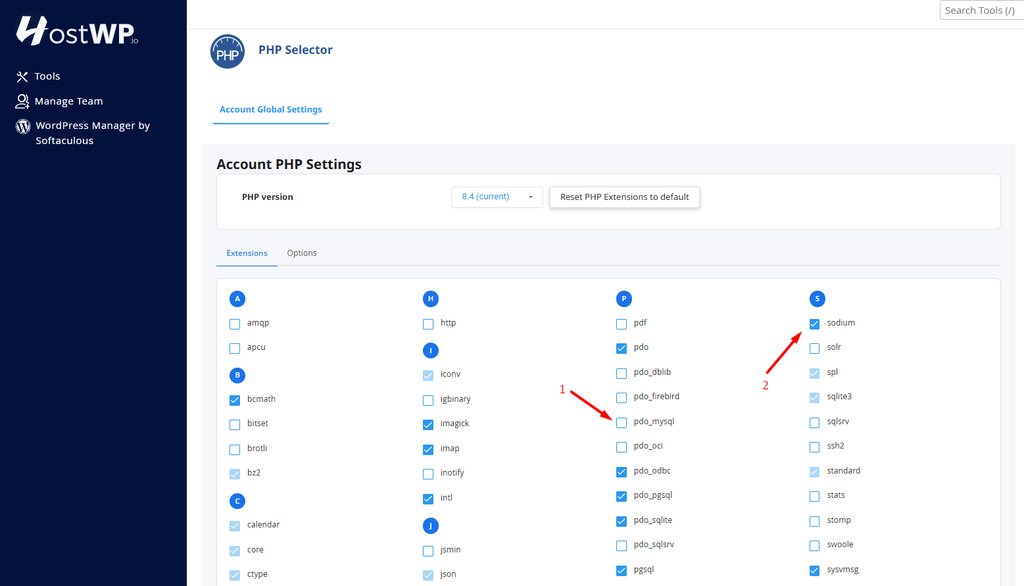
Step 1: Enable the Sodium PHP Extension in cPanel
Enabling sodium resolves the hashing mismatch while allowing you to keep the performance benefits of PHP JIT enabled.
- Log in to your HostWP.io cPanel account.
- Navigate to the Software section and click “Select PHP Version.”
- Open the Extensions tab at the top.
- Uncheck pdo_mysql then check sodium in the list to enable it (changes save automatically).
(Note: While disabling opcache.jit in PHP Options also prevents the mismatch, enabling the sodium extension is the recommended solution so your site retains maximum PHP execution speed.)
Step 2: Regenerate Your WordPress Application Password
Important: Any Application Password generated before enabling the sodium extension was stored in your database using the broken fallback hash and will still fail. You must issue a fresh key.
- Log in to your WordPress Admin Dashboard.
- Go to Users -> Profile (or click Edit on the relevant user account).
- Scroll down to the Application Passwords section.
- Click Revoke next to your existing AI/MCP connection password.
- Enter a new name for your integration (e.g., Claude MCP) and click Add New Application Password.
- Copy the newly generated password immediately.
Step 3: Verify Authentication via Terminal (Optional)
Before updating your AI client configuration, verify that WordPress accepts your new Application Password using whichever method you prefer:
Option A: On Windows (Command Prompt or PowerShell)
Windows 10 and 11 include cURL natively. Press Win + R, type cmd, press Enter, and run (using double quotes):
curl.exe -u "YOUR_USERNAME:YOUR_NEW_APP_PASSWORD" https://yourdomain.com/wp-json/wp/v2/users/meOption B: On macOS or Linux (Terminal)
Open Terminal and run (using single quotes):
curl -u 'YOUR_USERNAME:YOUR_NEW_APP_PASSWORD' https://yourdomain.com/wp-json/wp/v2/users/meOption C: Without Terminal (Free Browser Tool)
- Go to reqbin.com or hoppscotch.io.
- Set the method to GET and enter: https://yourdomain.com/wp-json/wp/v2/users/me
- Open the Authorization tab, select Basic Auth, and enter your WordPress Username and New Application Password.
- Click Send.
Replace YOUR_USERNAME, YOUR_NEW_APP_PASSWORD (WordPress accepts it with or without spaces), and yourdomain.com with your actual details.
- Expected Result: A 200 OK status returning your WordPress user profile details in JSON format (ID, name, capabilities).
- If it still fails: Double-check that sodium is active for the exact PHP version assigned to your domain.
Step 4: Update Your AI / MCP Client Configuration
Paste the newly generated Application Password into your MCP server configuration, AI agent settings, or API client and reconnect.
Frequently Asked Questions (FAQs)
Do I need to modify my .htaccess file for LiteSpeed to accept Authorization headers?
No. LiteSpeed Enterprise on HostWP.io natively supports HTTP Authorization headers out of the box when using standard WordPress permalinks.
Why did my old Application Password stop working after enabling sodium?
Because the password hash stored in your WordPress user meta table was generated under the faulty fallback routine. WordPress cannot retroactively validate old hashes once native sodium verification is active, requiring a quick revoke-and-regenerate.
Still seeing authentication errors?
If cURL still returns a “not logged in” message after enabling sodium and generating a fresh password, please open a support ticket at https://platform.hostwp.io with the exact timestamp (and timezone) of your test request so our SysAdmin team can inspect the request logs.