




You already did the hard work of researching, outlining, and writing a great blog post. But in today’s content landscape, publishing an article is only half the battle.
Short-form video is completely dominating platforms like TikTok, Instagram Reels, and YouTube Shorts. The problem? Most writers and business owners do not have the time, budget, or on-camera confidence to film, edit, and caption videos from scratch.
Fortunately, you do not have to. With advanced AI tools like Fliki.ai, you can take the text from your existing blog posts and automatically generate engaging, professionally captioned videos in just a few minutes.
Here is a detailed, step-by-step guide to repurposing your written content into high-performing videos.
Step 1: Pick the Right Blog Post for Video
Not every blog post translates well to a 60-second video. A 3,000-word deep dive on technical database management will likely bore a fast-scrolling mobile audience.
Instead, scan your archive for posts that naturally lend themselves to quick, punchy delivery. The best candidates are:
- Listicles: “5 Best WordPress Hostings”
- Actionable How-To Guides: “How to Set Up Your First Email Newsletter”
- Strong Opinions or Myth-Busting: “Why You Should Stop Using Free Themes”
These formats already have built-in hooks and clear takeaways, making them perfect for short-form video scripts.
Step 2: Summarize Your Content with an AI Chatbot
While Fliki is incredibly smart, it works best when you feed it clean, focused text. If you paste a massive 2,000-word article directly into the tool, the AI will struggle to find a natural narrative flow, resulting in a rushed or disjointed video.
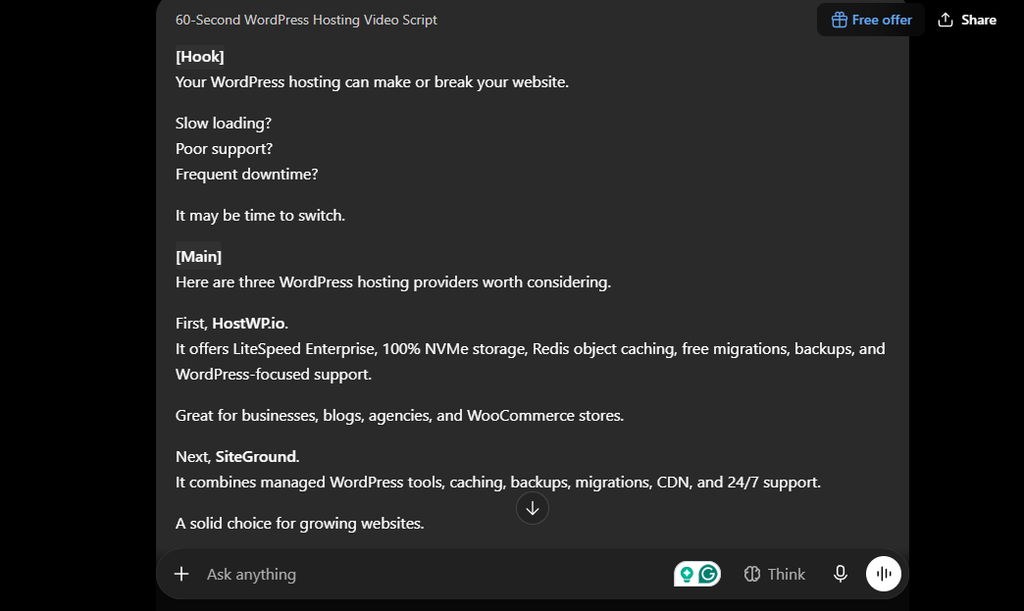
Before opening Fliki, open a free AI chatbot like ChatGPT or Claude. Copy your blog post and use a specific prompt like this:
“Act as a social media video scriptwriter. Summarize this blog post into a highly engaging, 60-second video script. Keep the sentences short, punchy, and conversational. Include a strong hook at the beginning and a clear call to action at the end.”
Copy the summarized script it generates. This 100 to 150-word block of text is exactly what you will use in the next step.
Step 3: Set Up Your Project in Fliki
Now, log in to your Fliki.ai account.
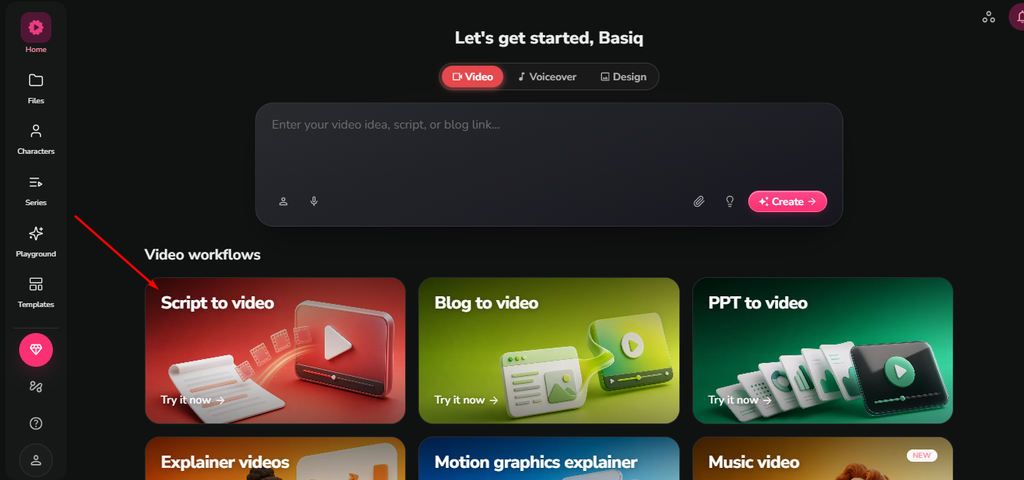
On the main dashboard, you will see several options. Since we already have a clean, summarized script, click on “Script to Video”. (If you wanted Fliki to read a full URL, you would choose “Blog to Video”, but the script method gives you much more control).
Give your file a recognizable name, select your target language, and paste the summarized script you created in Step 2 directly into the main text box.
Step 4: Set the Aspect Ratio and Voice
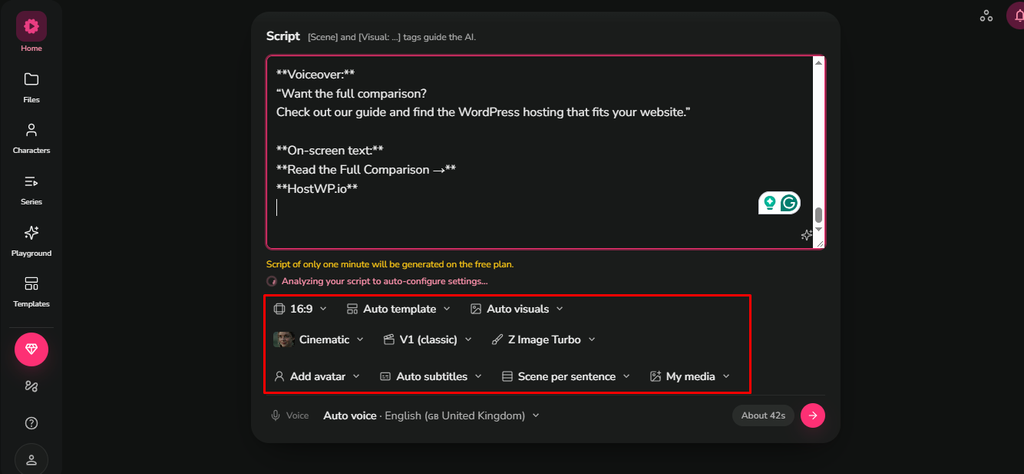
- Before you let the AI generate anything, you need to set up how the final video will look and sound. This is the most critical step for quality control.
- First, check your Aspect Ratio. If you are making videos for TikTok, Instagram Reels, or YouTube Shorts, you must select 9:16 (Portrait). If you leave it at the default 16:9 aspect ratio, your video will be horizontal, which looks terrible on mobile screens.
- Next, look at the Voice settings. Fliki will auto-select a standard voice, but you should always preview it. Click the play button next to the voice name. If it sounds too robotic, browse their library and pick a voice tagged as “conversational.”
Step 5: Generate and Review the Draft
Once your text, voice, and ratio are perfectly set, click the “Proceed” or “Create” button.
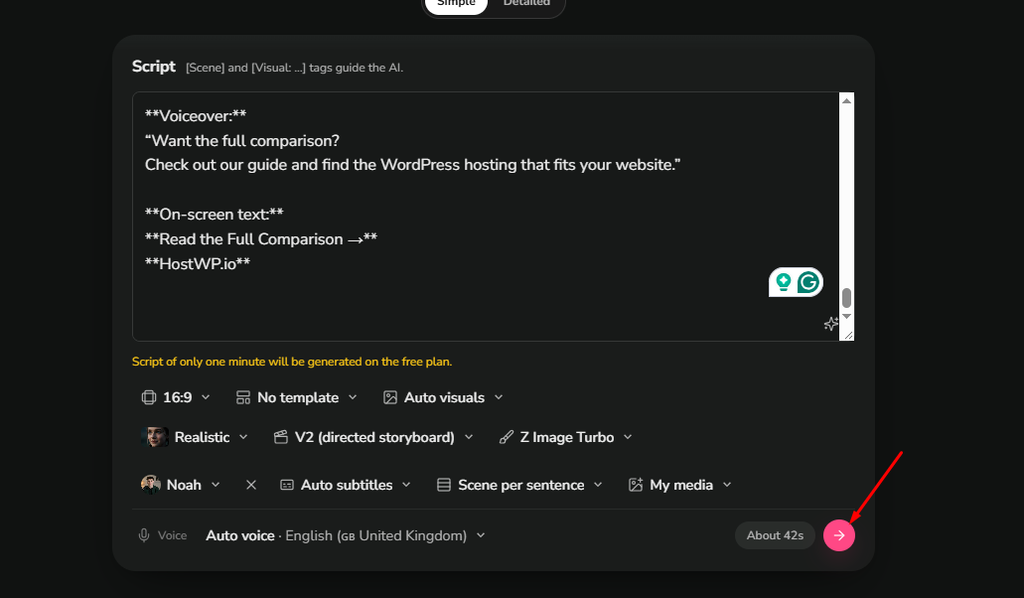
Fliki will automatically process your script. Within a minute or two, it will match your sentences with relevant stock footage, add subtle background music, and generate the AI voiceover with synchronized captions.
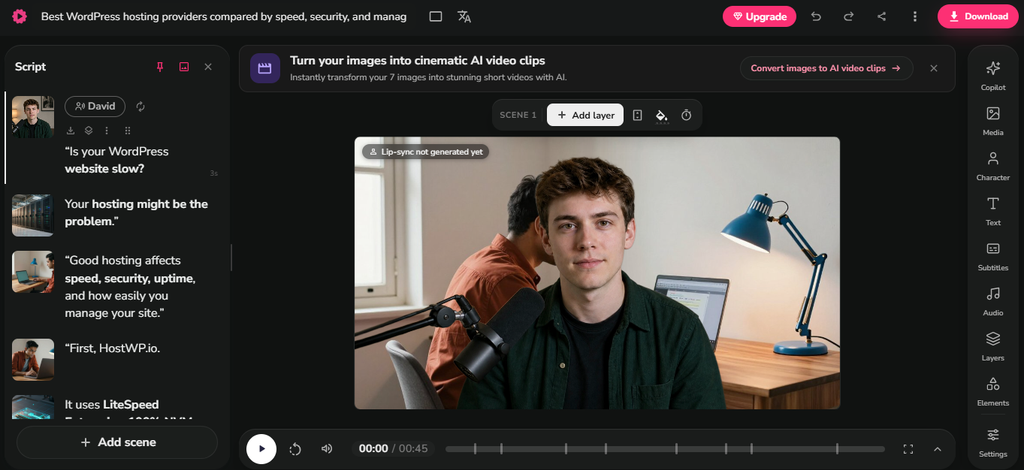
When it is done, watch the video from start to finish. Fliki does an excellent job, but it is not perfect. Sometimes it might pick a slightly weird or irrelevant stock video. If you see a clip that does not match your text, simply click the scene and replace it with a better video or even a screenshot of your own website. You can also click on the captions to change the font, size, or highlight color to match your brand.
Step 6: Export and Post
Once you are happy with how the video looks and sounds, it is time to export.
Choose 1080p resolution for the best quality on social media. Most AI tools will let you download the file directly to your computer or phone.
From there, upload it to your preferred platform. Be sure to write a short, engaging caption and use 3 to 5 relevant hashtags.
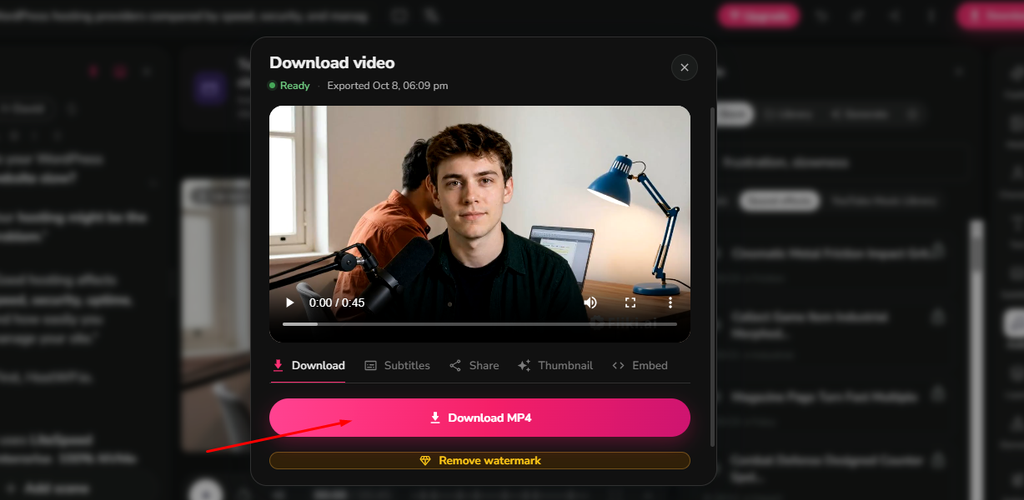
See the Final Result in Action
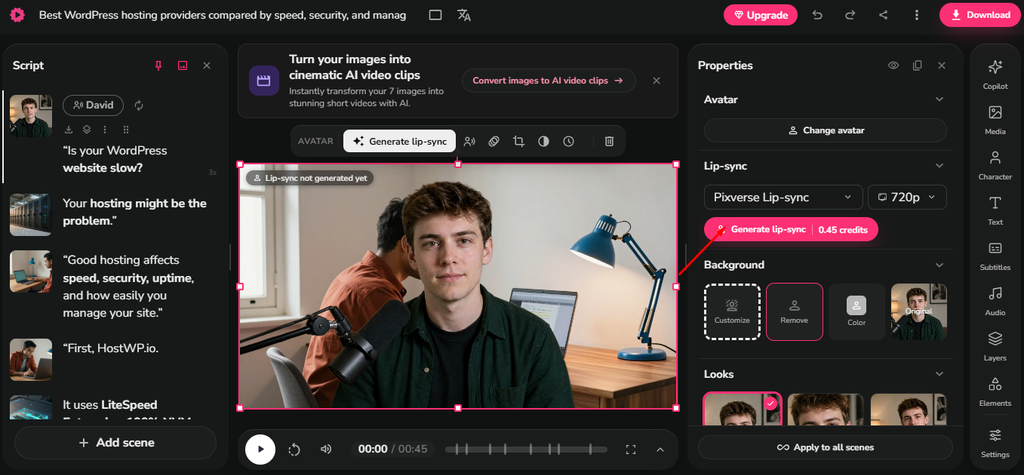
Before you watch, here is a quick pro tip: if you want to take your videos to the next level, Fliki also offers AI avatars. While the standard version is fantastic for matching stock footage to your script, the paid version unlocks a highly realistic character lip-sync feature. This means if you choose an AI presenter, their lips will move and sync perfectly with the generated audio, making the video look incredibly professional and human.
To show you exactly what this process looks like in real life, I’ve embedded the final video below. This is the exact result I got after following the steps above. Take a close look at the dynamic captions, the natural-sounding voiceover, and the smooth transitions of the visuals. The best part? This entire video was generated, tweaked, and exported in under ten minutes without ever turning on a camera.
Pick one of your best-performing blog posts today, follow these steps, and see how your audience responds to this new format.