





People consume content differently now. Some read while commuting on a train, while others prefer listening while cooking or doing chores. Adding a “Listen to this article” feature to your WordPress blog is a simple way to make your content more accessible and keep visitors on your page longer.
You do not need to record your own voice or hire a professional narrator. Modern text-to-speech tools handle this automatically with very realistic voices.
This guide will walk you through the easiest ways to add an audio player to your WordPress posts, step by step.
Why Add an Audio Player to Your Blog?
Before we get into the setup, it helps to know why this feature is worth your time.
First, it improves accessibility. An audio option is incredibly helpful for visually impaired readers or those with reading difficulties, such as dyslexia.
Second, it increases dwell time. When people can listen to your post while doing something else, they stay on your page longer. An audio option can encourage visitors to spend more time with your content, though you shouldn’t assume longer time on page directly improves rankings.
Finally, it just gives your site a modern, professional feel. It also gives visitors another way to consume your content without changing the original written article.
Method 1: Using a WordPress Plugin (The Easiest Way)
The simplest way to add this feature is by using a dedicated text-to-speech plugin. For this guide, we will use AtlasVoice as an example, as it is one of the most reliable and popular WordPress options. It offers a free tier to get started and integrates directly into your editor.
Step 1: Install and Activate the Plugin
First, log in to your WordPress admin dashboard.
On the left-hand menu, hover over Plugins and click on Add New.
In the search bar at the top right, type “AtlasVoice”.
Look for the plugin named “AtlasVoice: Text to Speech Audio Player”. When you see it, click Install Now.
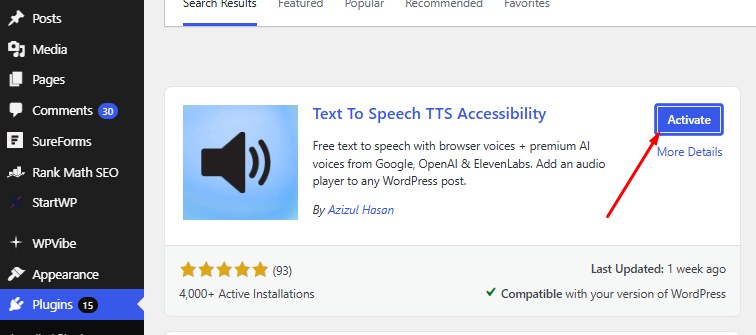
Wait a few seconds for it to download. Once it is done, the button will change to Activate. Click it.
Step 2: Open the Plugin Dashboard
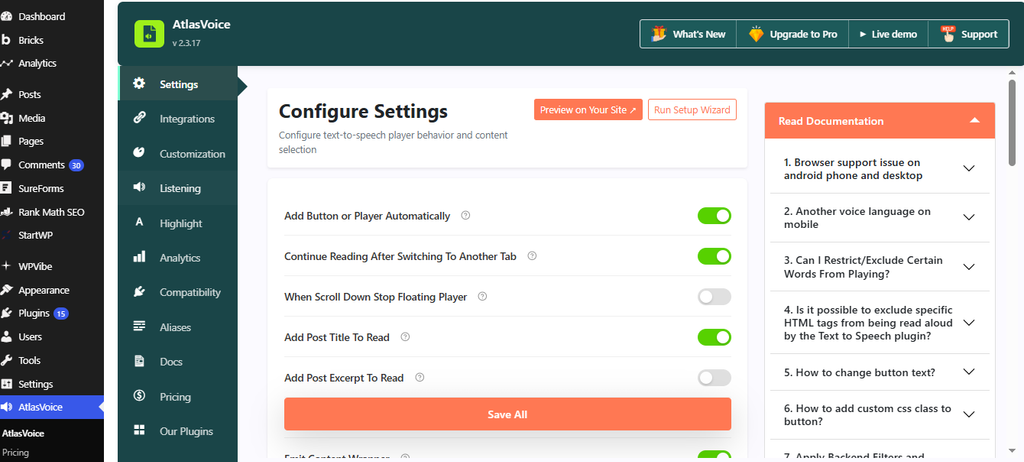
After activation, open the plugin to set it up.
Look at your left-hand WordPress menu again. You will see a new menu item called AtlasVoice (usually with a little green icon). Click on it.
Step 3: Understand the “Staging” Mode
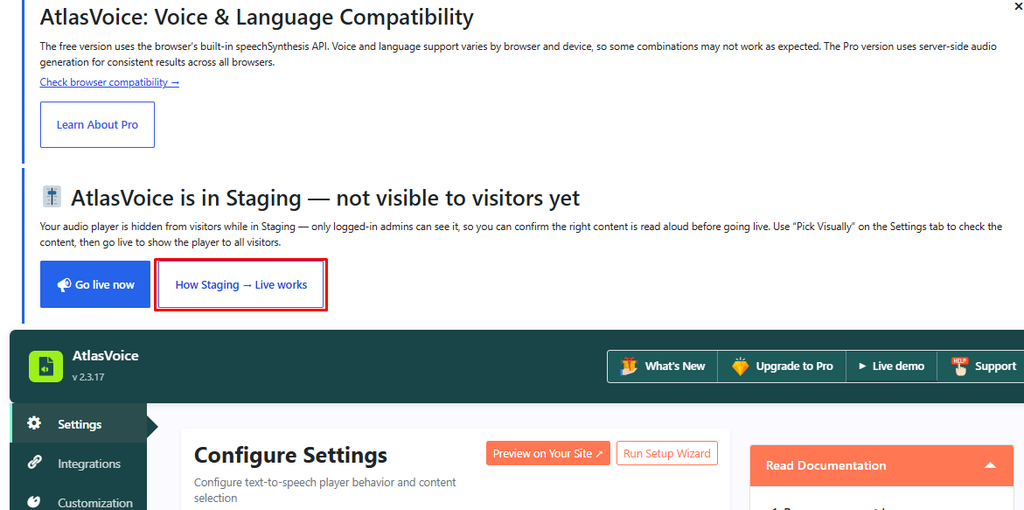
Right now, your audio player is in “Staging” mode. This is actually a good thing. It means the player is hidden from your regular visitors and is only visible to you (the admin). This lets you test the voices and settings without your readers hearing a half-finished setup.
Step 4: Configure Your Settings
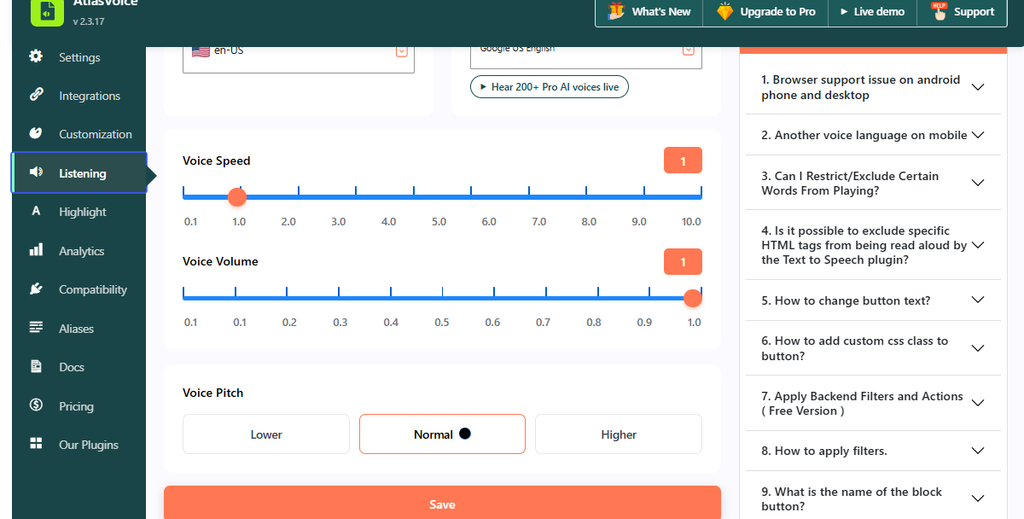
On the left side of the AtlasVoice dashboard, click on Settings.
Here, you can choose your default voice, language, and reading speed. Take a minute to listen to a few voice samples and pick one that sounds natural and not too robotic.
Next, click on Customization in the left menu. Here, you can change the audio player colors to match your website’s theme. You want it to look like it belongs on your site, not like a random pop-up.
Step 5: Go Live
Go back to the main AtlasVoice dashboard.
Remember that big blue button that said Go live now? Click it.
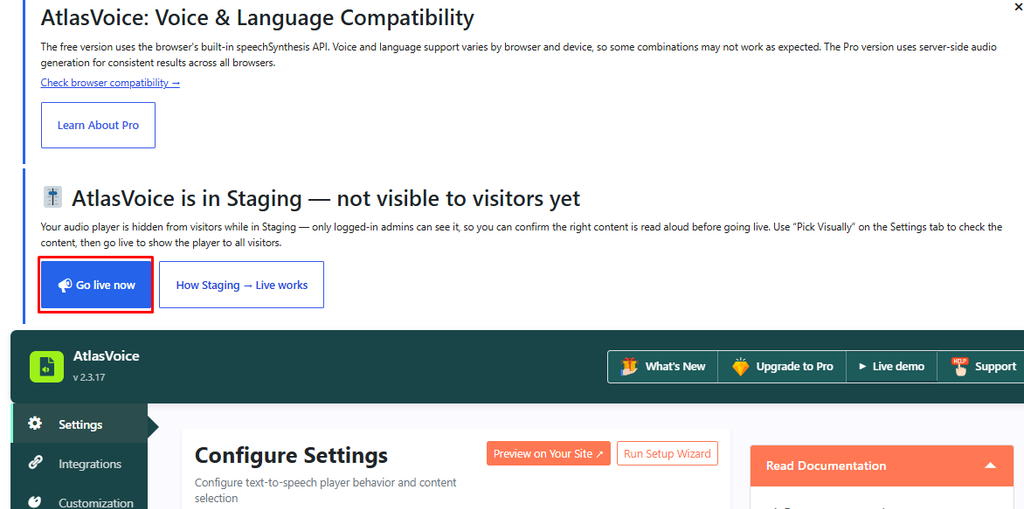
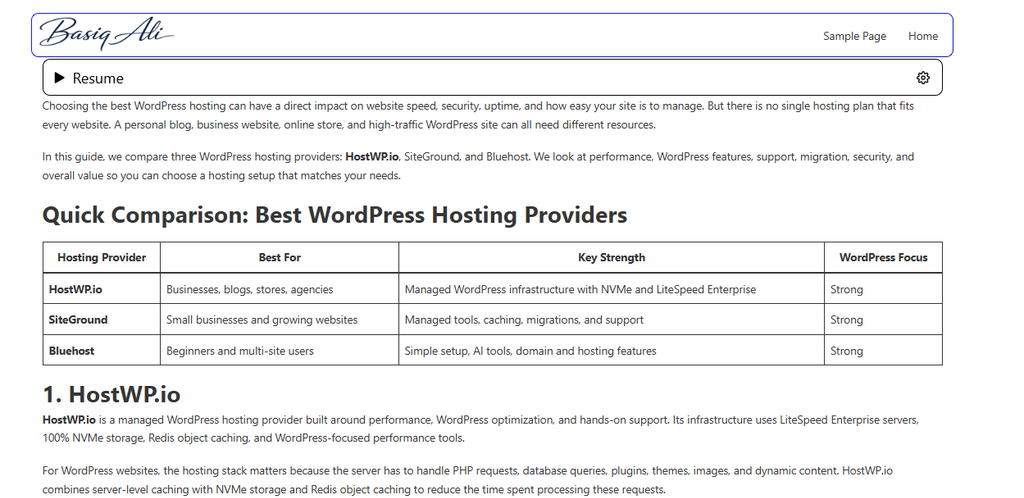
This switches the plugin out of staging mode. Now, your actual website visitors will be able to see and use the “Listen to this article” player on your posts.
Method 2: Using ElevenLabs and the Native WordPress Audio Player
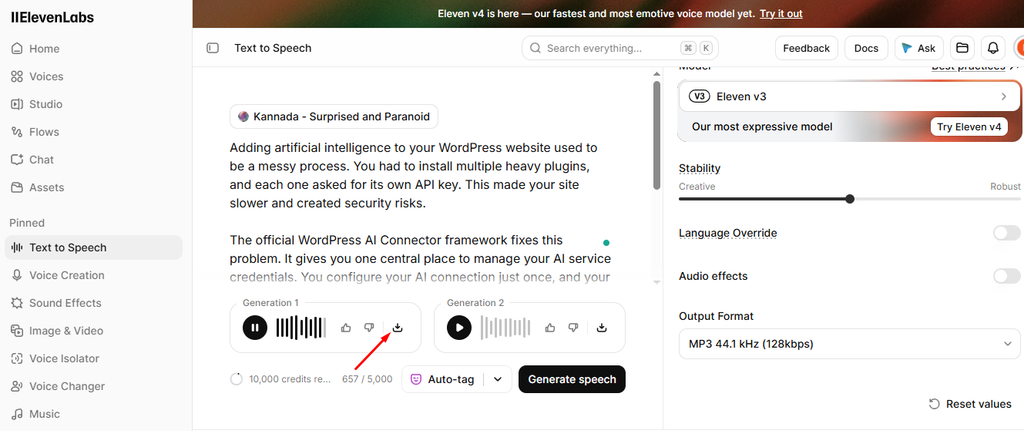
Not every text-to-speech service gives you a neat HTML embed code. If you are using a tool like ElevenLabs, look for the download button after generating your speech. ElevenLabs lets you download the generated audio as an MP3 or WAV file, with additional formats available through the Advanced download options.
Step 1: Generate and Download Your Audio
Log in to your ElevenLabs account and paste your blog post text into the generator. Choose your preferred voice and settings. Once the audio is generated, listen to it to make sure it sounds right.
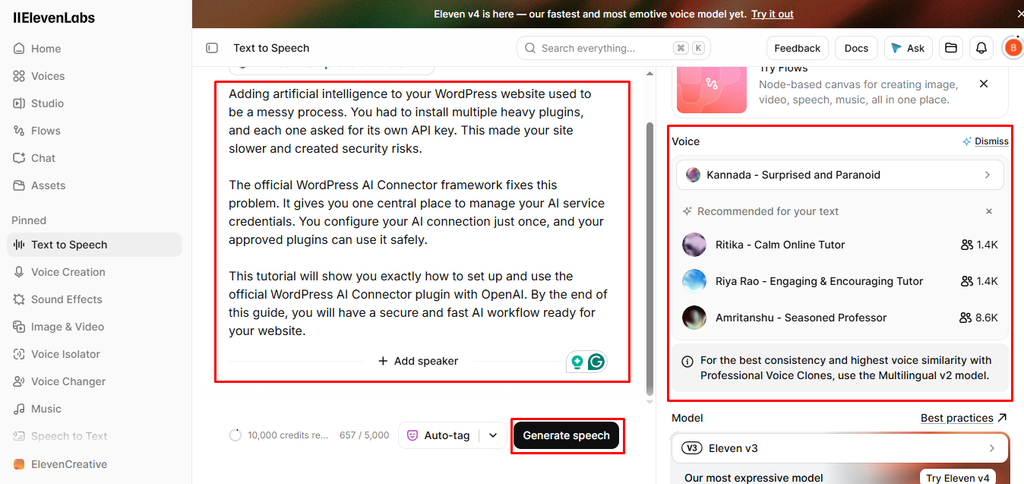
Look for the download button, usually represented by a downward arrow or a Download label. Save the file to your computer. It will typically be in MP3 format, which works well with WordPress.
Step 2: Upload the File to WordPress
Go to your WordPress dashboard and open the blog post where you want the audio player to appear.
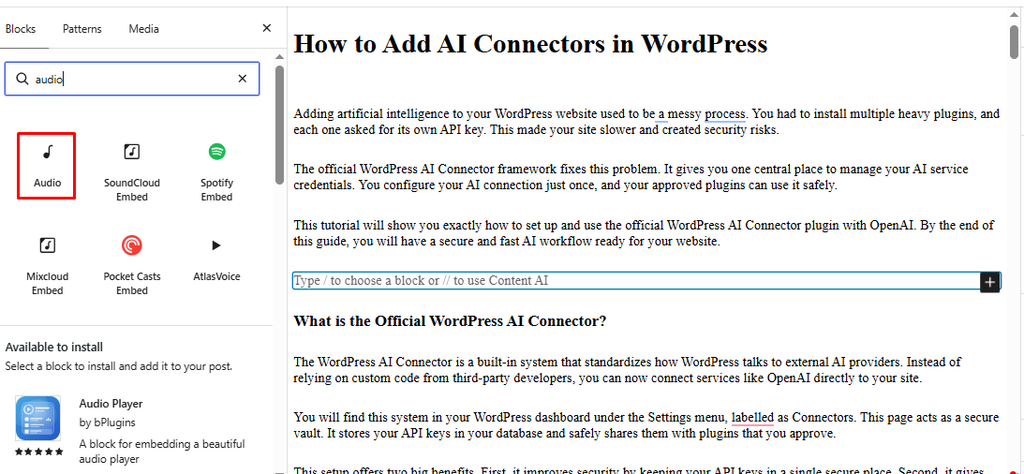
Click the plus (+) icon in the top-right corner of the screen to open the block inserter. Search for “Audio” in the search bar and select the Audio block. This built-in WordPress feature is lightweight and easy to use.
Step 3: Upload Your Downloaded File
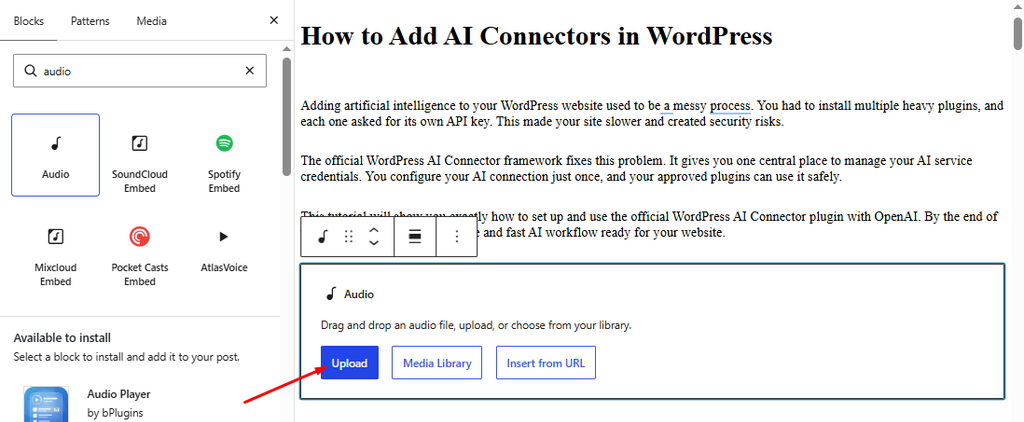
Inside the new Audio block, click the Upload button. Browse your computer and select the MP3 file you just downloaded from ElevenLabs.
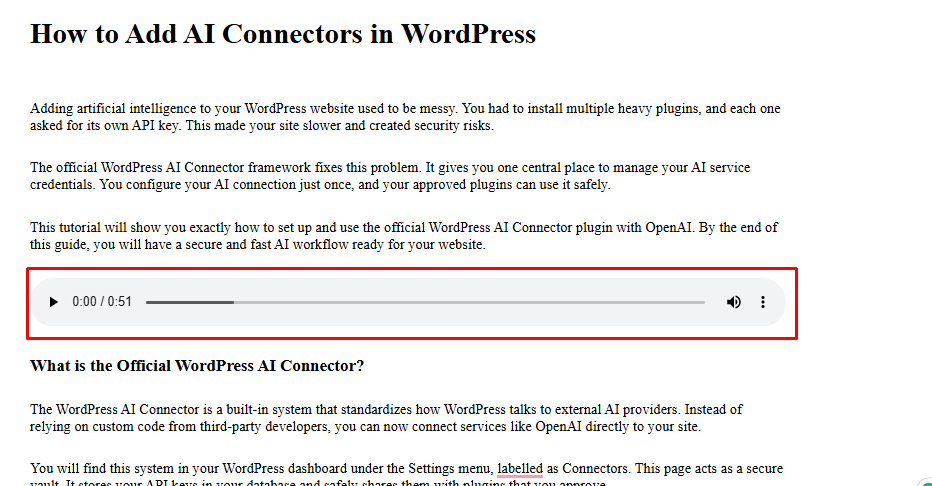
Wait a few seconds for the upload to finish. Once it is done, the native WordPress audio player will appear instantly in your post.
Step 4: Test the Audio Player
Before you publish or update your post, make sure everything works perfectly. In the WordPress editor, click the play button on the newly added audio player.
Listen to a few seconds of the track to confirm that the audio plays smoothly, the volume is clear, and there are no glitches. Once you are satisfied that it sounds exactly as it should, you can safely update or publish your post.
Best Practices for Audio Blogs
Adding the player isn’t enough. You should follow a few basic rules to make sure your readers actually use it.
Place it at the top. Put the audio player right below the post title or the featured image. If readers have to scroll down to find it, they probably will not bother.
Keep it short and simple. The player should be compact. A massive audio bar that takes up half the screen is distracting.
Test the voices. Not all robotic voices are created equal. Listen to a few samples before you settle on one. A natural, clear voice keeps people listening, while a choppy, robotic one makes them leave.
Who Should Add This Feature?
This feature isn’t strictly necessary for every website, but it is highly recommended for a few specific types of sites.
- Long-form Bloggers: If your articles are over 1,500 words, an audio option is a huge convenience for your readers.
- News and Magazine Sites: These sites publish a high volume of content, and many readers prefer to listen to the news while commuting.
- Accessibility-Focused Sites: If you want to ensure your website is compliant with ADA (Americans with Disabilities Act) guidelines, providing an audio alternative to text is a major step in the right direction.
Frequently Asked Questions
Will an audio player slow down my website?
It depends on how the audio is generated and delivered. If the audio is served externally, it can reduce the amount of audio data your own server needs to deliver. However, the player and external requests can still affect page performance.
Can I customize the audio player colors?
Yes. Most dedicated WordPress plugins let you change the player’s background, button, and text colors to match your website’s theme.
Is this feature free to use?
Most services offer a free tier that lets you generate a certain number of words or minutes of audio per month. If you have a high-traffic site with hundreds of long articles, you will likely need to upgrade to a paid plan eventually.
Final Thoughts
Adding an audio option is a small change that makes a big difference for your readers. It takes just a few minutes to set up and immediately makes your content more flexible and accessible.
You do not need to be a tech expert to do this. Pick the method that fits your workflow, test it on a draft post, and give your audience a brand new way to enjoy your writing.