

Most people who buy domains never use all of them. As of Q1 2025, there were about 368.4 million registered domains worldwide, and that base grew to 378.5 million by Q3 2025 (Network Solutions, Domain Industry Report, Q1 2026). A large share of those names sit parked or forgotten. Estimates put roughly 30% of registered domains on generic parking or registrar pages instead of real content.
Here’s the thing. A parked page earns pennies and tells buyers nothing. If you own a name someone might want, you can do better with WordPress.
WordPress gives you control a basic parked page can’t. You write the message, set the price, capture offers, and present the domain like a real product. This guide walks you through it step by step, from install to safe transfer, with a natural assist from the Domain For Sale plugin.
Why Sell Your Domain with WordPress?
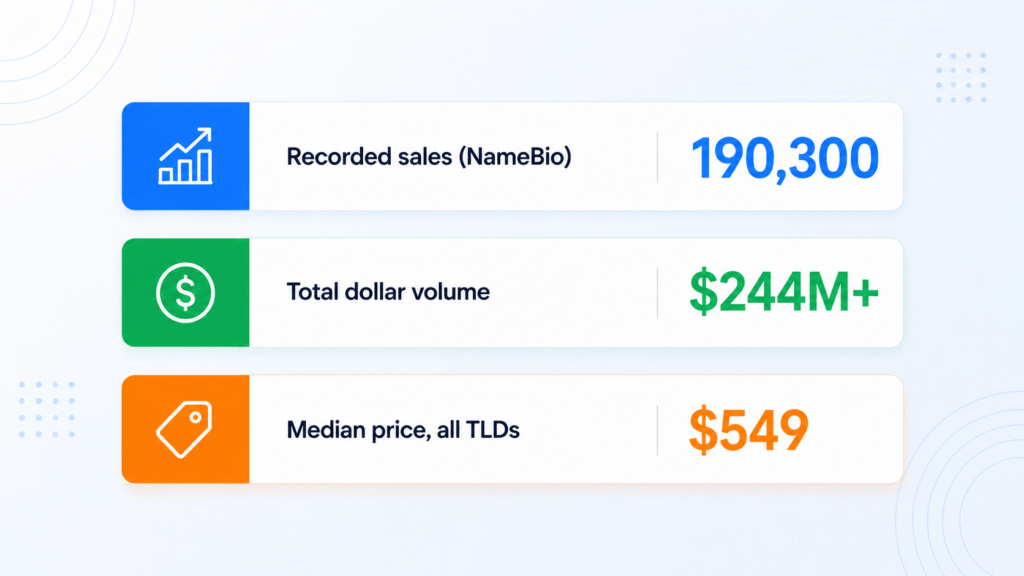
WordPress powers a large slice of the web, and that same flexibility works in your favor when selling a name. In 2025, the domain aftermarket recorded around 190,300 sales worth more than $244 million, up 31.9% in dollar volume year over year (NamePros, 2025 Domain Market Trends, based on NameBio data). A page you control helps you compete for that demand.
Why pick WordPress over a default parking page? A few reasons:
- More control over the sales page. You decide the headline, the pitch, and the layout.
- Better branding and trust. A clean custom page looks more credible than a generic ad-filled placeholder.
- Direct inquiries. Add a contact or offer form and talk to buyers without a middleman taking a cut.
- Easy customization. Change copy, price, and design in minutes.
- Scales for portfolios. Agencies and investors with dozens of names can reuse the same setup.
- No marketplace lock-in. You’re not stuck with one platform’s template or fees.
According to NameBio data for 2025, the median price of a traded domain across all TLDs rose 7% to $549. Most names sell in the modest range, not the headlines. A well-built landing page helps you capture those everyday sales by making it easy for a buyer to find you and make an offer.
What You Need Before You Start
Before building anything, get your pieces in order. Selling a domain goes smoother when ownership and payment are sorted up front. In Q2 2025 alone, Escrow.com handled $89.85 million in aftermarket domain sales, a sign of how much serious money flows through secure transfer channels (NameBio data via NamePros, 2025).
Your checklist:
- A domain you own. Confirm you actually control it and it’s not locked or expiring soon.
- WordPress installed on that domain, or connected to it.
- Hosting to run the site.
- Registrar access. You’ll need it to transfer the name later. If your domain lives elsewhere, you can register or transfer a domain through HostWP to keep hosting and domain in one place.
- A price plan. A fixed asking price, a make-offer option, or both.
- A safe transfer plan, such as an escrow service.
- The Domain For Sale plugin to build the page fast.
Got all that? Good. Now the build.
How to Sell Your Domain with WordPress Step by Step
This is the core of the guide. Ten steps take you from a bare domain to a live, offer-collecting sales page. Work through them in order. If you already run WordPress on the domain, skip Step 1.
The 2025 Domain Aftermarket at a Glance
Step 1: Install WordPress on the Domain
Point the domain you want to sell at a WordPress installation. Most hosts offer a one-click WordPress installer in the control panel, so this takes a few minutes. If you need a fast, managed setup, WordPress hosting from HostWP handles the install for you. Already have WordPress running on the domain? Skip straight to Step 2.
Step 2: Install and Activate Domain For Sale
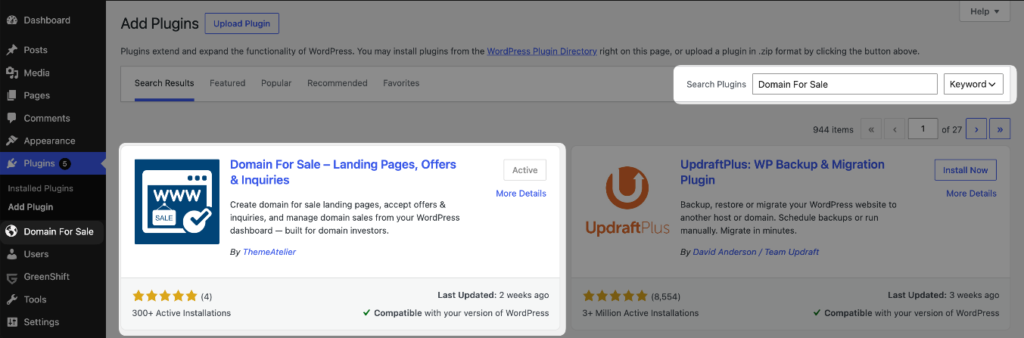
Log in to your WordPress dashboard. Go to Plugins → Add New. Search for “Domain For Sale,” or use Upload Plugin if you have the file. Click Install Now, then Activate. That’s it. The plugin is built specifically for selling domains, so the setup is short.
Step 3: Create Your Domain-for-Sale Page
Domain For Sale gives you a ready-made landing page template designed for one job: telling visitors the domain is available. Create the page from the plugin’s settings. The headline should state clearly that the domain is for sale, with no guessing required.
Step 4: Add the Domain Name and Key Selling Points
Buyers decide fast, so make your case quickly. Include:
- The domain name, large and obvious
- A short description of what it is
- Why it’s valuable
- Possible use cases and industries
- Niche or keyword relevance
- Brandability, plus how short and memorable it is
Keep it honest. “Great for a fintech startup or a personal finance blog” tells a buyer more than vague hype ever will.
Step 5: Add a Price or Make-Offer Option
Domain For Sale supports both a fixed price and a make-offer CTA, so choose what fits. A fixed price works when you know the name’s value and want a quick, clean sale. A make-offer option works when you’re unsure of the value or want to start a negotiation. Some sellers list a fixed price and still accept offers. Either way, give buyers a clear next move.
Step 6: Add a Buyer Inquiry Form
No contact form, no sale. The plugin includes a buyer inquiry form so interested buyers can reach you without leaving the page. Keep the fields tight:
- Name
- Offer amount
- Message
- Company or website (optional)
Built-in spam protection keeps junk submissions out, and email alerts ping you the moment a real offer lands so you can reply fast.
Step 7: Customize the Design
The page should look clean and trustworthy. Domain For Sale’s custom design settings let you match colors and branding. A few rules that convert:
- Use one clear headline
- Show a single main CTA
- Cut distractions and extra clutter
- Make sure it looks right on mobile
- Drop unnecessary menu links
Step 8: Publish the Page and Set It as the Homepage
When a domain is for sale, the sales page should usually be the homepage. That way anyone who types the domain sees the offer right away. In WordPress, go to Settings → Reading, choose “A static page,” and pick your domain-for-sale page as the homepage. Publish, then visit the domain to confirm it loads.
Step 9: Promote the Domain
A live page is a start, not a finish. Bring buyers to it:
- List the domain on marketplaces as well
- Share it directly with relevant buyers
- Email companies that might want the name, politely and professionally
- Add it to your portfolio if you hold several names
- Apply SEO basics so searchers can find the page
Step 10: Complete the Sale Safely
Never transfer the domain before payment is secure. Use a trusted escrow service or a secure registrar transfer process. Escrow holds the buyer’s money until both sides confirm the handoff, which protects everyone. The plugin can link out to a payment or escrow service from the page. This is general safety guidance, not legal or financial advice.
Best Practices for a High-Converting Domain Sales Page
A working page is good. A page that turns visitors into offers is better. Buyers skim, so design for the skim. With the median resale price near $549 and premium names selling far higher, a clear page is what separates an offer from a bounce (NameBio, Top Domain Sales 2025).
- Make the domain name the most obvious thing on the page
- Use a simple, direct headline
- Explain who the domain is a good fit for
- Add trust signals, like a real contact path
- Keep the CTA visible above the fold
- Keep the inquiry form short
- Respond to inquiries quickly, ideally same day
- Use safe payment and transfer methods every time
Common Mistakes to Avoid
A few avoidable errors kill deals. Most come down to friction or trust. Watch for these:
- Hiding the contact form. If buyers can’t find it, they leave.
- No clear CTA. Tell visitors exactly what to do next.
- An unrealistic price with no reason. If you ask high, explain why.
- A cluttered design. Noise drowns the offer.
- Skipping ownership checks. Confirm registrar access before you list.
- Transferring before payment clears. This is how sellers get burned.
- Ignoring mobile visitors. A broken mobile page loses real buyers.
Why Use Domain For Sale Instead of Building the Page Manually?
You can absolutely build a domain-for-sale page by hand with a theme, a page builder, and a separate form plugin. It works. It also takes longer and leaves you stitching pieces together.
A dedicated tool saves that time because it’s built for this one job. Domain For Sale gives you a ready-made landing page, a buyer inquiry form, fixed-price or make-offer CTAs, and custom design settings out of the box.
It adds spam protection, email alerts when offers arrive, basic analytics so you can see interest, and a payment or escrow link for safe checkout. You skip the assembly and get straight to listing.
If you manage more than one domain, that time saving multiplies across your whole portfolio.
Learn more about Domain For Sale here: http://wpdomainforsale.com/
Frequently Asked Questions
Can I sell a domain using WordPress?
Yes. You point the domain at a WordPress site and publish a landing page that says it’s for sale, with a price or make-offer option and a contact form. With the 2025 aftermarket logging around 190,300 sales (NameBio data), a self-hosted page is a legitimate, low-cost way to list and capture buyer interest.
Do I need a full website to sell a domain?
No. A single, focused landing page is enough, and often converts better than a full site. The goal is one clear message: the domain is available, here’s why it matters, and here’s how to make an offer. Extra pages and menus only distract buyers from that one action.
Should I show a fixed price or ask buyers to make an offer?
It depends on what you know. A fixed price suits sellers who’ve researched comparable sales and want a fast, clean transaction. A make-offer approach suits uncertain valuations and opens negotiation. With the all-TLD median around $549 in 2025 (NameBio), many sellers list a price and still accept offers.
How do I safely transfer a domain after selling it?
Use escrow or a secure registrar transfer, and never hand over the name before payment clears. Escrow holds the buyer’s funds until both parties confirm the transfer. Escrow.com alone processed $89.85 million in aftermarket sales in Q2 2025, which shows how standard secure transfer has become.
Is a WordPress domain-for-sale plugin better than a marketplace?
It’s a different tool, not strictly better. Marketplaces bring built-in traffic but take fees and use generic pages. A WordPress plugin like Domain For Sale gives you a branded, customizable page and direct inquiries with no middleman. Many sellers use both at once to widen reach.
Conclusion
Selling a domain with WordPress isn’t complicated. You need three things: a clear landing page, a buyer inquiry form, and a safe transfer process. WordPress gives you control over all three, plus the branding and flexibility a parked page never will.
With hundreds of thousands of domains changing hands every year, a name you’re not using could be worth real money to the right buyer. The hard part is just giving them an easy way to find and contact you.