




If you are still uploading raw video files directly to your WordPress dashboard, you are putting unnecessary strain on your server. Videos are heavy, and hosting them yourself can slow down your website, increase bandwidth usage, and create performance issues.
The smarter approach is to embed videos from YouTube instead.
When you embed a YouTube video, you are not actually uploading it to your site. Instead, you are displaying it using YouTube’s infrastructure, which keeps your website fast and efficient.
In this guide, you will learn exactly how to embed a YouTube video in WordPress, along with best practices to keep your site optimized in 2026.
Why You Should Embed Videos Instead of Uploading Them
Before jumping into the steps, it’s important to understand why embedding is the better choice.
- Faster website speed: No heavy files on your server
- Zero bandwidth usage: YouTube handles video delivery
- Better user experience: Auto-adjusting quality for all devices
- Improved SEO: Videos increase engagement and time on page
Method 1: Embed YouTube Video Using URL (oEmbed)
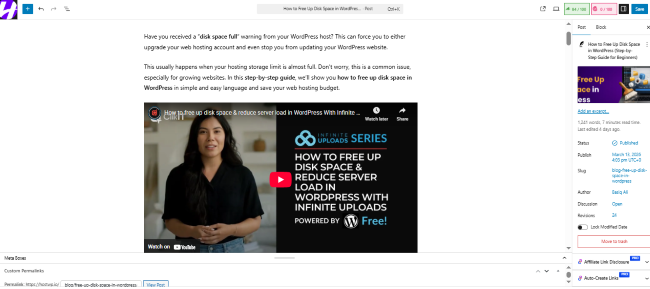
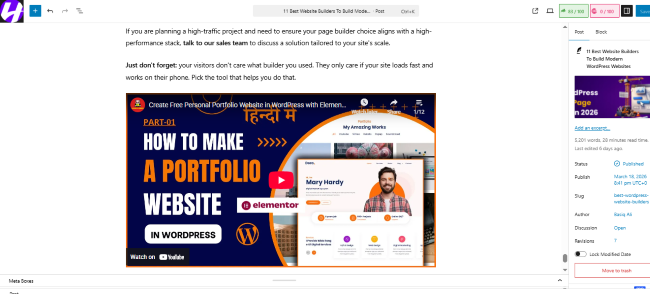
This is the easiest and fastest method. WordPress automatically converts YouTube links into embedded videos using a feature called oEmbed.
Steps:
- Go to the YouTube video you want to embed
- Copy the video URL from your browser
- Open your WordPress editor (Gutenberg or Classic)
- Paste the link on its own line
WordPress will instantly convert the link into an embedded YouTube video player.
Method 2: Using the YouTube Block in Gutenberg
If you are using the Block Editor, WordPress provides a dedicated YouTube block for better control.
Steps:
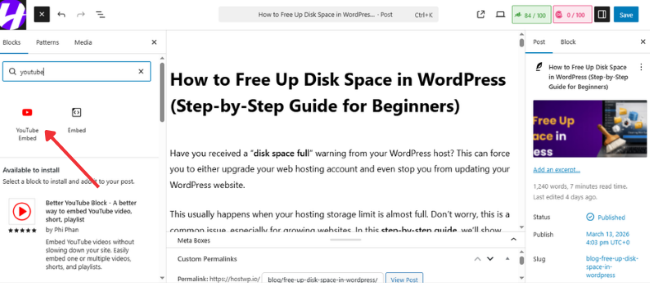
- Click the (+) Add Block button
- Search for YouTube
- Select the YouTube block
- Paste your video URL
- Click Embed
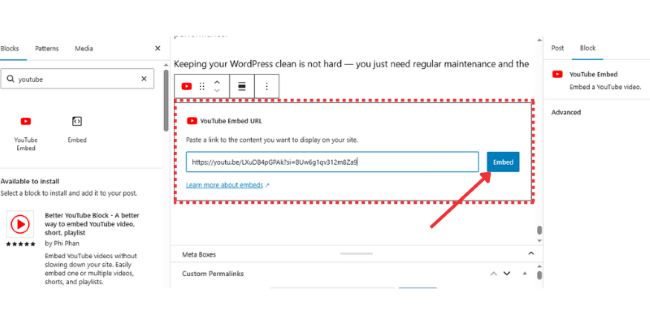
This method allows better control over alignment and layout.
Method 3: Advanced Embed Using Iframe Code
If you want more customization, such as starting the video at a specific time or disabling controls, you can use the iframe method.
Steps:
- Open your YouTube video
- Click the Share button
- Select Embed
- Customize settings (start time, controls, etc.)
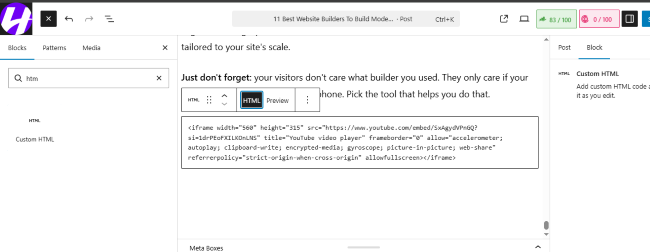
- Copy the iframe code
- Add a Custom HTML block in WordPress
- Paste the code
This gives you full control over how the video appears.
Privacy Tip (Important in 2026)
Privacy is an important factor when embedding third-party content. Organizations like Mozilla Foundation highlight the importance of protecting user data online.
How to Embed YouTube Playlists
If you have multiple videos, embedding a playlist is more efficient than adding videos one by one.
Steps:
- Open the YouTube playlist
- Copy the playlist URL
- Paste it into your WordPress editor
WordPress will automatically create a playlist player.
Improve Performance with Lazy Loading
Each embedded video adds scripts to your page. If you embed multiple videos, it can slow down your site.
The solution is lazy loading.
Lazy loading ensures videos only load when the user scrolls to them.
How to Enable:
- Use a caching plugin like LiteSpeed Cache
- Enable the Lazy Load Iframes option
This significantly improves page speed and helps with Core Web Vitals.
YouTube Embed vs Self-Hosting
| Feature | YouTube Embed | Self-Hosting |
| Server Load | Zero | Very High |
| Video Quality | Auto-adjusts | Fixed |
| Cost | Free | High |
| SEO Benefit | High | Low |
In almost all cases, embedding is the better choice.
Common YouTube Embed Issues (and Fixes)
1. Video Not Responsive
If your video doesn’t adjust on mobile:
- Enable Responsive Embeds in your theme
- Or use a plugin like EmbedPress
2. Black Bars Around Video
This happens when the aspect ratio is incorrect. Always use the default 16:9 format.
3. Video Not Showing
Check if the video is:
- Public
- Or Unlisted
Private videos will not display.
Best Practices for Embedding Videos
To keep your blog professional:
- Avoid autoplay (it annoys users)
- Add context before or after the video
- Use summaries or transcripts for SEO
- Keep video sizes consistent
Useful Plugins for Video Optimization
If your site relies heavily on videos, these plugins can help:
- Presto Player – Advanced video features and branding
- WP YouTube Lyte – Loads video only when clicked
These tools improve both performance and user experience.
External Resources (Recommended)
To go deeper into performance and SEO:
Final Summary
Embedding YouTube videos in WordPress is the most efficient way to add engaging content without affecting your website’s performance. Instead of uploading heavy files, embedding allows YouTube to handle video delivery while your site remains fast and responsive.
By using the simple URL method, YouTube block, or iframe customization, you can easily control how videos appear on your site. Combining this with lazy loading and proper formatting ensures your blog stays optimized and user-friendly.
If you are serious about performance and speed, pairing these practices with a reliable hosting provider like HostWP.io can make a significant difference. A fast server combined with optimized content ensures better rankings, improved user experience, and higher engagement.