






As a WooCommerce store owner, you likely spend hours perfecting product descriptions, optimizing images, and tweaking your checkout flow. But there is a silent “performance killer” lurking in your server logs that most people ignore until their site slows to a crawl: Dynamic URL Bloat.
In 2026, the digital landscape has shifted. It’s no longer just Googlebot you have to worry about; a new wave of aggressive AI scrapers and “Answer Engines” are hitting your server 24/7. If your store has 500 products, various Bots shouldn’t be crawling 50,000 URLs. Yet, due to how WooCommerce handles filters, sorting, and session data, that is exactly what happens.
At HostWP.io, we see this daily. Sites on our fast WordPress hosting infrastructure are built to handle high loads, but no server should waste its precious CPU cycles on “junk” pages. In this guide, we’ll dive deep into the mechanics of crawl bloat and how to eliminate it forever.
What is Crawl Bloat and Why is it Dangerous?
Search engines like Google don’t have infinite resources. They assign a “Crawl Budget” to every website—this is the number of pages a bot will crawl on your site within a specific timeframe.
When a bot hits your site, it starts following links. In a standard blog, this is straightforward. But in a WooCommerce environment, every time a user clicks a “Price: Low to High” filter or selects a “Red” color attribute, a new URL is generated. To a bot, yourstore.com/shop/ and yourstore.com/shop/?orderby=price look like two different pages.
The Downside of Ignoring Bloat:
- Index Fragmentation: Google might choose to index your “Red, Size XL, $50-$100” filtered page instead of your high-converting main product category.
- Server Resource Exhaustion: Unlike static pages, dynamic URLs (those with a ? in the link) often bypass page caching. This means every single bot hit forces your Hostwp.io server to run a full PHP and Database handshake.
- Delayed Indexing: If Google is busy crawling 5,000 variations of your socks category, it might take weeks for it to find the new $200 jacket you just uploaded.
The 5 Main Culprits of WooCommerce Crawl Bloat
1. Faceted Navigation (Filters)
This is the #1 budget killer. If you offer filters for Color (10 options), Size (5 options), and Material (5 options), a single category could technically generate 250 unique URL combinations. Googlebot will try to crawl all of them.
2. The “Add to Cart” and “Session” Traps
URLs like ?add-to-cart=123 or session IDs like ?v=7516fd43adaa are functional tools for users. However, bots see them as new content. When bots crawl “Add to Cart” links, they trigger “cart-stuffing” behavior at the server level, which is a major drain on PHP workers.
3. Sorting and View Modes
?orderby=popularity, ?orderby=rating, or ?view=list are redundant. They don’t provide new information; they just rearrange what’s already there.
4. Site Search Results
Internal search results (/search/ or ?s=) are often targeted by “Bad Actor” bots to scrape your data. If you aren’t following WordPress security best practices, these search pages can become a major entry point for bot-driven DDoS attacks.
5. Paginated Comments and Reviews
If your products have hundreds of reviews spread across multiple pages (/product-name/comment-page-2/), Google will crawl every single one of them. While reviews are good for SEO, having them on separate URLs creates “thin content” issues.
How to Identify if You Have a Bloat Problem
Before you start blocking, you need to see what the bots are doing.
- Google Search Console (GSC): Check the “Crawl Stats” report under Settings. If you see thousands of URLs with parameters (?) being crawled daily, you have bloat.
- Server Log Analysis: Access your logs via the Hostwp.io Control Panel. Look for repetitive hits from Googlebot or GPTBot targeting URLs with ?filter_ or ?orderby.
- Site Search: Type site:yourdomain.com inurl:?filter_ into Google. If you see thousands of results, your index is already fragmented.
The Multi-Layered Fix: Reclaiming Your Budget
Level 1: The robots.txt “Surgical” Strike
The robots.txt file is your first line of defense. Add this to your file:
Plaintext
User-agent: *
#Stop crawling the biggest budget killers
Disallow: /add-to-cart=
Disallow: /orderby=
Disallow: /filter_
Disallow: /attribute_
Disallow: /min_price=
Disallow: /max_price=
#Keep bots out of private/dynamic areas
Disallow: /cart/
Disallow: /checkout/
Disallow: /my-account/
Disallow: /?s=*
Level 2: Canonical Tagging (The SEO Safeguard)
A Canonical tag tells Google: “I know you found this page at ?filter_color=blue, but the only version that matters is the main category page.” This is the single best way to prevent duplicate content penalties.
How to add canonical tags in WordPress
Most users use a SEO plugin like Yoast SEO or Rank Math to handle this automatically, but here is how you can set or check them:
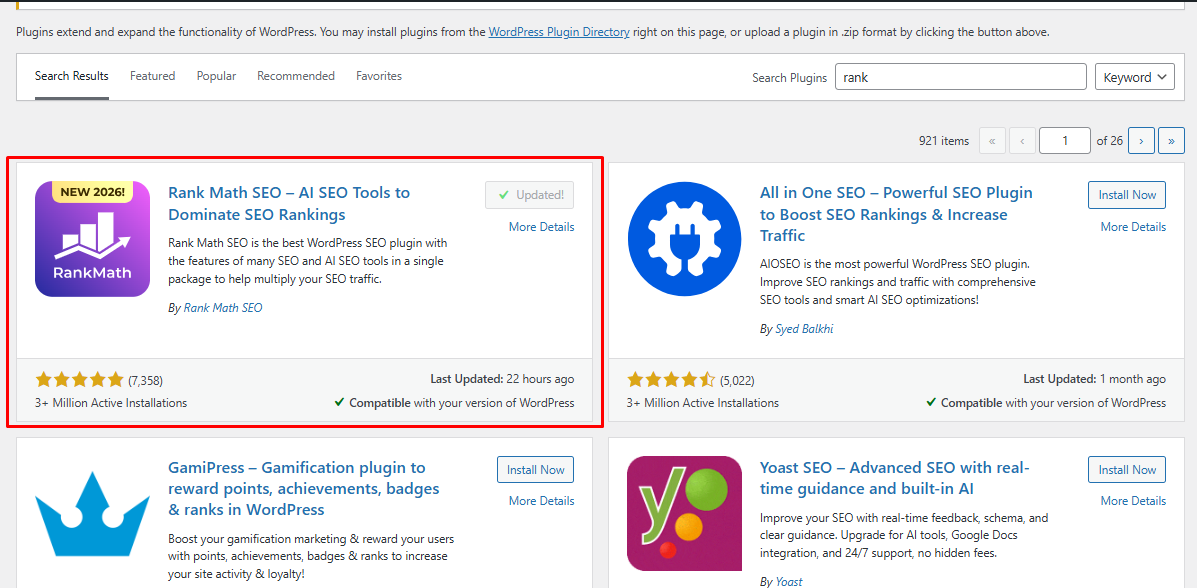
- Install an SEO Plugin: If you haven’t already, install Rank Math or Yoast.
- Automatic Canonicalization: By default, these plugins add a “self-referencing” canonical tag to every page, which tells Google that the main URL is the primary one.
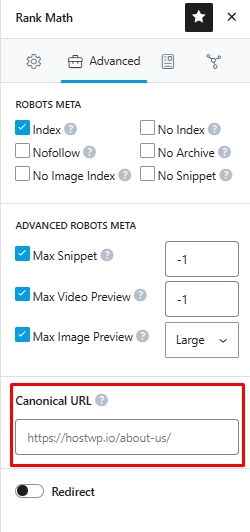
- Manual Overrides: If you have a specific duplicate page, go to the Advanced tab of the SEO settings on that post/product and paste the URL of the “Main” page into the Canonical URL field.
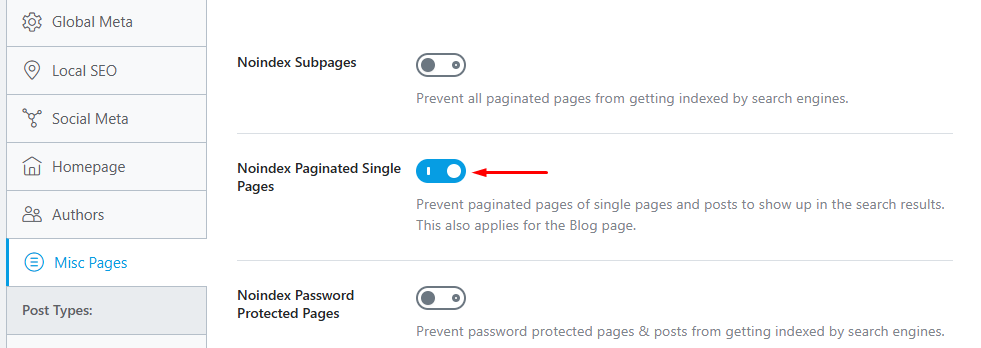
- WooCommerce Filters: Ensure your SEO plugin is set to “Noindex” sub-pages of archives or use a canonical tag that points back to the first page of the category.
Level 3: The “Noindex” Approach for Parameters
For pages that must exist for users but should never be in Google, use a meta robots tag. You can add a snippet to your functions.php to “noindex” any page that contains a WooCommerce filter:
PHP
add_action(‘wp_head’, ‘hostwp_noindex_filters’);
function hostwp_noindex_filters() {
if (isset($_GET[‘filter_color’]) || isset($_GET[‘min_price’])) {
echo ”;
}
}
Clean Up Your XML Sitemap
Your XML sitemap tells search engines which pages matter most. Many WooCommerce stores submit bloated sitemaps with thousands of low-value pages. Improving WooCommerce SEO starts with a clean, focused sitemap.
Remove these from your sitemap:
- Cart, checkout, and account pages
- Search result pages
- Tag archives (unless they’re substantial)
- Filtered and sorted URLs
- Out-of-stock product pages (optional)
Prioritize important pages by using proper frequency settings. Your homepage and main category pages should have higher priority than individual product pages. Best practices include keeping your sitemap under 50,000 URLs and splitting it into multiple sitemaps if needed. Use plugins like Yoast SEO or Rank Math for granular control.
Handle URL Parameters Correctly
Google Search Console provides a URL Parameters tool that’s incredibly powerful but underutilized. This is where WooCommerce SEO specialists can make a huge difference.
When to use noindex vs. disallow:
- Use noindex, follow when you want Google to follow links on the page but not index it.
- Use disallow in robots.txt when you don’t want Google to crawl it at all.
- Never use both together (it’s confusing and contradictory for search engines).
Quick Wins for Better Crawl Efficiency
Beyond the major fixes, these quick improvements compound your optimization efforts:
- Improve Site Speed: Faster sites get crawled more efficiently. Google can visit more pages in the same timeframe on a host like Hostwp.io.
- Fix Broken Links: Every 404 error wastes crawl budget. Use tools like Screaming Frog to fix internal broken links regularly.
- Remove Thin Content: Merge or delete pages with little text or duplicate content.
- Update Internal Linking: Link to your most important products from your homepage.
Why Hosting Architecture is Your Secret Weapon
Even with a perfect SEO setup, “Bad Bots” will ignore your robots.txt and hammer your site anyway. At Hostwp.io, our secure WordPress hosting includes server-level firewalls that can detect when a bot is trying to “brute-crawl” dynamic URLs.
- PHP Worker Protection: We keep workers free for actual sales.
- Database Efficiency: Stopping useless queries keeps your database lean.
- Frontend Speed: Combine these fixes with Javascript minification for top-tier performance.
Conclusion: Take Control of Your Store’s Future
WooCommerce crawl bloat is a silent thief. It steals your server’s performance, your bandwidth, and your SEO potential. By implementing a strict robots.txt, managing your sitemap, and following our guide on how to block AI crawler bots and save bandwidth, you can turn your store into a lean, mean, selling machine.
Is crawl bloat slowing you down? Don’t let bots dictate your success. Switch to Hostwp.io today and let our experts help you optimize your crawl budget for 2026 and beyond.