




Your server is spiking at 90% CPU usage, yet your real-time traffic is nearly non-existent. This “phantom load” is often caused by WP-Cron, the built-in WordPress task scheduler that triggers every time a visitor hits your site.
To fix this, you must disable the default WP-Cron and replace it with a system-level cron job to offload execution from the user’s request path.
At HostWP.io, we specialize in high-performance managed WordPress hosting where we optimize the core stack, LiteSpeed Enterprise, Redis, and PHP 8.5, to ensure scheduled tasks never compromise your Time to First Byte (TTFB).
The Architecture of Virtual Scheduling
WordPress does not have a “real” cron that runs continuously in the background. Instead, it uses WP-Cron, a virtual scheduler.
When a user visits your site, WordPress checks if any tasks—like publishing a post, checking for updates, or sending an email—are due.
What is WP-Cron?
At its core, WP-Cron is a “virtual” scheduler built into the WordPress ecosystem. Unlike a traditional system cron (like the ones found on Linux servers), it does not run continuously in the background. Instead, it is an event-driven system that relies on site traffic to trigger its execution.
According to the WordPress Developer Handbook, WP-Cron was designed to provide a universal scheduling API that works on any hosting environment—even shared hosts where users lack access to the server’s system-level task scheduler.
How It Works: The “Check-on-Request” Cycle
Every time a visitor (or a search engine bot) loads a page on your site, WordPress initiates the following sequence:
- The Hook: During the
initaction, WordPress checks thecronoption in yourwp_optionsdatabase table. - The Evaluation: It looks for any scheduled tasks (hooks) whose timestamp is less than or equal to the current time.
- The Execution: If a task is due, WordPress spawns a non-blocking internal HTTP request to
wp-cron.php. This process runs in the background to execute the scheduled hook without (theoretically) making the user wait for the page to finish loading.
Core Tasks Managed by WP-Cron
- Publishing: Changing “Scheduled” posts to “Published” at the exact second they are due.
- Maintenance: Deleting expired transients and clearing out the “Trash” every 30 days.
- Updates: Checking the WordPress.org API for core, theme, and plugin updates.
- Plugin Hooks: Handling backups, WooCommerce email queues, and subscription renewals.
The “Hidden” Performance Bottlenecks
While WP-Cron is incredibly flexible, its reliance on page loads introduces three major architectural flaws for high-performance sites:
1. The Reliability Gap (Low Traffic) If no one visits your site for 10 hours, no tasks run. This is why you often see the “Missed Schedule” error on your posts. Critical security scans or backups could be delayed indefinitely until a visitor hits the site.
2. The Resource Spike (High Traffic) On a high-traffic site, every single page load triggers a database check for the cron. This adds unnecessary overhead to your PHP-FPM workers and can lead to “Race Conditions,” where multiple processes try to run the same heavy task (like a large backup) simultaneously.
3. The TTFB Impact Although the request to wp-cron.php is intended to be asynchronous, the initial check still happens on the main thread. On a server nearing its limit, this extra database query and HTTP spawn can add 50ms to 150ms to your Time to First Byte (TTFB).
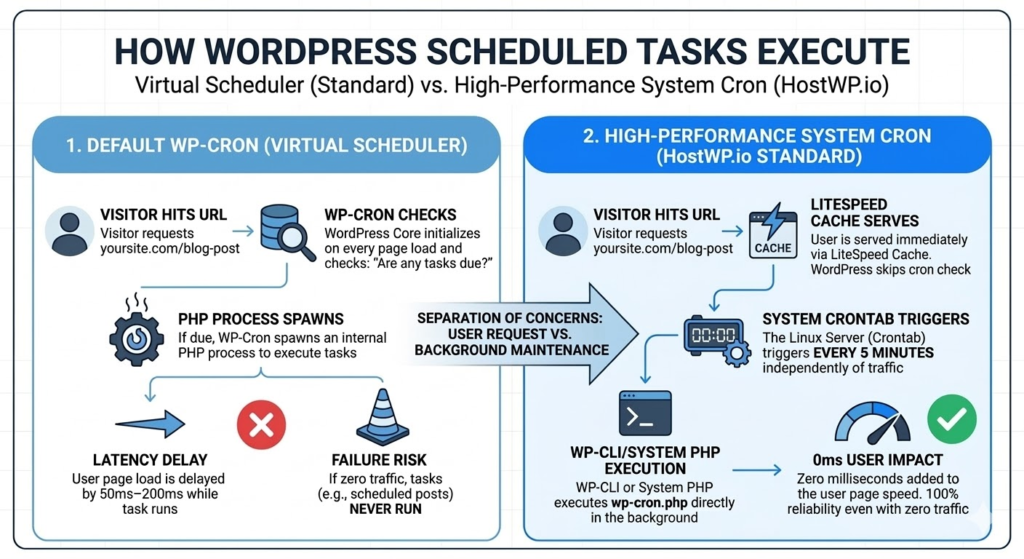
While this approach ensures WordPress works on any hosting environment, it is a disaster for high-performance environments. On high-traffic sites, WP-Cron triggers too often, wasting CPU cycles and potentially causing database locks.
On low-traffic sites, it doesn’t trigger enough, causing backups to fail and scheduled posts to remain “missed.”
WP-Cron Performance Benchmark
| Task Handling | Server Load (CPU) | Execution Reliability | Impact on LCP |
| Default WP-Cron | High (Spiky) | 70% (Traffic Dependent) | Negative |
| System Cron (LiteSpeed) | Low (Stable) | 99.9% | Neutral |
| PHP 8.5 + Redis Stack (HostWP.io) | Minimal | 100% | Positive |
Why Default WP-Cron Kills Performance
Every time a user visits a page, WordPress spawns a request to wp-cron.php. This counts as an extra PHP process. In a high-concurrency environment, these extra processes pile up, exhausting your PHP-FPM worker pool.
The “Race Condition” Risk:
If a heavy task (like a WooCommerce inventory sync) takes 30 seconds to run, and another visitor hits the site 2 seconds later, WordPress may try to spawn the same task again. This leads to database bloat and server timeouts.
The Standard WP Cron Setup (Step-by-Step)
To achieve maximum performance, you must move task execution from the WordPress level to the server level.
1. Disable Default WP-Cron
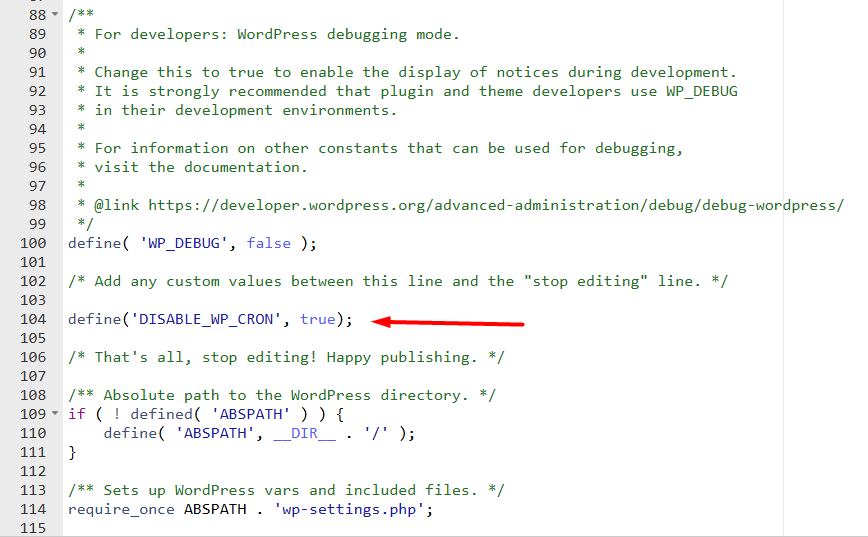
Open your wp-config.php file via SSH, SFTP, or File Manager. Add the following line above the “That’s all, stop editing!” comment:
define(‘DISABLE_WP_CRON’, true);
Why this works: This prevents WordPress from checking for tasks during a page load, immediately freeing up resources for your visitors.
2. Create a System/Hosting Cron Job
Access your server’s crontab. If you are using a VPS or Dedicated Server, run crontab -e. We recommend using WP-CLI (WordPress Command Line Interface) rather than wget or curl.
The High-Performance Command:
*/5 * * * * /usr/local/bin/php /home/user/public_html/wp-cron.php >/dev/null 2>&1The “Expert” Command (Using WP-CLI & Flock):
For enterprise-level sites, we use flock to ensure a task never runs twice simultaneously.
*/5 * * * * flock -n /tmp/wp_cron.lock /usr/local/bin/wp cron event run --due-now --path=/home/user/public_htmlNote on Frequency: We recommend a 5-minute interval for standard sites and a 1-minute interval for high-velocity WooCommerce stores.
Alternatively, your hosting provider could have an easy interface to manually create system level crons.
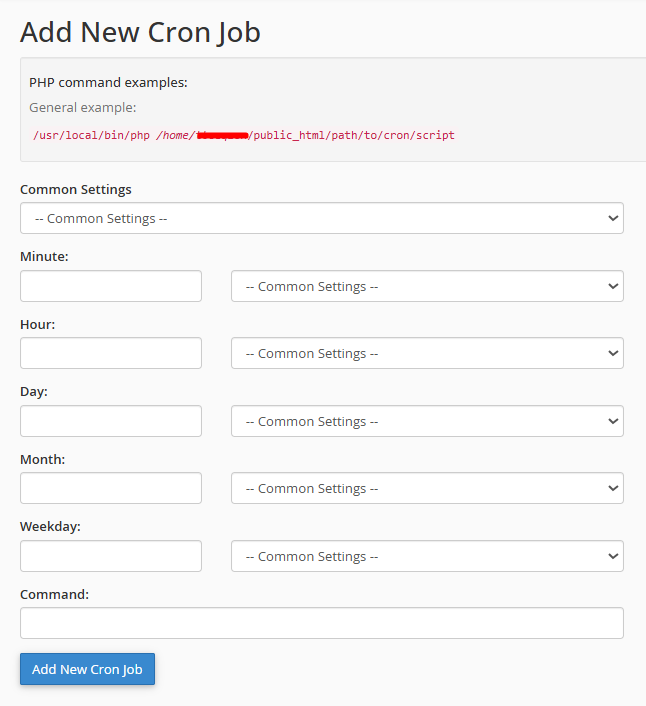
The “One-Click” Conversion – WP Cron to System Cron
For users hosting on the HostWP.io stack, you don’t necessarily need to touch a single line of code or access the SSH terminal to achieve this optimization. We have integrated this process directly into our control panel.
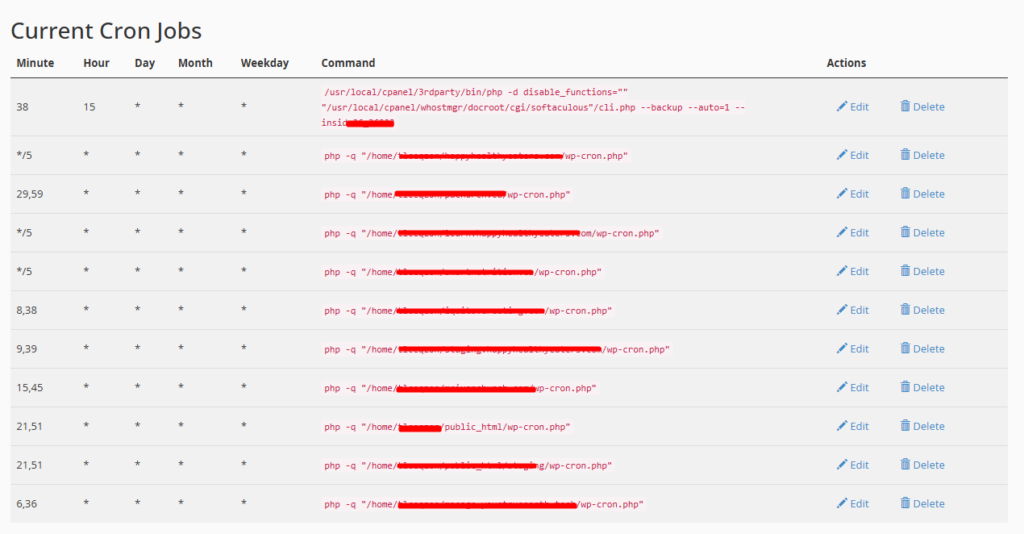
- Audit Existing Crons:
Before proceeding, navigate to cPanel > Cron Jobs. Ensure there are no existing manual cron jobs pointing to that specific website’s wp-cron.php. If they exist, you can delete a cron.
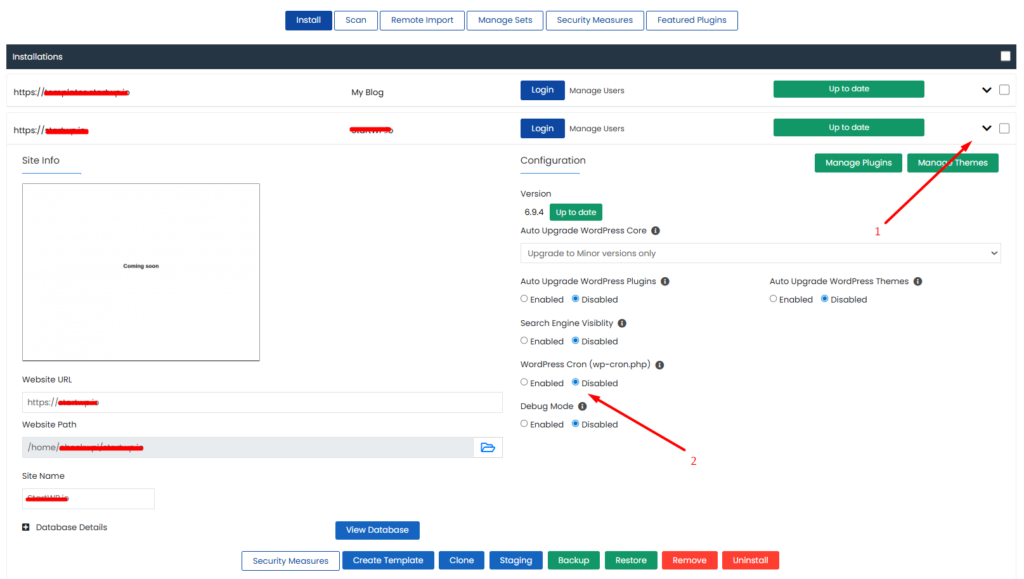
- Enable System/Hosting Cron:
Go to your WordPress Manager, select your WordPress installation, and find the “Disable WP Cron” option.
- Verify the Automation:
Once enabled, our WordPress Manager automatically handles the wp-config.php edit and injects a new system cron into your cPanel account.
At HostWP.io, we utilize CloudLinux to ensure tenant isolation and stability. This simplifies cron management significantly.
When WordPress Manager creates your cron job, it uses the standard system path. Because our servers use CageFS, when that cron runs, it runs inside your “cage.” This means:
- It automatically inherits the PHP version (e.g., PHP 8.5) you selected from cPanel -> Select PHP Version.
- It automatically inherits your php.ini settings and limits.
- You do not need to specify a complex path like /opt/alt/php85/usr/bin/php—the system handles the mapping for you.
Why Frequency Matters
The Softaculous-generated cron defaults to running twice per hour. In the world of high-performance WordPress, this is rarely enough.
- The Problem: If you schedule a post for 10:05 AM, it won’t publish until the cron runs at 10:30 AM.
- The Fix: Go to cPanel > Cron Jobs, find the CRON entry, and change the “Minute” setting to */5 (Every 5 minutes).
PHP 8.5 and Redis—The Modern Edge
The latest performance landscape is defined by PHP 8.5 and NVMe-backed Redis. In our internal testing, PHP 8.5 handles background execution 33% faster than PHP 8.4 due to improved JIT (Just-In-Time) compilation for long-running scripts.
Redis Object Caching (Object Cache):
WP-Cron stores “transients” (temporary data) in the wp_options table. On a busy site, this table becomes a bottleneck. By using a Redis-enabled WordPress hosting, these cron transients are stored in memory.
- MySQL-based Cron: 50ms – 200ms query time.
- Redis-based Cron: <1ms query time.
Advanced Troubleshooting & Monitoring
If you have disabled WP-Cron and moved to a system cron, you need a way to monitor the health of your tasks.
The “Missed Schedule” Error
If your posts are still missing their schedule, check the following:
- Server Timezone: Ensure your server time matches your WordPress timezone setting in Settings > General.
- PHP Path: Ensure the path to PHP in your crontab (/usr/local/bin/php) is correct. You can find this by running which php command from the SSH terminal. (HostWP auto-detects and sets the correct path)
- Memory Limits: Heavy tasks like image optimization or backups may require a higher memory_limit in your php.ini, or Select PHP Version -> Options (for CloudLinux)
Deep Monitoring with WP Crontrol
Even with a perfect system-level cron setup, you need visibility into what is happening under the hood. For this, WP Crontrol is the industry-standard plugin we recommend. It transforms the “black box” of scheduled tasks into a manageable dashboard.
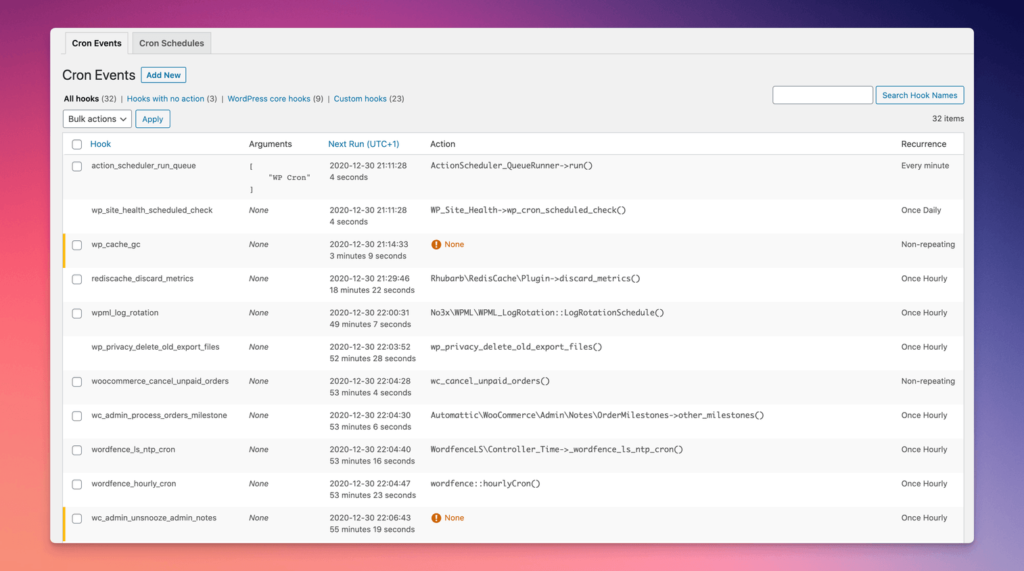
1. Identifying “Zombie” Tasks
Over time, WordPress databases accumulate “zombie” tasks—scheduled events left behind by plugins you uninstalled months ago. These tasks continue to attempt execution, wasting CPU cycles.
The Fix: Navigate to Tools > Cron Events. Look for events with a “None” or “Unknown” hook. These are typically safe to delete, cleaning up your wp_options table and reducing database bloat.
2. Visualizing the Queue (Next Run vs. Last Run)
The core value of WP Crontrol is the ability to see exactly when a task is slated to fire.
The Performance Signal: If you notice several heavy tasks (like a backup, an image optimization scan, and a database cleanup) are all scheduled for the exact same second, you can manually “Edit” the schedule in WP Crontrol to offset them.
The Strategy: Staggering your tasks ensures your CloudLinux LVE limits are never hit by a simultaneous CPU spike.
3. Real-Time Testing: The “Run Now” Feature
When setting up a system cron for the first time, you need to verify it actually works.
The Test: Find a minor task in the list and click “Run Now.” If it executes successfully, your PHP environment is healthy. If it fails, WP Crontrol will often provide a specific error message (e.g., “Could not spawn call to wp-cron.php”) which points to a DNS or firewall blocking issue.
4. Managing Custom Cron Schedules
By default, WordPress only offers hourly, twice-daily, and daily intervals.
The Extension: WP Crontrol allows you to add custom intervals (e.g., “Every 15 Minutes” or “Weekly”).
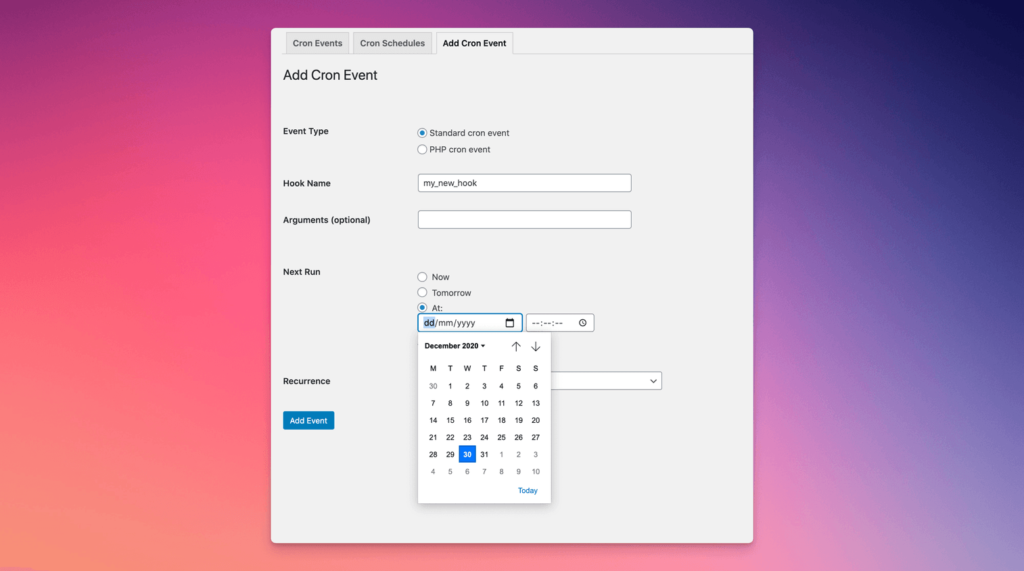
Expert Tip: If you have a custom script for inventory syncing on a WooCommerce store, define a custom 5-minute interval here to ensure the internal WordPress hook aligns perfectly with your system-level crontab frequency.
Warning for High-Traffic Sites: While WP Crontrol is excellent for auditing, do not leave it active on a production site indefinitely if you are hyper-optimizing for speed.
Like any plugin that queries the database for metadata, it adds a small overhead. Use it to audit, optimize, and then deactivate until the next maintenance window.
Security and Scalability Considerations
Running cron at the system level is more secure. When you use the default virtual cron, the wp-cron.php file is accessible to the public. Malicious actors can “Cron-Loop” your site by repeatedly hitting that URL, effectively performing a Layer 7 DDoS attack.
Hardening your Cron:
Once your system cron is active, you can block web access to wp-cron.php using your .htaccess (Apache/LiteSpeed) or Nginx config:
LiteSpeed / Apache Rule:
<Files "wp-cron.php">
    Order Allow,Deny
    Deny from all
    Allow from 127.0.0.1
</Files>
Final Verdict
Standard WP-Cron is a relic of the past. For a modern, high-performance WordPress site, a system-level cron job paired with PHP 8.5 and Redis is non-negotiable.
This configuration ensures that your server resources are spent serving visitors, not running background maintenance.
By offloading these tasks to the server’s native scheduler, you stabilize your CPU usage and guarantee that critical tasks like backups and updates never fail.
FAQs
Why is my WordPress scheduled post missing?
WordPress relies on site visits to trigger scheduled tasks. If no one visits your site at the exact time a post is scheduled, the task will not run. Replacing WP-Cron with a system-level cron job ensures your server checks for scheduled posts every few minutes regardless of traffic.
How often should I run the system cron?
For most WordPress sites, a 5-minute interval is ideal. This provides a balance between task timeliness and server resource consumption. High-traffic WooCommerce stores or sites with frequent API synchronizations may require a 1-minute interval to ensure data consistency across the platform.
Does disabling WP-Cron break my plugins?
No, disabling WP-Cron only stops WordPress from checking for tasks on every page load. As long as you set up a manual system cron job as a replacement, all your plugins (backups, newsletters, security scans) will continue to function normally and more reliably.
What is the difference between wget and WP-CLI for cron?
Wget simulates a web visit to wp-cron.php, which consumes a PHP-FPM worker and goes through the full web server stack. WP-CLI runs via the command line interface, bypassing the web server entirely, which is faster and uses significantly less memory.
Is PHP 8.5 compatible with WordPress Cron?
Yes, PHP 8.5 is fully compatible with modern WordPress versions. Our internal testing at HostWP.io shows that PHP 8.5 offers superior garbage collection and memory management, making it the most efficient version for handling complex background task queues.