




You have probably heard of a robots.txt file. It is a standard file that tells search engines like Google how to crawl your website.
Now, a new file called llms.txt is gaining popularity.
If you are wondering what it is and why you need it, do not worry. This guide will explain everything in plain English. We will walk through the process step by step, assuming you have zero coding or technical experience.
By the end of this article, you will have successfully added this file to your WordPress site in just a few minutes.
What is an llms.txt File?
Think of llms.txt as a digital name tag or a quick summary for your website.
As AI models like ChatGPT, Claude, and others browse the web to learn and gather information, they sometimes struggle to understand what a website is actually about. They might read outdated pages or get confused by complex layouts.
An llms.txt file solves this problem. It is a simple text file placed in the main folder of your website. It gives AI models a clean, easy-to-read summary of your site, your main topics, and links to your most important pages.
It is completely optional, but adding one is a great way to future-proof your website and ensure AI understands your content correctly.
To add the llms.txt file, place it in the main folder of your WordPress installation. You have two easy ways to do this. Choose the one you are most comfortable with:
METHOD 1: Use cPanel File Manager (Recommended & No Plugin Needed)
Step 1: Access Your Website’s Main Directory
If your hosting provider gives you a cPanel dashboard (like HostWP.io does), this is the fastest and safest method. You do not need to install any extra plugins.
- Log in to your hosting account and open your cPanel dashboard.
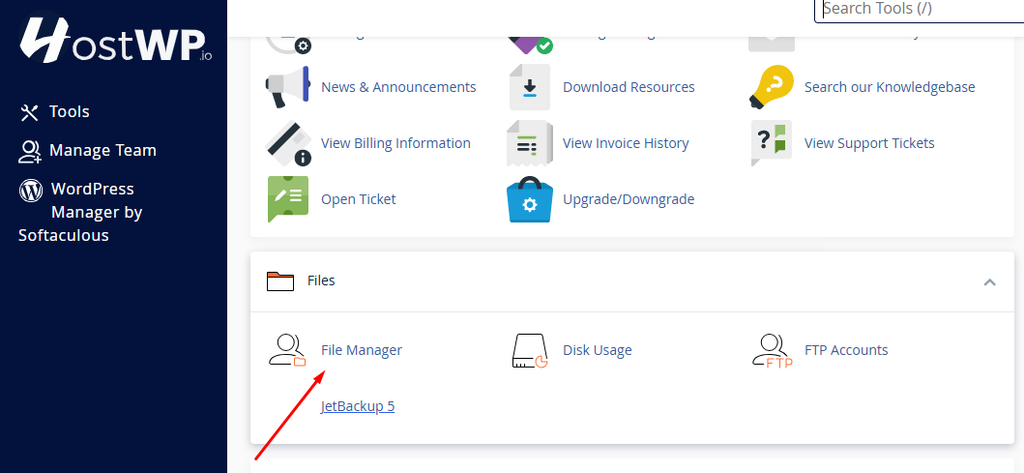
- Scroll down to the Files section.
- Click on the File Manager icon.
Step 2: Navigate to Your Root Directory
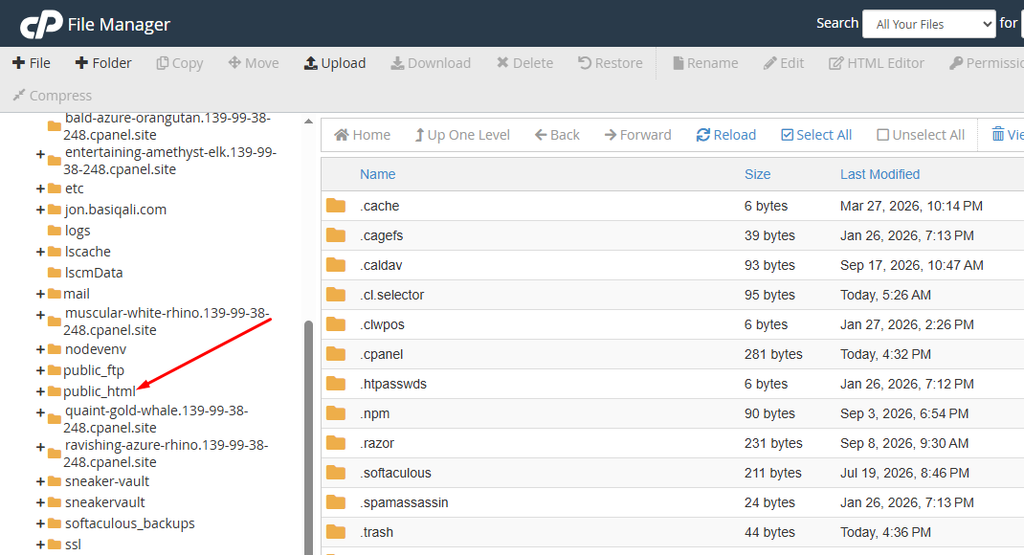
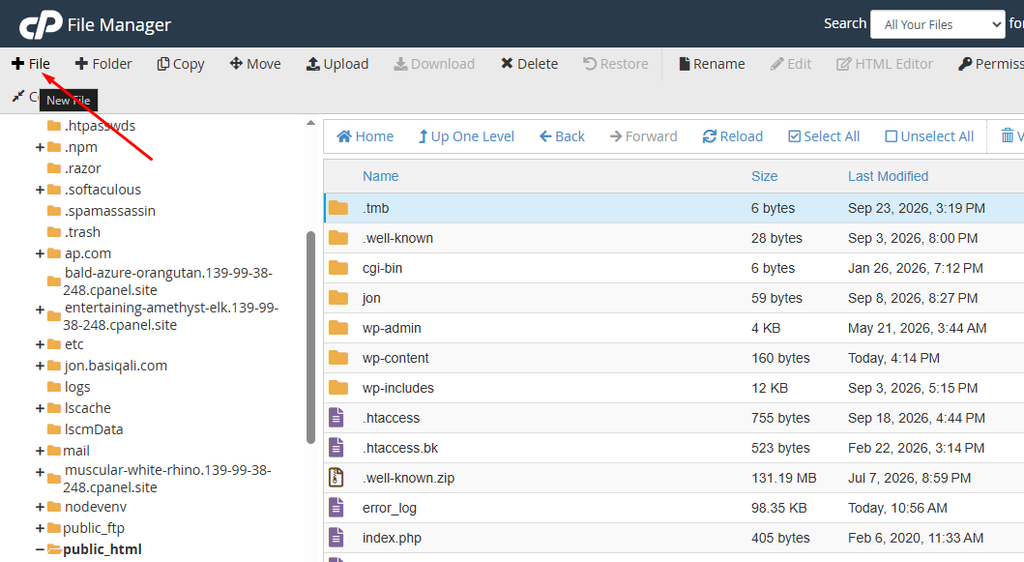
On the left-hand sidebar, look for and click on the public_html folder. This is the main root directory where your website’s core files live.
Step 3: Create the New File
Look at the toolbar in the top-left corner of the screen and click the + File button.
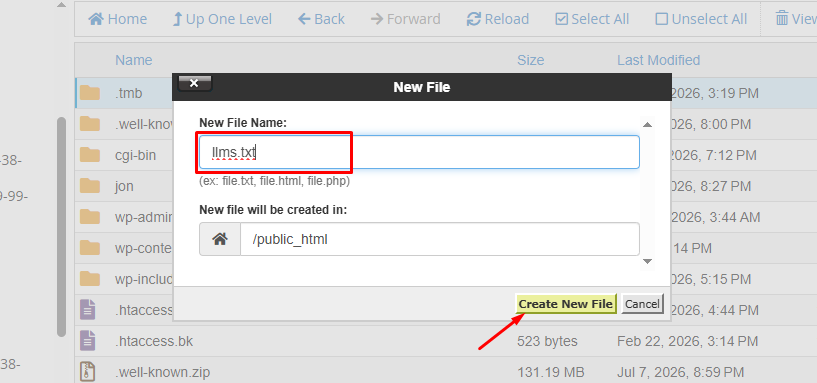
A small pop-up window will appear. In the “New File Name” box, type exactly this:
llms.txt
Click Create New File.
Step 4: Add Your Website Details
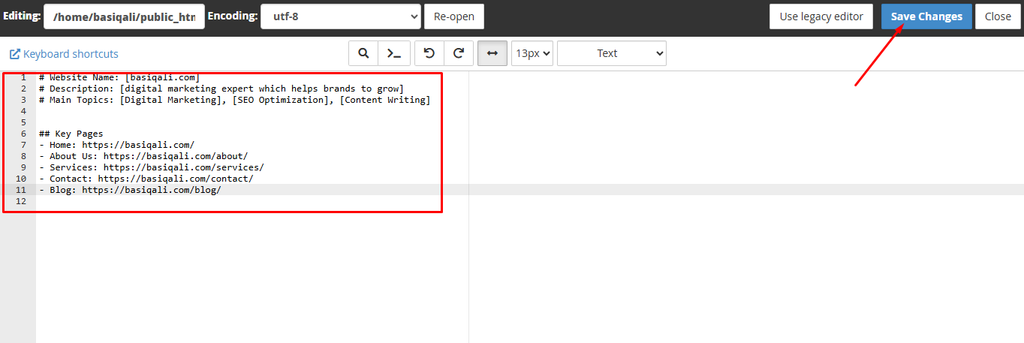
A simple text editor will open. Copy the template below, replace the bracketed [ ] information with your actual website details, and paste it into the editor.
Text
# Website Name: [Your Website Name]
# Description: [A short, one-sentence description of what your website or business does]
# Main Topics: [Topic 1], [Topic 2], [Topic 3]
## Key Pages
– Home: https://yourwebsite.com/
– About Us: https://yourwebsite.com/about/
– Services: https://yourwebsite.com/services/
– Contact: https://yourwebsite.com/contact/
– Blog: https://yourwebsite.com/blog/
Then save changes and close.
METHOD 2: Use a WordPress Plugin
If you are not sure how to log in to cPanel, you can do so directly from your WordPress dashboard using a free plugin.
Step 1: Download & Install Plugin
- Log in to your WordPress admin dashboard.
- Go to Plugins and click Add New.
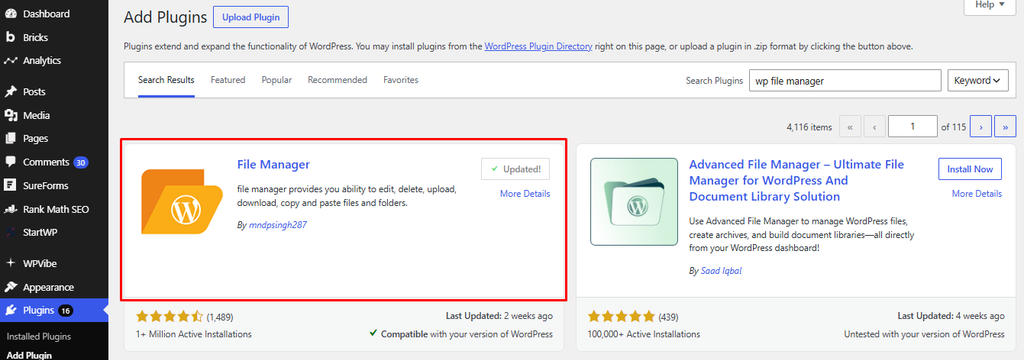
- Search for “WP File Manager”.
- Click Install Now on the plugin by mndpsingh287, and then click Activate.
- Once activated, you will see a new WP File Manager option in your left-hand menu. Click on it.
Note: Whether you opened cPanel File Manager or the WP File Manager plugin, the screen will look very similar. You are now ready for the next step.
Step 2: Create the llms.txt File
Now that the plugin is active, you are ready to create the file.
- Look at the left-hand menu in your WordPress dashboard. You will see a new option called WP File Manager. Click on it.
- You will see a list of folders. Look for the folder named public_html (or sometimes it is named after your website). This is the main root directory of your site. Double-click to open it.
- At the top of the screen, click New File.
- A small box will pop up asking for the file name. Type exactly this: llms.txt
- Click Create.
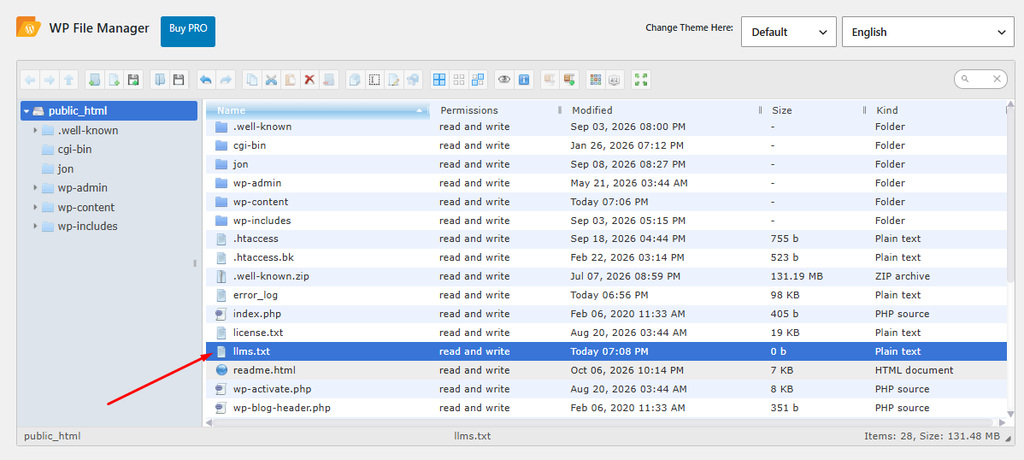
Step 3: Add the Content to Your File
Right now, the file is empty. Tell the AI what your website is about.
- Find the llms.txt file you just created in the list.
- Right-click on it and select Code Editor (or click the file and look for the edit/code icon at the top).
- A text box will open. Copy and paste the simple template below and update the details to match your website.
Copy and Paste this Template:
text
# Website Name: [Your Website Name]
# Description: [A short, one-sentence description of what your website does]
# Main Topics: [Topic 1], [Topic 2], [Topic 3]
## Key Pages
– Home: https://yourwebsite.com/
– About Us: https://yourwebsite.com/about/
– Services: https://yourwebsite.com/services/
– Contact: https://yourwebsite.com/contact/
– Blog: https://yourwebsite.com/blog/
Make sure to replace the bracketed text [like this] and the example URLs with your actual website information.
- Once you have updated the text, click the Save icon (it usually looks like a floppy disk) at the top of the editor.
- Close the code editor.
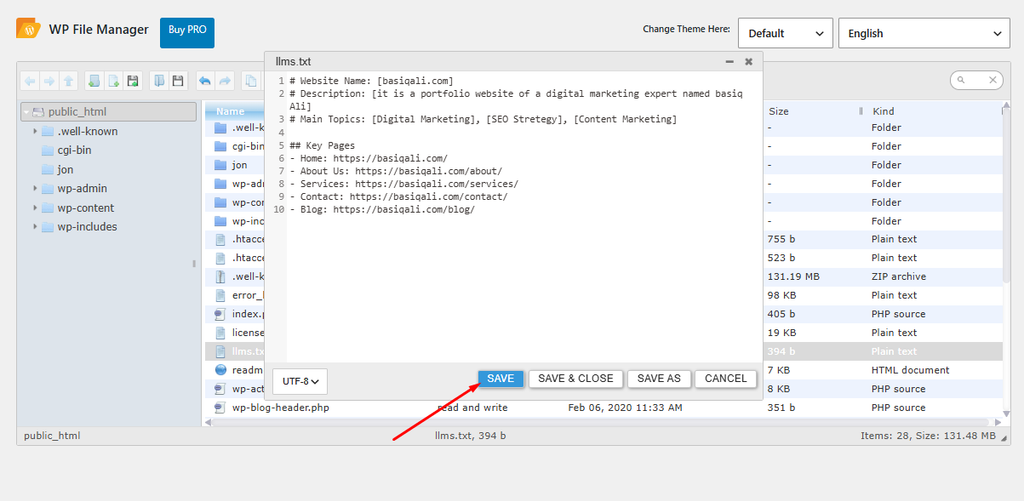
Step 4: Verify the File is Working
Always double-check your work before you consider the job done.
Open a new tab in your web browser. In the address bar, type your website address followed by /llms.txt.
For example: https://yourwebsite.com/llms.txt
Press Enter.
If you set everything up correctly, you should see a plain white page with the exact text you just typed. If you see a “404 Not Found” error, go back to Step 2 and make sure the file is named exactly llms.txt and is located in the main public_html folder, not inside a subfolder like wp-content.
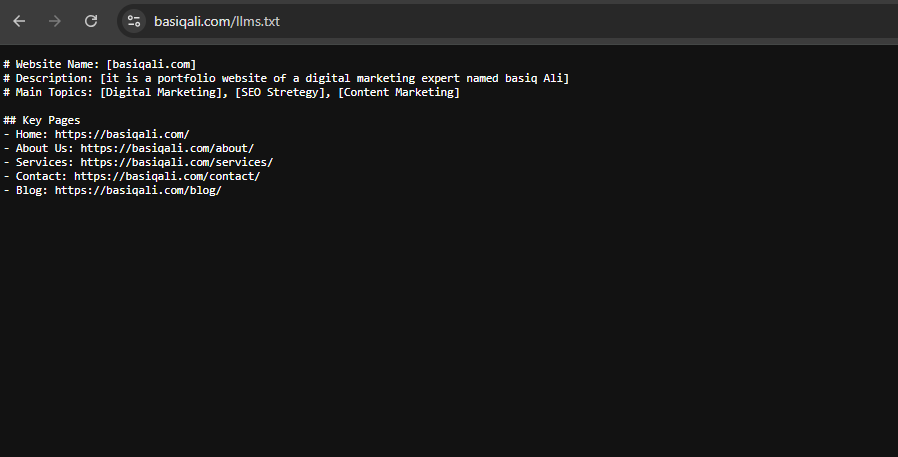
Step 5: Clean Up (Optional but Recommended)
Since the WP File Manager plugin gives deep access to your website’s core files, it is good security practice to deactivate it when you are not using it.
You do not need to delete it. Just go to your Plugins page, find WP File Manager, and click Deactivate.
When you need to edit the file again, you can simply reactivate it, make your changes, and deactivate it again.
Final Thoughts
Adding an llms.txt file to your WordPress website is a quick, five-minute task that requires no coding knowledge. With a simple file manager plugin, you can safely create and manage this file directly from your dashboard.
As AI continues to change how people find and interact with information online, giving these systems a clear, structured map of your website is a smart, proactive step.
Give it a try today, and rest easy knowing your website is speaking clearly to the next generation of web technology.