


Why WordPress Updates Automatically?
WordPress is a dynamic open-source CMS that’s constantly evolving with thousands of contributors around the globe working on its new and existing features. To ensure your website remains secure, efficient, and up-to-date with the latest features, it automatically updates itself by default. These updates are crucial for several reasons:
- Security Patches: One of the primary reasons for automatic updates is to address security vulnerabilities. Hackers are constantly targeting websites, and updates often include patches to protect your site from these threats.
- Bug Fixes: Over time, software can develop bugs or glitches that can affect your website’s functionality. Automatic updates help rectify these issues, ensuring a smooth user experience.
- Performance Improvements: WordPress developers are always working to optimize the platform’s performance. Updates often include enhancements that can speed up your website’s loading times and improve overall responsiveness.
- New Features: With each update, WordPress introduces new features that can enhance your website’s capabilities. These features can help you develop a better website in terms of functionality and layout.
By keeping your WordPress installation up-to-date, you’re not only protecting your website but also ensuring that it’s always performing at its best.
Types of WordPress Updates:
WordPress automatic updates are mainly divided into four types:
- Core updates: Contains the core WordPress files.
- Plugin updates: All plugin updates for improvements, fixes, and new features.
- Theme updates: Updates related to your WordPress themes.
- Translation file updates: WordPress has many languages, which are improved via translation updates.
The core updates can be subdivided into three categories:
- Core development: This is available for development installations.
- Minor core updates: Contains maintenance and security updates enabled by default on all sites. E.g. updates from WordPress 6.6.1 to WordPress 6.6.2.
- Major core updates: Covers updates focusing on the new WordPress features. E.g. updates from WordPress 6.6.x to WordPress 6.7.
Why Disable Automatic WordPress Updates?
While automatic updates are generally a good practice to keep your WordPress website secure and up-to-date, we recommend leaving it enabled for minor WordPress core for security updates.
However, there are specific situations where disabling updates of the major core WordPress versions might be necessary. Here are a few reasons:
- Compatibility Issues: Updates can sometimes introduce compatibility issues with custom code, plugins, or themes. This can lead to unexpected errors and website malfunctions.
- Security Concerns: While updates often include security patches, there’s always a risk that a new update could introduce vulnerabilities. By carefully testing updates before deploying them, you can minimize the risk of security breaches.
- Unwanted New Features: Sometimes, updates may introduce new features that you don’t need or want. These features can potentially slow down your website or conflict with your existing design. By disabling automatic updates, you can control which features you want to implement and when.
Pros and Cons of Disabling WordPress Updates
Before disabling automatic WordPress updates, it’s important to carefully consider the potential benefits and drawbacks of disabling WordPress updates. T
| Pros of Disabling WordPress Updates | Cons of Disabling WordPress Updates |
|---|---|
| Complete Control: You have full control over the update process, allowing you to schedule updates at your convenience and minimize potential downtime. | Security Risks: Outdated WordPress installations are more susceptible to security vulnerabilities, making your website a target for hackers. |
| Avoid Compatibility Issues: By manually testing updates, you can prevent compatibility problems with custom code, plugins, and themes. | Missed Improvements: Disabling updates means you’ll miss out on performance enhancements, new features, and bug fixes that can improve your website’s functionality. |
| Prevent Unwanted Changes: Disabling automatic updates ensures that your website’s configuration and design remain intact, avoiding unintended modifications. | Time-Consuming: Manually managing updates requires time and effort, including testing updates, applying them, and monitoring for potential issues. |
| Preserve Manual Site Configurations: You can maintain custom settings and configurations without the risk of them being overwritten by automatic updates. |
How to Disable Automatic Updates in WordPress
To disable automatic WordPress updates, you have three primary options: manual configuration, using a plugin, or you can also directly disable them from your hosting control panel. Let’s explore all methods in detail.
Method 1: Disable Automatic Updates Without Using a Plugin
If you do not want to use any plugin to disable auto updates, you can follow the steps below
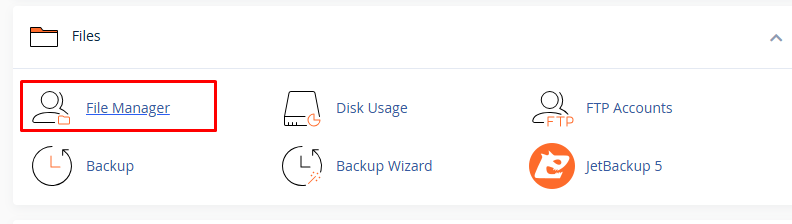
- Login to the cPanel and locate the file manager.
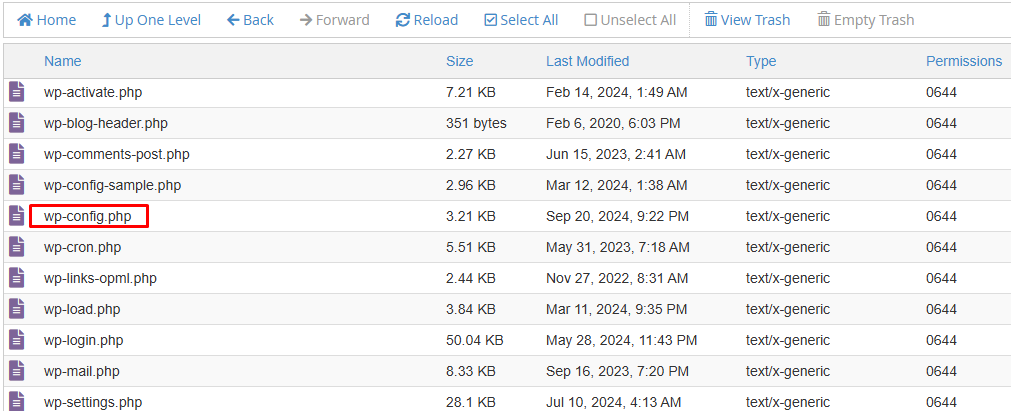
- Locate the wp-config.php file.
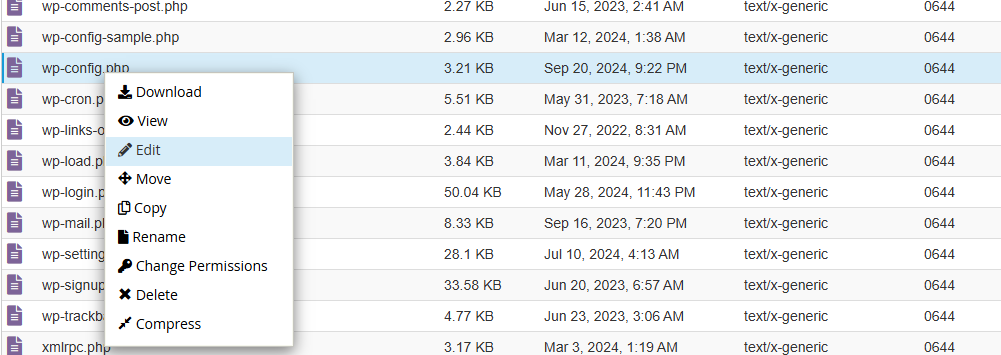
- Right-click on the wp-config.php file and click on the edit menu.
Note: Make sure to keep a copy of the wp-config.php file before editing it.
- Now add this code “define( ‘WP_AUTO_UPDATE_CORE’, false );” to your wp-config.php to disable auto core updates and click save changes.
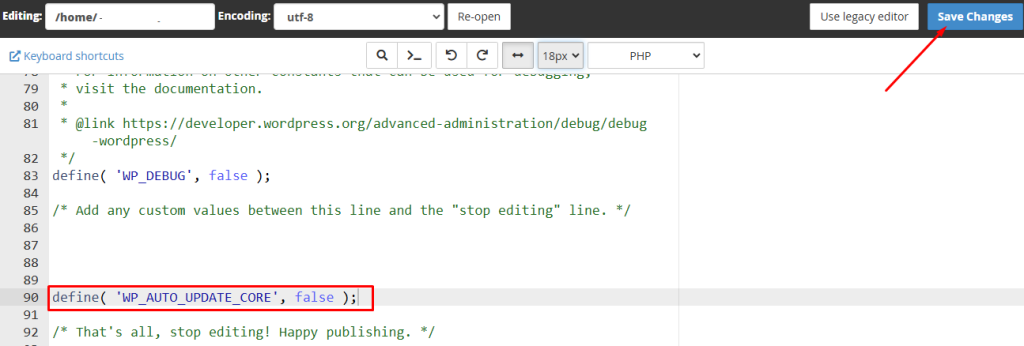
- To allow only minor updates, change ‘false’ to ‘minor and to allow only major updates, change false to major.
define( 'WP_AUTO_UPDATE_CORE', ‘minor’);- To disable all WordPress auto-updates, add this line to the file:
define( 'AUTOMATIC_UPDATER_DISABLED', true );Now that you’ve disabled automatic WordPress core updates, your website won’t automatically update to the latest version. However, it’s important to remember that you’ll still need to manually update your plugins and themes to ensure optimal security and performance.
Alternatively, if you prefer a more user-friendly approach, you can use a plugin to disable automatic WordPress updates.
Method 2: Disable Automatic Updates Using a Plugin
While you can manually disable automatic updates by modifying your wp-config.php file, this method can be risky and requires technical expertise. A safer and more user-friendly approach is to use a dedicated plugin called “MainWP.“
Here’s how to disable automatic updates using this plugin:
- Install and Activate the Plugin:
- Log into your WordPress dashboard.
- Go to Plugins > Add New.
- Search for “Easy Updates Manager” and install it.
- Activate the plugin.
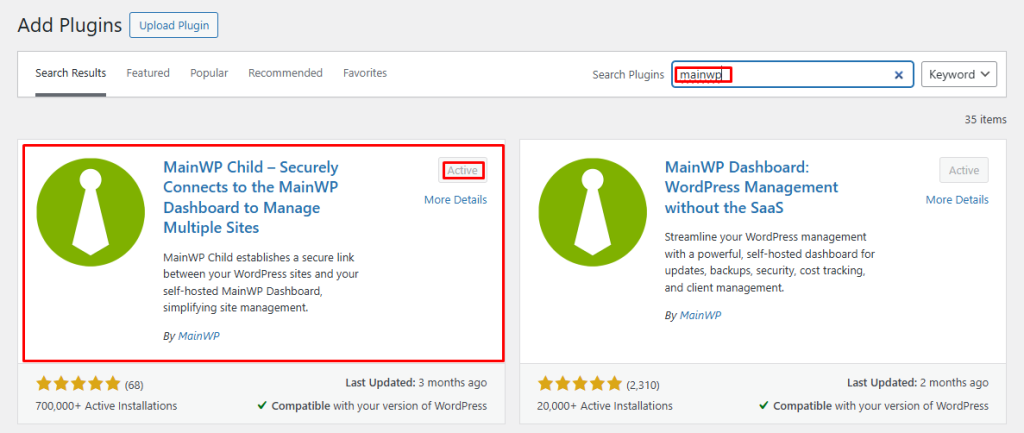
- On the MainWP updates page, you’ll see a list of options to control different types of updates. Navigate to the settings icon in the top right bar.
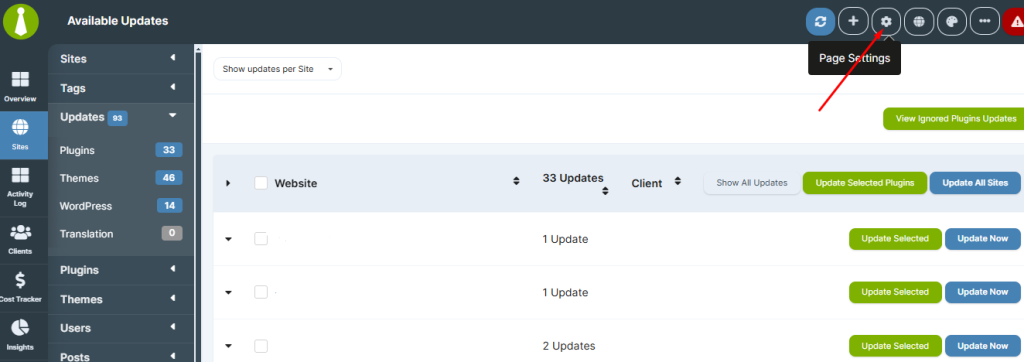
- Now locate WP Core advanced automatic updates and select Disabled from the dropdown.

However, it’s not recommended to completely disable all updates, as this can leave your website vulnerable to security threats.
Like MainWP, we recommend GetGlow.io to our clients. It provides comprehensive WordPress website management along with a dashboard for support management.
Method 3: Disable Automatic Updates Directly From Hosting Control panel
A more secure and convenient method to disable automatic WordPress updates is by directly accessing your hosting control panel (cPanel). By following these steps, you can easily manage your website’s auto-update settings. We are going to cover how our clients do it at HostWP.io.
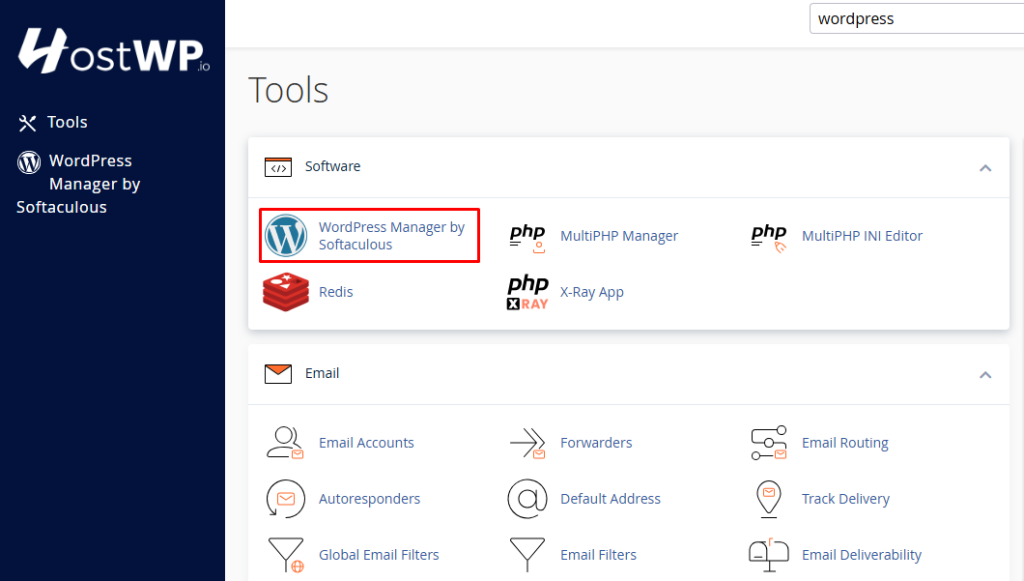
- Login to your HostWP.io cPanel and locate the WordPress manager by Softaculous
- Select your website and just simply disable the following option
- Auto Upgrade WordPress Plugins
- Auto Upgrade WordPress Themes
- WordPress Cron (wp-cron.php)
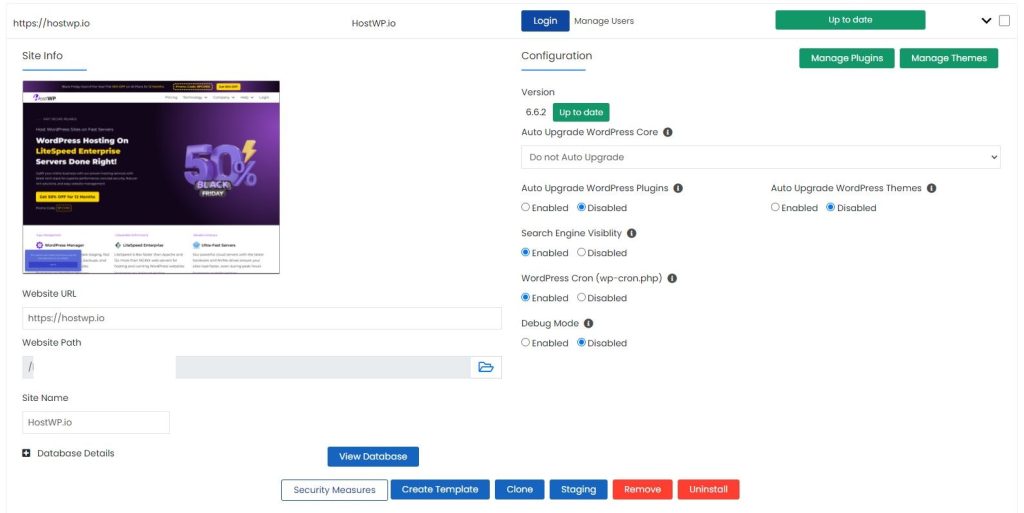
Additionally, you can contact your web hosting provider’s support team and ask them to disable or enable automatic updates of WordPress core, themes, plugins, etc. It’s that easy to disable WordPress auto-update.