

WordPress security is a significant topic, and over the years, attacks on WordPress websites have increased in both frequency and complexity.
WordPress, while highly versatile and easy to use, is a major target for malicious actors because it is widely used. Ignoring basic security steps is like leaving your digital castle door wide open. Luckily, making your WordPress site more secure doesn’t take a knight’s armor or magic spells. By focusing on a few key aspects, you can significantly enhance your WordPress site’s security.
Being a managed hosting for WordPress, HostWP.io also takes care of securing client websites and web hosting servers. We understand that security, uptime, and data protection are essential for anyone seeking to establish their online presence.
Here are some top-notch security tips from resident WordPress experts to make sure your WordPress site stays safe and reliable online:
Essential WordPress Security Safeguards
In this section, we will discuss some fundamental and essential WordPress security basics that every WordPress website should have in place.
1. Pick a Secure Hosting Provider
Why this is crucial: Your web hosting provider is the base of your website’s security. A good host spends a lot on security for their servers, which is your first defense against all sorts of threats.
A good secure hosting for WordPress must include firewalls on the server level, systems that detect intruders, and often scan for malware at the server level. This protects your site even before anyone visits it. Going with a cheap or unreliable host can leave you open to problems you can’t even control.
At HostWP.io, our WordPress experts have decades worth of combined experience, and that is why our customers get multi-level WordPress security that includes,
- CPguard on all servers, featuring real-time Malware scanning, threat blocking, malicious IP blocking, secure folder permissions, and more.
- Automated incremental backups of WordPress websites, emails, databases and entire cPanel accounts, that are stored on a third-party server.
- Auto-renewing SSL certificates that secure website connections, emails, FTP connections and more.
- Latest PHP versions and up-to-date software, including the Linux OS, WordPress sites, Litespeed servers etc.
How to do it:
- Look into Hosting Options: Find providers known for their security features and good reputation. See if they mention firewalls, malware scanning, regular security checks, and how they’ve handled security problems in the past by going over reviews and case studies.
- Consider Managed Hosting for WordPresss: These companies specialize in WordPress and often provide additional security features tailored specifically for WordPress, such as automatic updates, testing environments for changes before deployment, and support staff who are experts in WordPress security.
- Ask About Security Steps: Don’t be afraid to ask potential hosts about what they do for security, their server setup, and their plans if WordPress website gets attacked or compromised. A host that’s open and honest about this is usually a good sign.
2. Use Strong Login Credentials
Using a complex combination of usernames and passwords is crucial if your WordPress website allows visitors to register. For example, a WooCommerce website or a Membership, LMS website, makes it even more important to require users to use complex passwords.
Why this is crucial: Your username and password are the keys to your WordPress website. Weak or easy-to-guess info is like inviting hackers to try and break in using automated programs that try tons of combinations until they get it right (that’s called a brute-force attack). Using strong, unique passwords makes it way harder for these attackers to get into your site’s admin area.
How to do it:
- Pick Complex Passwords: Go for passwords that mix uppercase and lowercase letters, numbers, and special characters. Don’t use personal info, dictionary words, or common phrases.
- Use Different Passwords: Don’t use the same password for all your online accounts. If one account gets hacked, all the others with the same password are at risk.
- Use a Password Manager: Think about using a good password manager to create and safely store strong, unique passwords for all your online stuff, including your WordPress admin.
- Change Default Info: Never stick with default usernames like “admin.” Create a unique username when you set up WordPress or by adding a new user with admin powers and deleting the default one.
3. Keep WordPress, Themes, and Plugins Updated
Keeping all the code, themes, plugins, WordPress core and even the software on the server like the OS, PHP version, database versions etc. are necessary to be timely updated. Most updates ship with security improvements. If you delay updating your themes, plugins, and WordPress versions, then a known vulnerability can be compromised.
The WordPress core itself is very secure; however, the main culprit in WordPress websites getting hacked is often the exploitation of outdated themes and plugins.
Why this is crucial: Old software is a big target for hackers. Developers regularly release updates to address security vulnerabilities they have identified in older versions. If you don’t update your WordPress core, themes, and plugins, these known vulnerabilities remain, making your site an easy target. .
How to do it:
- Turn On Automatic Updates (Be Careful): WordPress lets you automatically update for minor core releases and plugins. While it’s handy, you should check your site after these updates to ensure nothing has broken.
- Check for Updates Regularly: Log in to your WordPress dashboard frequently and review the “Updates” section. Install any available updates for WordPress itself, your themes, and all your plugins right away.
- Get Rid of Old or Unused Stuff: Delete any themes or plugins you’re not actually using. Even if they’re not active on your site, they can still be a security risk if they have problems.
- Use a plugin like MainWP or WP-Umbrella: Management plugins help you notify immediately if there is a new update available, and in many cases they update the minor releases by themselves if allowed.
4. Install a WordPress Security Plugin
WordPress website security should be viewed as having multiple layers. One layer is at the server level, and the other is at the website level. Managed hosting providers are often thought to cover all security, but on the website level, website owners themselves are responsible for maintaining basic security. The easiest way to take care of this is by using a WordPress security plugin.
Why this is crucial: A security plugin made for WordPress is like a full-time security guard for your website. These plugins offer a range of tools to protect your site from various threats, often including firewalls, malware scanning, protection against brute-force attacks, and more. They automate many important security tasks and provide valuable information about the security of your site.
How to do it:
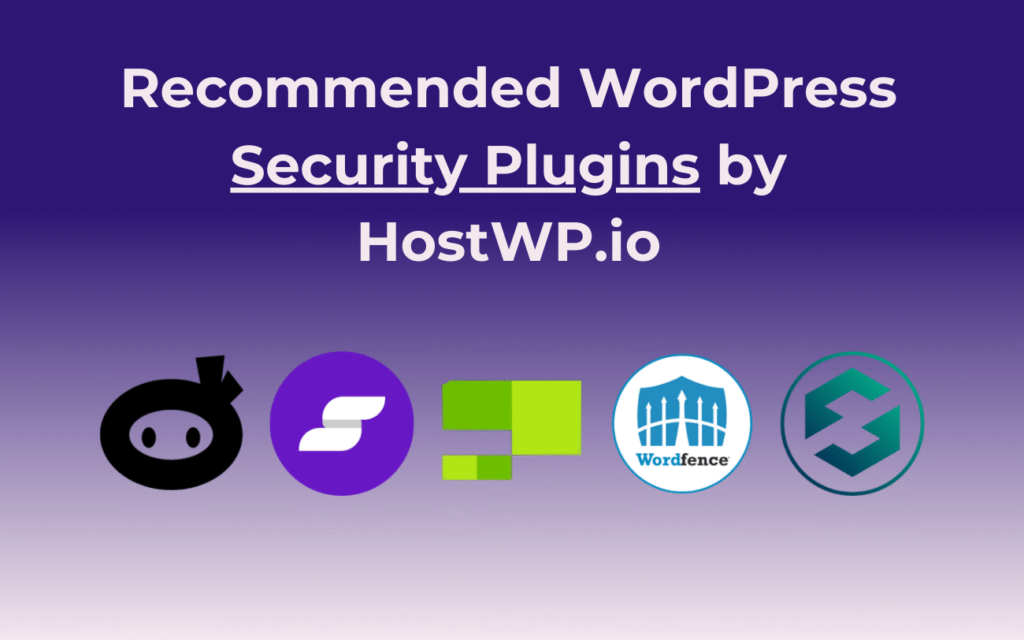
- Find Good Plugins: Look at well-known security plugins like WP Security Ninja, Wordfence, Sucuri Security, Patchstack, and SolidWP (formerly iThemes Security). Think about what features they have, what users say about them, and their support.
- Install and Set It Up: Install the plugin you choose through the WordPress plugin area and carefully set up its options to fit your needs. Pay attention to firewall rules, when it scans for problems, and how it sends you notifications.
- Keep It Updated: Make sure your security plugin is always updated so it has the latest information about threats and how to stop them.
5. Secure Your Site with SSL (HTTPS)
Having a website without SSL certificates is no longer acceptable, as modern browsers will block and warn visitors from visiting sites that are not served over the HTTPS protocol. Many hosts provide free SSL certificates, and it is fairly easy to use one.
SSL certificates are also available at a premium cost; the paid SSL certificates offer better encryption and security.
Why this is crucial: Secure Sockets Layer (SSL) encrypts the connection between your website and the browsers of visitors. This prevents anyone from eavesdropping and ensures that sensitive information, such as login details and personal data, is transmitted securely. HTTPS (HTTP over SSL/TLS) is the standard for secure web browsing and also helps your site rank better in search engines. .
How to do it:
- Obtain an SSL Certificate: You can often obtain a free SSL certificate from services like Let’s Encrypt, or your hosting company (like HostWP.io) may provide one with your plan. You can also pay for certificates that have extra features.
- Install the SSL Certificate: Your hosting company will typically guide you through the process of installing the SSL certificate on your server. This might involve using your hosting control panel (like cPanel).
- Force HTTPS: Once the SSL certificate is installed, ensure that your website automatically redirects all regular (HTTP) traffic to the secure (HTTPS) version. Many hosting companies have an easy way to do this, or you can use a plugin or edit your .htaccess file.
6. Set Up Regular Backups
Once a WordPress website is hacked and infected with malware, it is usually impossible to completely clean the site and recover it. In this case, the best way to quickly get access to your website is by restoring from a backup.
Why this is crucial: Backups serve as your safety net in the event that your site gets hacked, infected with malware, loses data by accident, or if your server experiences a problem. Having regular, up-to-date backups allows you to restore your website to a clean version from before the issue occurred, resulting in less downtime and less lost data. Think of it as having a reliable “undo” button for your whole online presence.
How to do it:
- Select a Backup Tool: You can use WordPress backup plugins such as UpdraftPlus, BackupBuddy, or Jetpack VaultPress Backup. A lot of managed WordPress hosts also do automatic backups for you.
- Set Up Automatic Backups: Schedule regular backups (daily or weekly, depending on the frequency of site changes).
- Store Backups Off-Site: It’s crucial to store your backups in a separate location from your web server, such as cloud storage (e.g., Google Drive, Dropbox) or a dedicated backup service. This way, if your server gets hacked, your backups are still safe.
- Test Your Backups: Periodically, try restoring your site from a backup to ensure you can recover it if needed.
Note: Just like SSL certificates, hosting providers that provide managed services for WordPress often include automated off-site backups just like we do at HostWP.io.
Advanced WordPress Security Tips
In this section of our guide, we will discuss some additional security tips to consider if you want to further enhance your security. These tips, although not necessary for every WordPress website but are useful in case your website is facing constant attacks.
1. Enable Two-Factor Authentication (2FA)
You have probably heard about two-factor authentication if you have created banking accounts, social media accounts etc. Having 2FA in place is a sure way to take control that only you have the authority to login to your WordPress website.
Why this is crucial: Two-Factor Authentication adds an extra security layer beyond just your username and password. Even if a hacker gets your login info, they’ll still need a second way to prove it’s them, usually a code that changes all the time from an app on your phone or sent by text. This really cuts down the chance of unauthorized access because hackers usually won’t have your physical phone.
How to do it:
- Install a 2FA Plugin: There are a bunch of great WordPress plugins, like Google Authenticator, Authy, or ones that come with full security plugins like Jetpack, that make it easy to turn on 2FA for your site.
- Set Up the Plugin: Follow the plugin’s instructions to connect your account to an authentication app on your phone or set up text message verification.
- Keep Recovery Codes Safe: Most 2FA plugins give you recovery codes that you should keep in a secure place. You can use these codes to get back into your account if you lose access to your main way of getting the codes.
2. Limit Login Attempts
Limiting the number of login attempts and then banning IPs can help fight off bots that are trying to break into your WordPress websites by trying combinations of usernames and passwords. Banning a user after 3-4 failed attempts is generally a good idea, as a genuine user usually can recall the right username and password within 1 or 2 attempts.
Why this is crucial: Limiting how many times someone can try to log in is a key way to stop brute-force attacks. By setting a limit on failed login tries in a certain amount of time, you can automatically block suspicious IP addresses, which stops hackers from repeatedly trying to guess your login info.
How to do it:
- Use Security Plugin Features: Many security plugins have built-in tools to limit login attempts. Set these options to block IP addresses after a certain number of wrong tries.
- Consider Special Login Limit Plugins: There are also plugins made just for limiting login attempts, like Limit Login Attempts Reloaded.
- Adjust the Settings: Change how long someone is locked out and how many tries they get based on what makes sense for your site and how much traffic you get.
3. Use a Uptime Monitor
A site may go down while you are sleeping, or it might go done for a few seconds, and you might not notice. An uptime monitor on your website will tell you exactly when and for how long your website went down. You can view the reports weekly and monthly to see if your site stayed online for 100% of the time or did it went down.
Why this is crucial: While not directly a security issue, an uptime monitor helps you identify if your website goes down due to a security problem (such as a denial-of-service attack) or any other issue. Finding out early allows you to quickly identify the issue and either repair any damage or restore your site to online status more quickly.
How to do it:
- Choose a Uptime Monitoring Service: There are numerous free and paid services that check if your website is up (such as UptimeRobot and Pingdom).
- Set Up Monitoring: Inform the service to check your website regularly, such as every 5 minutes or 1 minute.
- Turn on Notifications: Set up alerts (by email or text or Slack/Discord) so you’re notified right away if your website goes down.
Note: A website going down can be due to two reasons: either your hosting server has gone down, or your website stopped working because of a compatibility issue or a hack. Generally, when a website goes down, it is a good first step to check the server and contact the hosting support team.
4. Change the Default WordPress Login URL
The WordPress login URL is notorious for being vulnerable to attacks. One effective way to mitigate brute-force attacks is to change the default URL to something else.
Why this is crucial: The standard WordPress login address (yourdomain.com/wp-login.php or yourdomain.com/wp-admin) is a well-known target for hackers. Changing this address makes it less obvious for automated programs and bad scripts to find your login page, which adds a bit of extra security by making it harder to find. It’s not a perfect solution, but it can stop some automated attacks.
How to do it:
- Use a Plugin: Plugins like WPS Hide Login make it easy to change your login address without modifying any of your site’s main code.
- Pick a Unique Address: Select a new login URL that is not easily guessable. Make sure you remember it or save it somewhere.
- Be Careful with DIY Changes: While you can modify the login address by editing core files, it’s generally not a good idea because it can cause problems and is more challenging to manage when you update WordPress.
5. Implement Geoblocking (If Applicable)
Websites can save server resources by blocking entire countries and regions they do not serve. Some areas of the world are known to be the origin points of attackers, and it is usually easier to eliminate them by blocking the entire area from which attacks originate.
Why this is crucial: If your website primarily serves traffic from a specific geographic region, you can enhance security by blocking access from countries where you don’t expect legitimate users. This can help mitigate brute-force attacks and other malicious activities that often originate from specific regions of the world.
How to do it:
- Utilize Security Plugin Features: Some advanced security plugins offer geoblocking features, allowing you to select specific countries to block or allow.
- Server-Level Configuration: For more granular control, you can implement geoblocking at the server level (e.g., using .htaccess rules or your hosting provider’s firewall settings). This often requires more technical expertise.
- Cloud-Based WAFs: Cloud-based Web Application Firewalls (WAFs) often provide sophisticated geoblocking capabilities as part of their service.
6. Disable Directory Browsing
The default directory structure is similar on all WordPress websites, and it is easier to identify if a website is using WordPress, hackers can then look for directory access directories on your WordPress website by visiting the URLs, if your permissions are not correctly set then hackers can easily navigate your WordPress website and steal information or even inject malicious code.
Why this is crucial: If directory browsing is enabled, malicious actors can view the contents of your website’s directories if they stumble upon the correct URL. This can reveal sensitive information about your site’s structure, installed themes, and plugins, making it easier to identify potential vulnerabilities.
How to do it:
- Edit the .htaccess File: You can disable directory browsing by adding the line Options -Indexes to your .htaccess file in your website’s root directory. Ensure you have a backup of this file before making any changes.
- Contact Your Hosting Provider: Some hosting providers offer options within their control panel to disable directory browsing. Check your hosting account settings or contact their support for assistance.
7. Implement Subresource Integrity (SRI)
Most of the websites on the internet are using CDN as CDNs not only improve speed, but also improve security of the website. However hackers can compromise how CDNs fetch and serve static files.
Why this is crucial: Subresource Integrity is a security feature that lets browsers verify that files they fetch from third-party sources (like CDNs for scripts or stylesheets) haven’t been tampered with. By providing a cryptographic hash of the expected content, you ensure that even if a CDN is compromised, your website will only use the legitimate, untampered files. This protects against supply chain attacks.
How to do it:
- Generate SRI Hashes: When you link to a third-party resource, you’ll need to generate an SRI hash for that specific file. There are online tools and command-line utilities that can do this.
- Add the integrity Attribute: In your HTML <script> or <link> tags, add the integrity attribute with the generated hash. Also, include the crossorigin=”anonymous” attribute for cross-origin requests.
8. Use Secure Cookies
Cookies store all kinds of visitors information, and if they are stolen can help hackers take over sessions and potentially steal information of your website users.
Why this is crucial: Cookies are used to store information in the user’s browser to remember sessions and preferences. Secure cookies are only transmitted over HTTPS, preventing them from being intercepted by attackers on insecure network connections. HTTP-only cookies cannot be accessed by client-side scripts, which helps prevent cross-site scripting (XSS) attacks from stealing session cookies.
How to do it:
- WordPress Configuration: Ensure that your WordPress installation is correctly configured to use HTTPS (as mentioned earlier). WordPress generally handles setting the Secure flag for its cookies over HTTPS.
- wp-config.php Settings: You can further enforce secure cookies by adding the following to your wp-config.php file
9. Regularly Audit Your Website Security
If your website is mission-critical, then having a documented security policy is useful to inform the team and do regular audits if the security policy is in place and in working order.
Why this is crucial: Security is not a one-time setup. Regularly auditing your website’s security helps you identify new vulnerabilities, misconfigurations, or areas where you can improve your defenses.
How to do it:
- Use Security Scanners: Utilize the scanning features of your security plugin or online security scanners to look for known vulnerabilities.
- Review Security Logs: Regularly examine your security plugin’s logs, server logs, and activity logs for any suspicious patterns or events.
- Perform Manual Checks: Periodically review your security settings, user accounts, file permissions, and other configuration aspects.
- Consider a Professional Security Audit: For a more in-depth assessment, especially for critical websites, consider hiring a security professional to perform a comprehensive security audit.
Securing your WordPress site isn’t optional—it’s essential.
Because WordPress powers a significant portion of the internet, it is a frequent target for hackers who continually scan for vulnerabilities.
That’s why security isn’t a one-time fix—it’s an ongoing process. To protect your site, regularly update the WordPress core, themes, and plugins to close off known vulnerabilities. Use strong, unique passwords and enable two-factor authentication to keep unauthorized users out. Limit user roles to only what’s necessary and schedule automatic backups so your data is safe if something goes wrong.
Installing a firewall and real-time security monitoring tools helps you detect threats before they cause damage. Just as important—educate yourself and your team on cybersecurity best practices to reduce the risk of human error. Staying consistent with these steps builds a strong, reliable defense around your website. Don’t wait for an attack to act—start securing your site today.