





WordPress relies on a core function called wp_mail(). While it works well for basic tasks, it often fails without any warning or error message. If your contact forms, password resets, or order notifications stop working, you likely won’t know until a frustrated customer reaches out.
To ensure your business never misses a lead, you must move beyond default PHP mail. You need a system that alerts you the moment an email delivery fails. This guide provides a deep dive into the top four SMTP plugins, GoSMTP, Post SMTP, WP Mail SMTP, FluentSMTP and the technical architecture required for 100% visibility.
Why WordPress Emails Fail Silently
Most managed WordPress hosts disable the default PHP mail() function to prevent their server IPs from being blacklisted by spam filters. When a plugin tries to send an email, WordPress sends the data to the server, the server blocks it, but WordPress receives no error signal back.
This creates a black hole where you think the email was sent, but it never existed. To fix this, you need a plugin that replaces wp_mail() with a dedicated SMTP or API connection and keeps a local record (log) of every attempt.
The Two Connection Protocols: API vs. Other SMTP
Before you choose a plugin, you must decide how your website talks to your mail provider (like SendGrid/Twilio, Brevo, or Mailgun).
1. The API Connection (Recommended)
This uses a secure API Key to transmit data over HTTPS (usually Port 443).
- Security: It does not require storing your actual email password in the database.
- Reliability: It bypasses common hosting port blocks (like 25 or 587).
- Feedback: If a send fails, the API returns a detailed error message (e.g., Invalid API Key or Rate Limit Exceeded).
2. Other SMTP (Legacy Connection)
This uses traditional mail server credentials (Host, Username, Password).
- Compatibility: Works with almost any email provider, including local workspace accounts.
- The Risk: It is inherently slower because it requires a multi-step handshake between your server and the mail server.
- Friendly Caution: Many modern firewalls treat SMTP traffic as suspicious. If your host undergoes a security update, your Other SMTP connection might break without warning.
Best SMTP Providers for WordPress
Choosing the right mailer infrastructure is as vital as the plugin itself. In 2026, major inbox providers like Gmail and Yahoo have tightened Spam filters, making your provider’s IP reputation the deciding factor in whether your alerts actually arrive.
1. Brevo (Best for General Use)
Brevo remains the gold standard for standard WordPress sites due to its reliable delivery and easy dashboard.
- Pricing: The free plan allows for 300 emails per day (~9,000/month). Paid plans start at $9/month to remove daily limits.
- Key Advantage: It uses a dedicated API that is extremely easy to configure in GoSMTP or FluentSMTP.
2. Amazon SES (The Budget Powerhouse)
If you are sending high-volume notifications (e.g., a busy WooCommerce store), Amazon SES is the most cost-effective solution available.
- Pricing: $0.10 for every 1,000 emails.
- Free Tier: New AWS users get 3,000 messages per month for free for the first 12 months.
- Friendly Caution: Setup is technical. You must verify your domain via DNS and request Sandbox removal from AWS before you can send live emails.
3. Mailgun (The Developer Veteran)
Mailgun is built for reliability and deep technical insights. It’s excellent for those who want to see exactly why an email bounced.
- Pricing: $0/month for up to 100 emails per day. Basic plans start at $15/month for 10,000 emails.
- Key Advantage: Detailed log retention and a powerful Inbound Routing feature that allows you to process incoming emails as well.
4. Postmark (The High-Trust Option)
Postmark is famous for its Zero-Spam policy. They do not allow bulk marketing on the same IPs as transactional mail.
- Pricing: Starts at $15/month for 10,000 emails.
- Best For: Mission-critical alerts like 2FA codes and password resets, where delivery speed is the only priority.
Two Hidden Gem Free Providers
If you want professional features without the monthly bill, these two providers are the current favorites:
4. MailerSend
MailerSend, created by the MailerLite team, is a dedicated transactional engine with an incredible UI.
- The Free Deal: Includes 500 emails per month for free (with a 100-per-day limit).
- Why it’s Awesome: It offers a drag-and-drop builder for system emails, so your automated alerts look professional without any HTML coding.
5. Resend
Resend is the current disruptor in the space, focused on speed and modern integration.
- The Free Deal: Offers 3,000 emails per month (100 per day) for free.
- Why it’s Awesome: Their dashboard provides the cleanest Log Visibility in the industry. Troubleshooting a failed alert takes seconds because the error codes are presented in plain English.
| Provider | Best For | Free Tier | Setup Difficulty |
| Brevo | All-in-One | 300 / day | Easy |
| Amazon SES | High Volume | 3,000 / month (1st Year) | Hard |
| Mailgun | Deep Logging | 100 / day | Moderate |
| Postmark | Zero-Spam Policy | N/A | Easy |
| MailerSend | Templates | 500 / month | Easy |
| Resend | Developers | 3,000 / month | Moderate |
Moving from “Personal Email” to “Transactional Infrastructure”
Before you choose a plugin, it is important to understand that a professional WordPress setup should never rely on a personal Gmail. While most SMTP plugins offer a “Gmail” connection option, these are designed for low-volume personal blogs, not business-critical alerts.
Google enforces strict daily sending limits and security heuristics that can temporarily lock your entire account if it detects “automated activity” from your website.
By using a dedicated transactional provider (like Brevo or Resend) combined with one of the plugins below, you separate your business communication from your website’s system alerts.
This ensures that even if your site sends 100 password resets in a minute, your primary inbox remains safe and your alerts are never blocked.
1. GoSMTP: The Performance-Oriented Choice
GoSMTP is a lightweight plugin designed to be fast. It doesn’t bloat your database with unnecessary metadata, making it ideal for high-traffic stores.
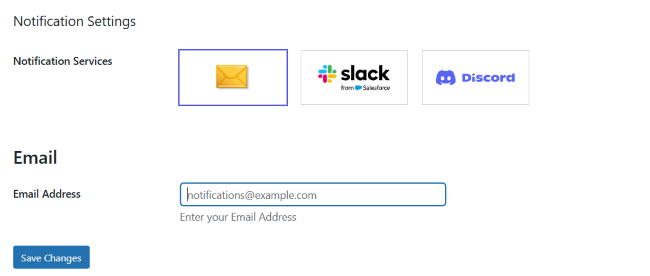
Why Use GoSMTP?
It is built specifically for modern stacks. If you are a HostWP.io customer, you get the GoSMTP Pro version for free. This version unlocks advanced logging and the Weekly Delivery Report, which acts as your primary alert system.
How to Configure Logging and Failure Reports
- Installation: Install the plugin and select your mailer.
- The API Route: Choose your provider (e.g., Brevo) and enter the API Key.
- Activate Logging: Go to GoSMTP > Settings > Email Log. Toggle Enable Log to On.
- Set Retention: To keep your site fast, set Delete Logs After to 14 days.
- Failure Alerts: Navigate to the Email Report tab. Enable Weekly Reports. This will send you a summary of all successful and failed emails. If you see failures, you can dive into the logs to resend them.
2. Post SMTP: The King of Active Alerts
While most plugins require you to check the dashboard to see failures, Post SMTP pushes those alerts to you. This is the best choice for mission-critical sites like WooCommerce or Membership portals.
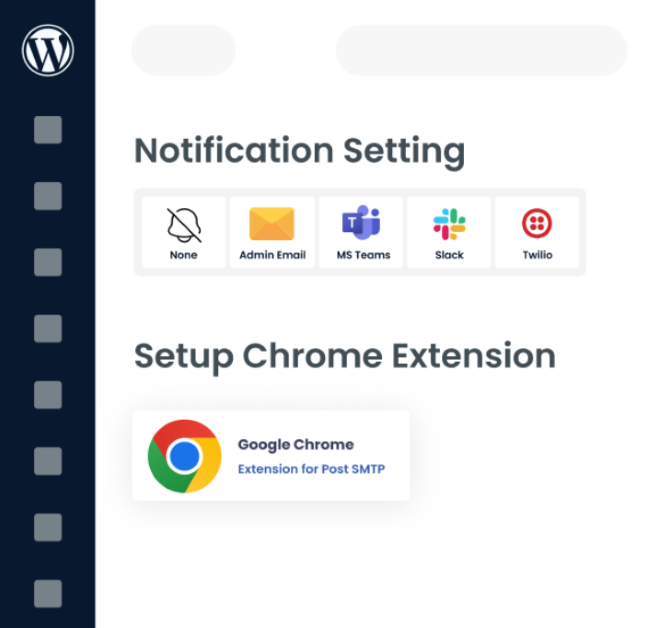
Setting Up Multi-Channel Alerts
Post SMTP has a dedicated Notifications engine. Once your mailer is connected via API:
- Navigate to Post SMTP > Settings > Notifications.
- Slack Alerts: Create a Webhook in Slack, paste the URL into Post SMTP, and you will receive a message in your chosen channel the moment a send fails.
- The Post SMTP App: They offer a companion mobile app. If your site stops sending emails, your phone will buzz.
- Chrome Extension: You can even get browser-level alerts if you spend a lot of time in your workflow.
Expert Insight: Imagine a scenario where a user tries to reset their password, but your SendGrid/Twilio account has run out of credits. With Post SMTP, you get a Slack notification instantly. You can top up your credits before the user even has time to send a support ticket.
3. FluentSMTP: The Developer’s “Zero-Cost” Solution
FluentSMTP is widely loved because it offers every premium feature, including multiple SMTP connections and detailed logging, completely for free.
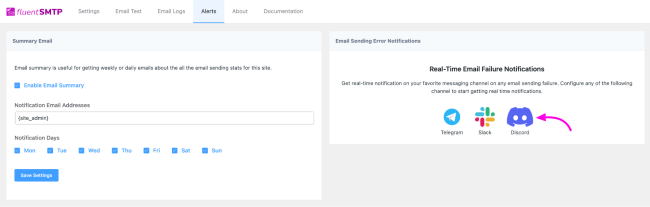
Advanced Alerting and Failover
One of FluentSMTP’s best features is Connection Routing.
- The Primary/Secondary Strategy: You can set SendGrid (API) as your primary mailer. If it fails, you can configure a secondary Other SMTP account (like a standard Gmail account) as a fallback.
- Detailed Logging: It provides the most technical logs, showing the exact header and body of the failed email.
- Alerting: FluentSMTP integrates with Discord and Telegram via webhooks. Under the Alerts tab, you can configure these so that failure data is sent to your preferred chat app immediately.
4. WP Mail SMTP: The Industry Standard
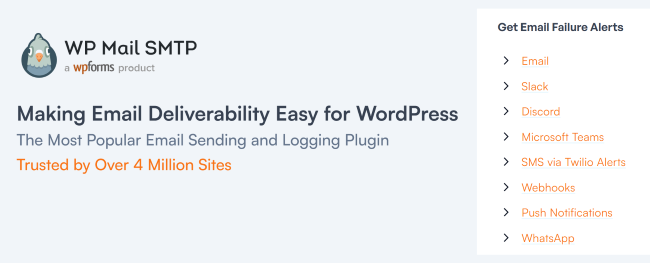
With over 4 million active installations, WP Mail SMTP by WPForms is the most recognized name in the space. It is designed for maximum compatibility and ease of use for beginners.
How it Handles Logging and Alerts
- The Lite Version: The free version allows you to connect via SMTP or some APIs, but it does not include email logging. Without the Pro version, you cannot see if an email failed or why.
- The Pro Version (Email Alerts): This is where the plugin becomes a powerhouse. It offers Smart Email Alerts. If an email fails, it can notify you via:
- Email: (Though if your site’s email is broken, this alert might also fail).
- Slack: Direct integration to a channel.
- Microsoft Teams & Webhooks: For enterprise environments.
- The Dashboard Widget: It adds a chart to your WordPress dashboard showing Sent vs. Failed emails at a glance.
Technical Trade-off: While very reliable, WP Mail SMTP is the heaviest of the three plugins mentioned. It includes more marketing assets and a larger codebase, which may slightly impact admin dashboard load times on lower-tier hosting.
Technical Rigor: Managing the Database Impact
Logging every email is a write-intensive task. On a busy site, your email log table can grow to tens of thousands of rows very quickly.
1. The PHP 8.5 Advantage
We highly recommend using PHP 8.5. It handles database writes more efficiently through improved JIT (Just-In-Time) compilation. This means that when a user clicks Submit on a form, the time it takes for the plugin to write the log to the database is reduced by up to 15% compared to PHP 8.2.
2. Log Retention Policies
Never keep logs forever. A bloated database slows down your entire site.
- For low traffic: 30 days is fine.
- For high traffic: 7 days is safer.
- The “Imagine” Scenario: Imagine your site sends 500 emails a day. In a year, that is 182,500 rows. Without an auto-purge policy, your admin dashboard will eventually become sluggish.
3. Offloading with Redis
Ensure your hosting provider supports Redis Object Caching. This allows the plugin to store the status of your email logs in memory rather than querying the disk every time you load the dashboard.
At HostWP, we use Redis by default to ensure logging never impacts the user’s front-end speed.
Comparison: SMTP Feature Matrix
| Feature | GoSMTP Pro | Post SMTP | FluentSMTP | WP Mail SMTP |
| API Support | Yes (Optimized) | Yes (Extensive) | Yes (Optimized) | Yes (Extensive) |
| Other SMTP | Yes | Yes | Yes | Yes |
| Fallback | No | No | Yes | Yes |
| Instant Alerts | Weekly Summary | Slack, SMS, App | Discord, Telegram | Multiple Options |
| UI Tech | Standard | Standard | VueJS (Fastest) | Standard |
| Cost | Free for HostWP | Freemium | 100% Free | Freemium |
Step-by-Step: Enabling Alerts in Your Workflow
Setting up a robust monitoring system requires more than just installing a plugin; it requires a systematic approach to ensure your server and your mail provider are communicating without friction.
By following these phases, you move from a “hope it works” configuration to a high-performance infrastructure that proactively guards your business data.
Phase 1: The Connection
Always try to use an API Connection first. Log in to your mail provider (e.g., Brevo), navigate to Settings > API Keys, and generate a new key for your site. Paste this into your chosen plugin.
Phase 2: The Logic
Once connected, send a Test Email. Most plugins have a Send Test Email button. If it arrives, your connection is solid.
Phase 3: The Alert
Choose your notification channel. If you use Slack:
- Go to your Slack workspace.
- Create a WordPress-Alerts channel.
- Create an Incoming Webhook.
- Paste the URL into GoSMTP, Post SMTP, WP Mail SMTP, or FluentSMTP.
Summary of the Solution
To move from silent failures to technical authority over your emails:
- Abandon PHP Mail: It is unreliable and unmonitored.
- Connect via API: Use Port 443 for the highest reliability.
- Activate Logging: Ensure you have a 14-day retention policy.
- Set Up Active Alerts: Use Slack or Discord webhooks to get notified the second a failure occurs.
- Optimize Infrastructure: Use PHP 8.5 and NVMe storage (standard at HostWP.io) to ensure logging doesn’t slow down your site.
FAQs
Why is my “Other SMTP” connection failing every few days?
This is usually due to Socket Timeouts. Traditional SMTP connections are sensitive to network latency. If the connection takes too long, the server kills the process. Switching to an API connection usually solves this.
Can I log emails without a plugin?
Technically, yes, via custom code in your functions.php, but it is not recommended. Professional plugins handle the database cleanup and security far better than a custom snippet.
Does FluentSMTP really have no premium version?
Correct. FluentSMTP is donation-ware built by the FluentCRM team. They offer it for free to encourage users into their ecosystem, but the plugin itself is fully featured.
Is GoSMTP Pro better than FluentSMTP?
Better depends on your role. FluentSMTP is the king of free, flexible routing for developers. However, GoSMTP Pro is superior for business owners because it adds Open/Click tracking, Exportable logs, and Weekly Reporting, features that provide a layer of accountability that free plugins lack.
Plus, if you are a HostWP customer, you get these $49/site/year features for free.
How do I stop my logs from filling up my disk space?
Set your plugin to Auto-delete logs after 7 or 14 days. This keeps your database rows under control while giving you enough time to spot any errors.